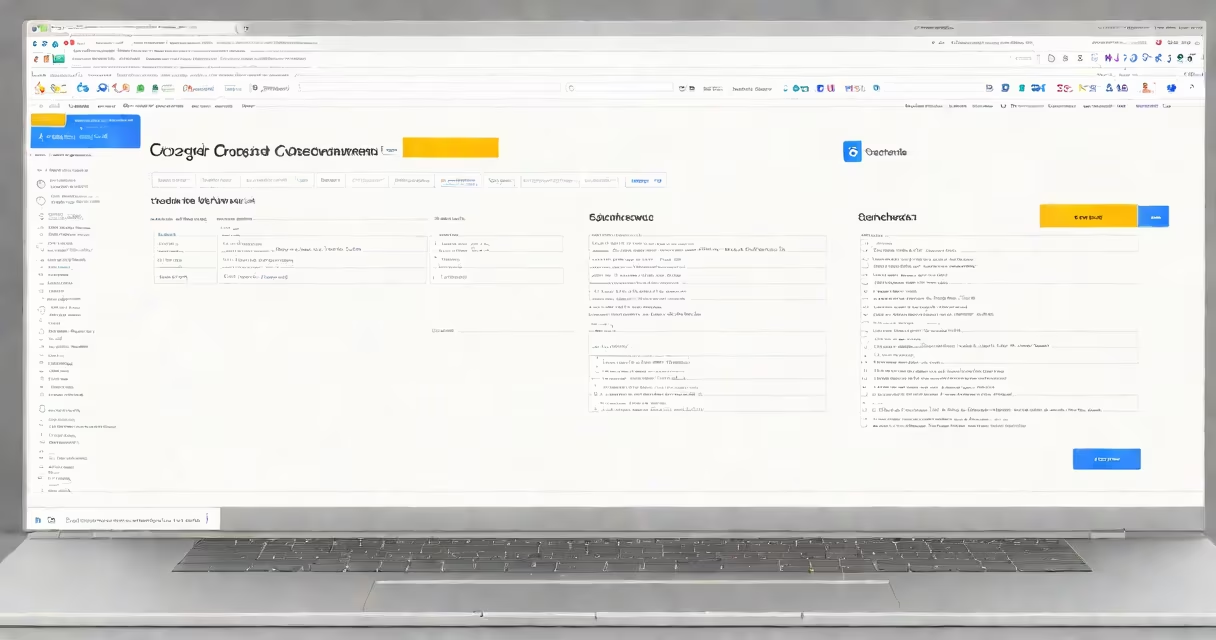
A Google Docs questionnaire is a customizable digital form created within Google Docs to collect structured feedback, opinions, or data from respondents. It uses built-in tools like checkboxes, dropdowns, and text fields to gather responses in a standardized format, often shared via link or email.
These forms are designed for collaboration and real-time data aggregation. They support multiple response types-multiple choice, short answer, long answer, date selection-and can be embedded in websites or shared through messaging apps. Responses are automatically saved to a linked Google Sheet, enabling instant analysis.
Unlike standalone survey platforms, Google Docs questionnaires integrate directly into the Google Workspace system. This allows users to edit, comment, and share forms without switching applications. They're ideal for small-scale projects, internal team checks, or quick feedback loops where full analytics aren't required.
Creating a Google Docs questionnaire begins with opening a blank Google Doc. Users insert a form using the "Add-ons" menu or by selecting "New" → "Google Form" from the Google Drive interface. Once launched, the form builder appears, showing a clean interface with a sidebar for adding questions.
Each question can be assigned a type: multiple choice, linear scale, grid, or paragraph. For example, a teacher might create a "Student Satisfaction Survey" with five questions: "Rate the clarity of today's lesson (1-5)," "What topic was most confusing?" (short answer), and "Would you recommend this class?" (yes/no).
After setting up the form, users can customize the theme, add a cover image, and enable response validation. Once published, the form generates a unique URL. Anyone with access can submit responses, which appear instantly in a linked Google Sheet. The sheet includes timestamps, IP addresses (if enabled), and raw answers-ideal for sorting and filtering.
While Google Forms is the primary tool for creating questionnaires, the term "Google Docs questionnaire" sometimes refers to manually designed forms using tables and formatting. These are less automated but offer greater visual control.
| Type | Use Case | Best For |
|---|---|---|
| Multiple choice | Preference polling, quiz results | Quick yes/no or ranking decisions |
| Short answer | Feedback on a single feature | Collecting names, contact info, brief insights |
| Linear scale | Customer satisfaction scores | Measuring agreement (e.g., "I agree with this policy" - 1 to 5) |
| Grid (matrix) | Evaluating multiple criteria | Rating several aspects of a product or service simultaneously |
For advanced use, users can embed external tools like Typeform or SurveyMonkey into Google Docs via iframe, though this breaks the native integration. A common mistake is assuming that Google Docs questionnaires support conditional logic natively. They do not-users must rely on third-party add-ons like "Form Publisher" or "Fluent Forms" to enable branching.
Google Docs questionnaires are widely used in schools, nonprofits, and small businesses. A high school counselor might send a 10-question form to students before parent-teacher conferences to gather concerns. The responses flow into a spreadsheet where each row represents a student, and columns track topics like "academic stress," "social challenges," or "family issues."
In corporate settings, teams use them for sprint retrospectives. One engineering group ran a biweekly survey asking: "What slowed us down this week?" (multiple choice), "What should we improve?" (text), and "How would you rate team communication?" (scale). After 12 weeks, they analyzed trends and reduced meeting time by 30%.
Nonprofits use them to track volunteer hours. A food bank collected weekly logs via a Google Docs questionnaire with fields for date, shift start/end, tasks completed, and supervisor notes. Data was exported monthly to assess staffing needs.
Many assume that Google Docs questionnaires are limited to basic surveys. In reality, they support complex workflows when combined with Google Apps Script. One nonprofit used a script to auto-email confirmation messages upon submission, assign follow-up tasks based on responses, and flag urgent inputs for staff review.
Another misconception is that responses are anonymous by default. They are not. While users can disable email collection, the form still records IP addresses unless the "anonymous responses" option is explicitly turned on. Enabling this ensures no personal data is tied to submissions-critical for sensitive topics like mental health or employee evaluations.
A non-obvious fact: Google Docs questionnaires can be translated in real time. By clicking "Settings" → "Language options," creators can set the form to display in 40+ languages. Respondents see the form in their browser's preferred language, improving accessibility. This feature is often overlooked but essential for multilingual organizations.
I once used a Google Docs questionnaire to collect feedback during a local community forum on park renovations. I included six questions: two multiple choice ("Which area needs lighting?" and "Preferred playground material"), two text fields ("Suggestions for seating areas" and "Safety concerns"), and one scale ("How safe do you feel walking through the park?").
Over three days, 147 residents submitted responses. The resulting spreadsheet revealed that 68% wanted solar-powered lights near the west entrance, and 82% requested shaded benches. I shared the findings with city planners, who incorporated them into the final design. The form took under 15 minutes to build and required no coding.
To automate form distribution, use Google Apps Script to send personalized emails based on responses. For example, if someone selects "I need help with housing," the script can trigger a message to a social services coordinator. This extends the form beyond data collection into action-driven workflows.
When building a questionnaire, start with a clear goal. Avoid asking more than 10 questions. Long forms reduce completion rates. Test the form with a colleague first-ensure mobile responsiveness and clarity of instructions. Use the "Preview" button to simulate the user experience.
Google Docs questionnaire remains a practical, accessible tool for gathering structured input. Its strength lies in simplicity, integration, and immediate usability-no software installation, no learning curve. With proper setup, it delivers actionable insights across education, events, and daily operations.