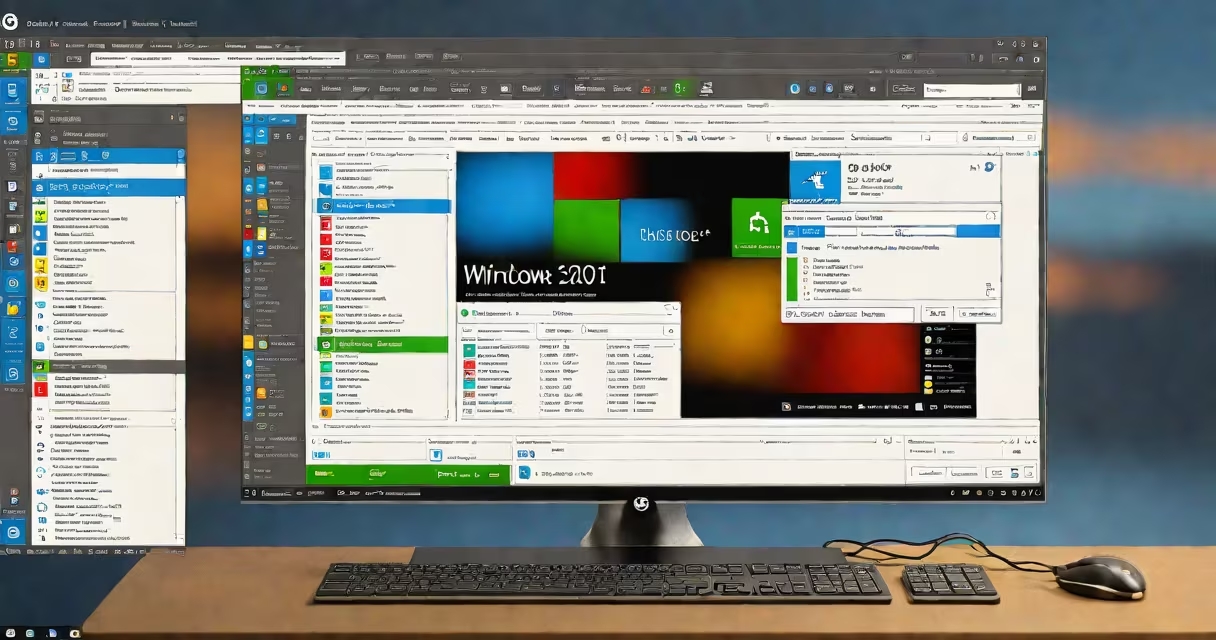
A pc system check is a diagnostic process that assesses your computer's hardware, software, and performance metrics to detect errors, inefficiencies, or potential failures before they cause crashes or data loss.
It involves scanning components such as the CPU, GPU, RAM, storage drives, and cooling systems using built-in tools or third-party utilities. The goal is to verify stability, identify bottlenecks, and ensure all parts operate within safe parameters.
Running a pc system check regularly helps prevent unexpected shutdowns, improves responsiveness, and extends component lifespan. It's especially useful after upgrades, before major tasks like video rendering, or when experiencing slowdowns.
Modern operating systems include diagnostic tools that monitor system behavior in real time. Windows uses Event Viewer, Resource Monitor, and PowerShell commands to track hardware status and error logs. macOS relies on Apple Diagnostics and Activity Monitor. Linux distributions offer tools like smartctl for drive health and htop for process monitoring.
These tools collect data on temperature, voltage levels, disk read/write speeds, memory usage, and error codes. They then compare readings against known thresholds. For example, if a hard drive reports high reallocated sector counts, the system flags it as failing.
Third-party applications like HWMonitor, CrystalDiskInfo, and Speccy provide detailed real-time graphs and historical logging. They often integrate with cloud dashboards for remote monitoring in enterprise environments.
Each critical component is evaluated for functionality and performance. Here's what a thorough check covers:
| Component | What's Checked | Common Tools |
|---|---|---|
| CPU | Temperature, clock speed, core utilization, thermal throttling | Core Temp, Intel XTU, Windows Performance Monitor |
| GPU | Memory usage, temperature, frame rate stability, driver errors | NVIDIA System Monitor, MSI Afterburner, AMD Radeon Software |
| RAM | Usage, free capacity, error rates, timing consistency | Windows Task Manager, MemTest86, Windows Memory Diagnostic |
| Disk | Free space, read/write speed, SMART status, bad sectors | CrystalDiskMark, S.M.A.R.T. tools, defrag utility |
| Cooling | Fan speed, heat sink contact, dust buildup, thermal paste integrity | HWMonitor, Open Hardware Monitor, BIOS sensors |
For example, a failed SSD may show increasing reallocated sector counts in S.M.A.R.T. data. A sudden spike in CPU temperature above 90°C under load suggests inadequate cooling or degraded thermal paste.
One non-obvious point: many users assume a system check only detects hardware failure. But it also identifies software misconfigurations-like a service consuming 90% of CPU during startup-that mimic hardware problems.
You should run a pc system check when noticing symptoms like frequent crashes, slow boot times, audio glitches, or screen flickering. These signals often precede deeper failures.
Proactive checks are recommended after installing new hardware, updating drivers, or restoring from backup. They're also essential before running resource-intensive applications such as 3D modeling, gaming, or machine learning workloads.
I ran a full system check on a client's desktop that had been freezing during video editing. The CPU was spiking to 100% due to a background process not listed in Task Manager. Using Process Explorer, I traced it to a corrupted update script. Disabling it resolved the issue-no hardware replacement needed.
Many people mistake a pc system check for a virus scan. While both involve system inspection, a virus scan detects malicious software, whereas a system check evaluates physical and operational health. Running both is best practice.
Another misconception is that a system check requires advanced technical skills. Most tools are accessible via GUIs. For example, Windows' built-in "Performance Monitor" can log CPU and disk activity over time with no command-line input.
Some believe system checks are only for gamers or power users. But anyone using a PC daily benefits-from students avoiding lost assignments to professionals preventing downtime during presentations.
Similarly, disk space alerts don't always indicate a problem. A 10GB free space warning on a 1TB drive is normal. But if free space drops below 5%, fragmentation and performance degradation increase.
After completing the check, review logs and error messages. Save reports for future reference. If anomalies appear-such as recurring disk errors or persistent high temperatures-take corrective action promptly.
Replace failing components early. A hard drive showing 15 reallocated sectors should be backed up and replaced immediately. Waiting until it fails completely risks permanent data loss.
Regular pc system checks aren't optional-they're foundational to reliable computing. They turn invisible risks into visible warnings, giving you control over your system's health.