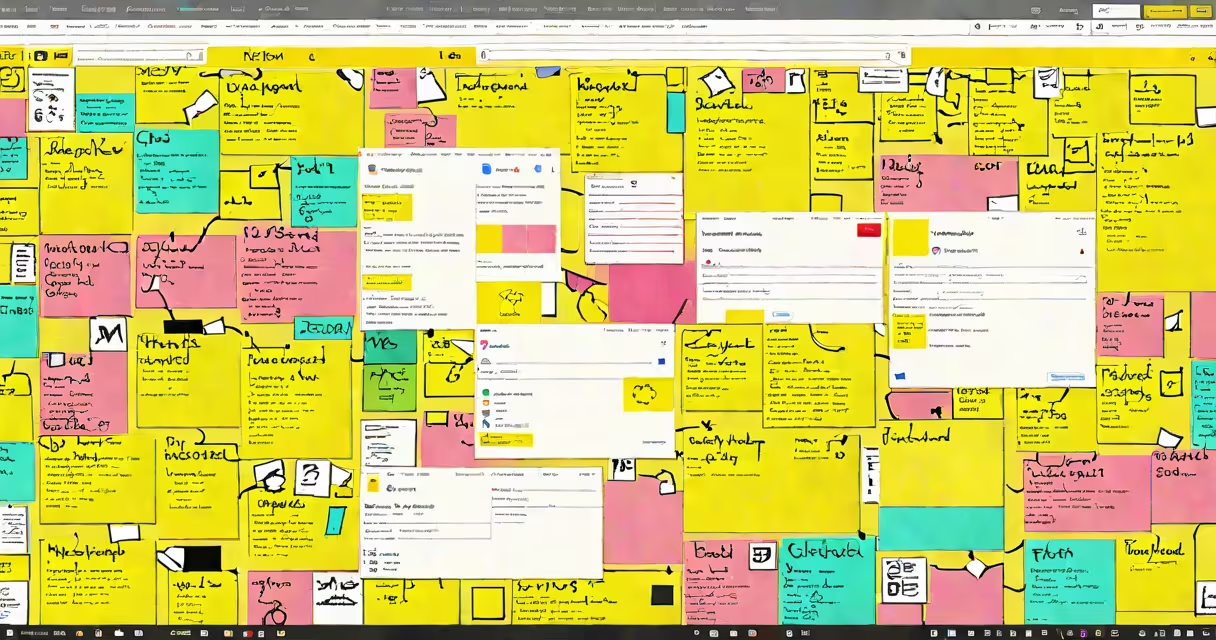
Google Keep notes desktop is a browser-based version of the Google Keep note-taking service that runs directly in your computer's web browser, enabling quick access to notes, checklists, and reminders without installing a standalone app.
Unlike mobile-only apps, Google Keep notes desktop functions through any modern browser-Chrome, Firefox, Safari, or Edge-on Windows, macOS, or Linux systems. You can open it at keep.google.com and start creating notes instantly. This version mirrors the mobile app's core features: text notes, checklists, image attachments, voice recordings, and location-based reminders.
For users who prefer working on a larger screen, the desktop version offers better visibility for long notes, easier drag-and-drop organization, and faster editing. It's especially useful for students taking lecture notes, professionals tracking project tasks, or anyone managing daily to-dos across multiple devices.
When you sign into your Google account on keep.google.com, your existing notes appear automatically. Changes sync in real time across all devices linked to the same account. A note created on your phone appears within seconds on your desktop browser.
Each note can include text, a checklist, a photo, a drawing, or a voice memo. For example, typing "Buy milk, eggs, bread" and checking the box next to each item creates a reusable grocery list. Adding a photo of a receipt attaches it directly to the note, which is helpful for expense tracking.
Notes are color-coded by default-yellow, pink, blue, green-and can be pinned to the top of your list. You can also label notes with custom tags like #work, #shopping, or #ideas. These tags help filter and search quickly. For instance, typing "#work" in the search bar shows only notes tagged with work.
Google Keep notes desktop supports offline access when using Chrome. After enabling the feature, you can view and edit notes while disconnected from the internet. Once reconnected, changes sync automatically. This works only in Chrome and requires the Keep app to be installed as a PWA (Progressive Web App).
However, the desktop version lacks advanced formatting options. There's no support for bold, italic, or bullet points beyond the checklist function. You cannot embed tables, links, or code blocks. If you need rich text or structured documents, consider alternatives like Notion or Microsoft OneNote.
A common misconception is that Google Keep notes desktop requires a desktop application. It does not. All functionality runs entirely in the browser. You don't need to download software-just visit keep.google.com and log in.
| Feature | Available on Desktop? | Notes |
|---|---|---|
| Text notes | Yes | Basic formatting only |
| Checklists | Yes | Can be checked off and reordered |
| Image uploads | Yes | Drag and drop supported |
| Voice memos | Yes | Record directly in browser |
| Offline mode | Only in Chrome | Requires PWA installation |
| Custom themes | No | Color schemes limited to preset palette |
Many users assume that Google Keep notes desktop doesn't sync with their Android or iOS devices. This is false. As long as you're signed into the same Google account, all notes sync instantly across platforms. A note added on a desktop browser appears on a phone within 10 seconds.
Another frequent error is thinking that deleted notes go to a trash folder. They do not. When you delete a note in Google Keep, it vanishes permanently unless you recover it from the Google Takeout archive. Always double-check before deleting.
There's also confusion around labeling versus tagging. Labels in Google Keep are not the same as folders. They're metadata that help filter results. You can apply multiple labels to a single note-for example, "#meeting" and "#follow-up"-but you can't move notes between labeled groups like folders in a file system.
I used Google Keep notes desktop during a week-long research trip to compile field observations. I created a note titled "Interview Notes - Dr. Lin" and added a voice memo recording a conversation. I attached a photo of her lab notebook page and included a checklist of follow-up questions: "Send thank-you email," "Request dataset," "Schedule call."
Later, I opened the same note on my laptop at home. The audio played smoothly, the image was clear, and I ticked off "Send thank-you email." I then set a reminder for 9 a.m. the next day. The note stayed accessible on my phone and tablet without extra steps.
This workflow demonstrates how Google Keep notes desktop integrates smoothly into cross-device workflows. It's not designed for complex document creation, but it excels at capturing fleeting ideas, organizing small tasks, and sharing quick updates.
For those needing more structure, such as nested folders, version history, or collaborative editing, Google Keep notes desktop may fall short. But for quick capture and retrieval, it remains one of the most efficient tools available.
According to Google's official documentation, Keep uses end-to-end encryption for synced data when accessed through secure channels. Data stored in Keep is protected under Google's privacy policies, which state that personal information is not sold to third parties. For more details, see Google Privacy Policy.