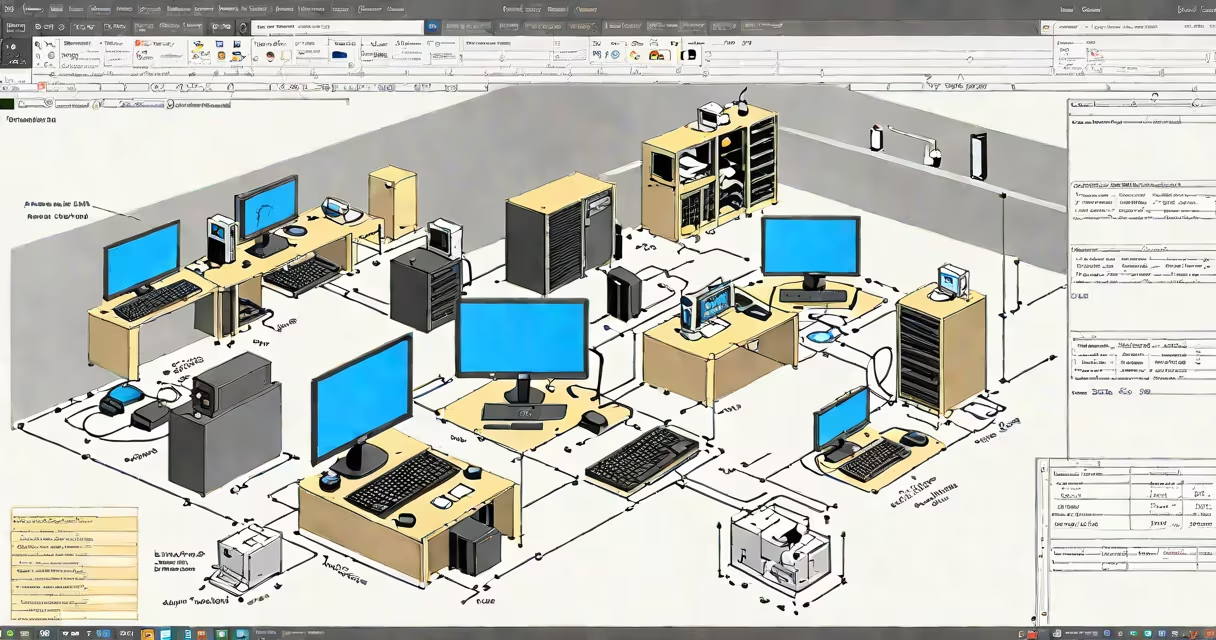
To find the IP address of a network device, use system tools like ipconfig (Windows), ifconfig or ip (macOS/Linux), or network scanning utilities such as nmap. These tools reveal the assigned IPv4 or IPv6 address tied to a device's network interface.
Every device connected to a network-routers, printers, smart TVs, or IoT gadgets-needs a unique IP address to communicate. This address enables routing, identification, and data delivery. Without knowing a device's IP, you cannot access its settings, troubleshoot connectivity, or manage it remotely.
Network administrators and home users alike rely on IP discovery for tasks like setting up port forwarding, diagnosing slow connections, or configuring devices in a home automation system. The process varies slightly depending on the operating system and whether the device is local or remote.
When a device joins a network, it either receives an IP address automatically via DHCP or uses a static assignment. The system maintains a list of active devices through ARP (Address Resolution Protocol) and ICMP (Internet Control Message Protocol) pings.
Tools like ipconfig (Windows), ifconfig (older Linux/macOS), or ip addr show (modern Linux) query the local network stack. They read the current configuration from the network interface controller (NIC), including the assigned IP, subnet mask, and default gateway.
For unknown devices on the network, scanning tools such as nmap send packets to multiple IP ranges and listen for responses. A responsive device replies with its MAC address and IP, allowing identification. This method is essential when a device is not listed in router admin interfaces.
Each operating system provides native tools to inspect network configurations. The most accurate results come from running commands in a terminal or command prompt while connected to the correct network.
| Platform | Command | Output Example | Use Case |
|---|---|---|---|
| Windows | ipconfig /all |
IPv4 Address. . . . . . . . . : 192.168.1.105 |
Check local device IP, verify DHCP lease |
| macOS/Linux | ip addr show |
inet 192.168.1.105/24 brd 192.168.1.255 |
Find IP on wired/wireless interfaces |
| Linux (legacy) | ifconfig |
inet 192.168.1.105 netmask 255.255.255.0 |
Used in older scripts and tutorials |
On Windows, open Command Prompt as administrator and run ipconfig /all. Look for the "IPv4 Address" under the active network adapter (e.g., Wi-Fi or Ethernet). The result appears as four numbers separated by dots, such as 192.168.1.105.
On macOS, open Terminal and enter ipconfig getifaddr en0 for the primary interface. On Linux, use hostname -I to display all assigned IPs. These commands return only the IP, not the full configuration.
A common mistake is confusing the loopback address (127.0.0.1) or private IP ranges (192.168.x.x, 10.x.x.x) with public addresses. The IP shown by these tools is local to the network, not visible externally unless port-forwarded.
If a device doesn't appear in your router's admin panel or doesn't respond to ping, scan the network using nmap. Install it via package managers: sudo apt install nmap on Ubuntu, brew install nmap on macOS.
Run nmap -sn 192.168.1.0/24 to scan all devices on a typical home network. The tool sends ARP requests and lists responding hosts. Output includes IP and MAC address:
Starting Nmap 7.94 ( https://nmap.org ) at 2024-04-05 14:30 UTC
Nmap scan report for printer.local (192.168.1.102)
Host is up (0.0012s latency).
This identifies a printer at 192.168.1.102. You can then access its web interface by entering that IP into a browser.
Non-obvious fact: Some devices hide their presence from ARP scans. Printers, security cameras, and IoT devices may disable ICMP echo replies or ARP response to reduce broadcast traffic. In such cases, nmap with aggressive timing (-T4) or alternative protocols (like NetBIOS) may be needed.
Users often mix up public and private IP addresses. Your public IP (visible at find and check my ip address) is assigned by your ISP and changes periodically. The private IP (e.g., 192.168.1.105) is internal and used within your home or office network.
Another confusion: thinking that a device's hostname (e.g., "livingroom-thermostat") equals its IP. Hostnames resolve to IPs via DNS or mDNS (Bonjour, Avahi), but they're not always available. For example, a Nest thermostat may appear as "nest-12345.local" but won't respond to ping unless mDNS is enabled.
I once spent 20 minutes trying to access a smart light bulb after a firmware update. The bulb was online but didn't show up in the app. Using nmap -sn 192.168.1.0/24, I found it at 192.168.1.110. Accessing the web interface revealed a forgotten password reset screen.
For advanced users, combining arp -a with ping helps locate devices. Run ping 192.168.1.100 and then arp -a to see if the device responded. If it did, the MAC address appears in the ARP table.
Always scan networks from trusted devices. Unauthorized scanning can trigger firewall alerts or be flagged as suspicious behavior by intrusion detection systems.
Never assume a device's IP is permanent. DHCP leases expire and renew. A device may receive a different IP after reboot. Use static reservations in your router settings to assign fixed IPs to critical devices.
For enterprise environments, integrate IP discovery with asset management tools like SolarWinds or ManageEngine. These systems track device IPs, MAC addresses, and ownership across large networks.
Understanding how to find the IP address of a network device is foundational for managing both personal and professional networks. Whether troubleshooting a missing printer or setting up a home server, knowing the correct method saves time and reduces errors.