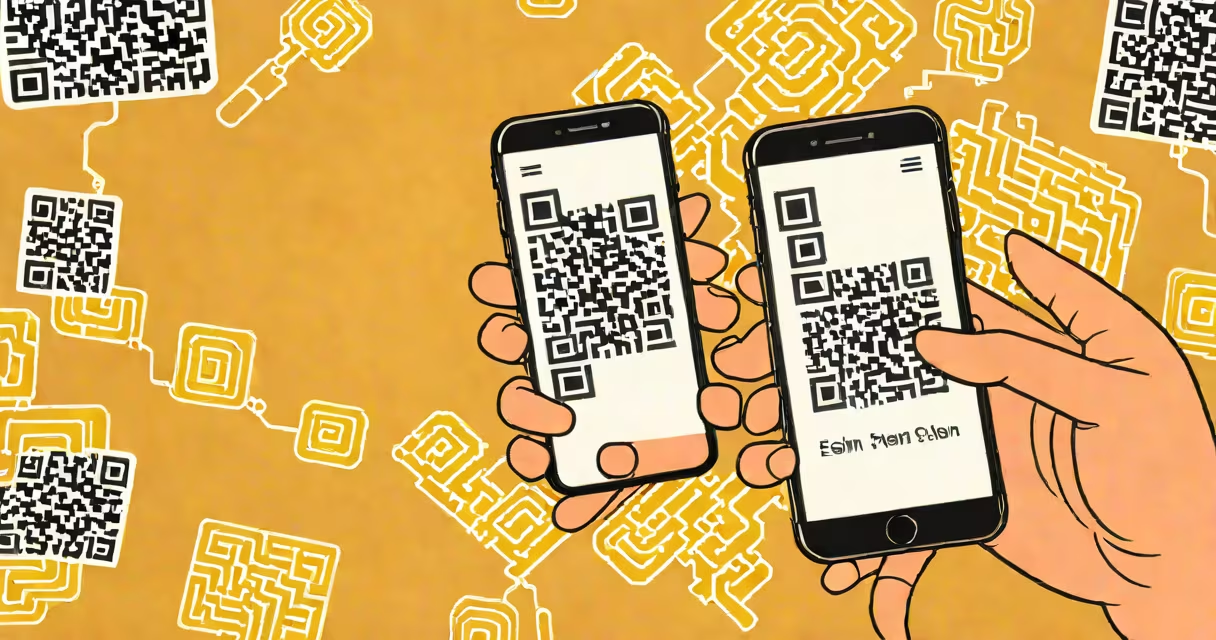
Activating an eSIM on an iPhone involves scanning a QR code provided by your carrier or entering a profile manually through Settings. This process replaces physical SIM cards for most modern iPhone models, enabling instant cellular service setup.
eSIMs are embedded chips that store carrier profiles digitally. Unlike traditional SIM cards, they don't require a physical card slot. iPhones from the iPhone XS and later support eSIM technology, allowing users to set up cellular service without inserting a physical SIM.
To begin, ensure your iPhone model supports eSIM. Apple's official documentation confirms that iPhone 12 and newer models have dual eSIM capability, while earlier models like the iPhone XS and XR support single eSIM. Carrier compatibility varies-some providers require specific eSIM profiles.
When you purchase a new iPhone or switch carriers, the carrier sends a QR code via email, SMS, or their app. Scanning this code automatically downloads the correct carrier profile and configures your phone's cellular settings.
The process happens entirely within the iPhone's Settings app. Go to Settings > Cellular > Add Cellular Plan. Tap "Continue," then scan the QR code using the camera. The device verifies the profile, applies network settings, and connects to the carrier's network.
If the QR code fails to scan, you can enter the profile details manually. Some carriers provide a six-digit activation code. Enter this in the "Enter Code" option under Add Cellular Plan. Manual entry is useful when the QR code is damaged or unavailable.
Not all iPhones support eSIM equally. Dual eSIM functionality allows two active plans-one primary and one secondary-on a single device. This feature is available on iPhone 13 and later models.
| iPhone Model | eSIM Support | Dual eSIM? | Carrier Profile Limit |
|---|---|---|---|
| iPhone 13 and later | Yes | Yes | Two active profiles |
| iPhone 12 series | Yes | Yes | Two active profiles |
| iPhone 11 and earlier | Yes (single) | No | One active profile |
| iPhone XS and XR | Yes (single) | No | One active profile |
Apple's support documentation states that dual eSIM enables users to maintain separate lines for personal and work use, or use different carriers abroad. For example, travelers can activate a local carrier's eSIM while keeping their home plan active.
A common misconception is that eSIMs are universal across all carriers. In reality, each carrier issues a unique profile tied to their network. You cannot use a T-Mobile eSIM profile on AT&T's network, even if both support eSIM.
Activation fails when the QR code is outdated or corrupted. Carriers typically generate codes valid for 30 minutes. If the code expires, request a new one from your provider.
Some users report the "Add Cellular Plan" option missing. This occurs when the device is locked to a carrier or lacks carrier authorization. Verify that your iPhone is unlocked. Use the Settings > General > About menu to check the "Carrier Lock" status. If locked, contact your carrier to remove the restriction.
Another issue arises when the eSIM profile installs but shows "No Service." Check that Airplane Mode is off and that the carrier's network is available in your location. Restart the phone if the signal doesn't appear after 10 minutes.
I once encountered a failed eSIM activation during a trip to Japan. My iPhone 13 had a U.S. carrier profile loaded. After scanning a Japanese carrier's QR code, the system showed "Profile Not Supported." The fix was to disable all existing cellular plans first. Removing the old profile cleared the conflict. After rebooting, the new eSIM activated successfully.
After successful activation, verify your cellular connection. Open the Phone app and make a test call. Confirm that FaceTime and iMessage work over cellular. Check Settings > Cellular to confirm the carrier name appears correctly.
iPhone 13 and later models offer dual eSIM functionality. You can assign one plan for domestic use and another for international travel. For example, one eSIM for Verizon in the U.S., another for Orange in France. This setup avoids roaming charges and keeps both numbers active simultaneously.
Activating an eSIM on an iPhone is a straightforward process involving a QR code or manual entry. It requires a compatible device and carrier support. Always verify your iPhone model and carrier eligibility before proceeding.
Understanding the difference between single and dual eSIM models prevents setup errors. If your device doesn't support multiple profiles, avoid attempting to install a second plan. The system will reject it.
For users upgrading from a physical SIM, the transition to eSIM eliminates the risk of losing or damaging a small card. It also simplifies swapping carriers. A new profile can be installed in under five minutes.
Always keep your carrier's activation instructions handy. Some providers require account verification before sending the QR code. If you're setting up a new line, ensure your account is active and eligible for eSIM.
With proper preparation, activating an eSIM on your iPhone takes less than ten minutes. The process is secure, digital, and designed for smooth integration into modern mobile workflows.