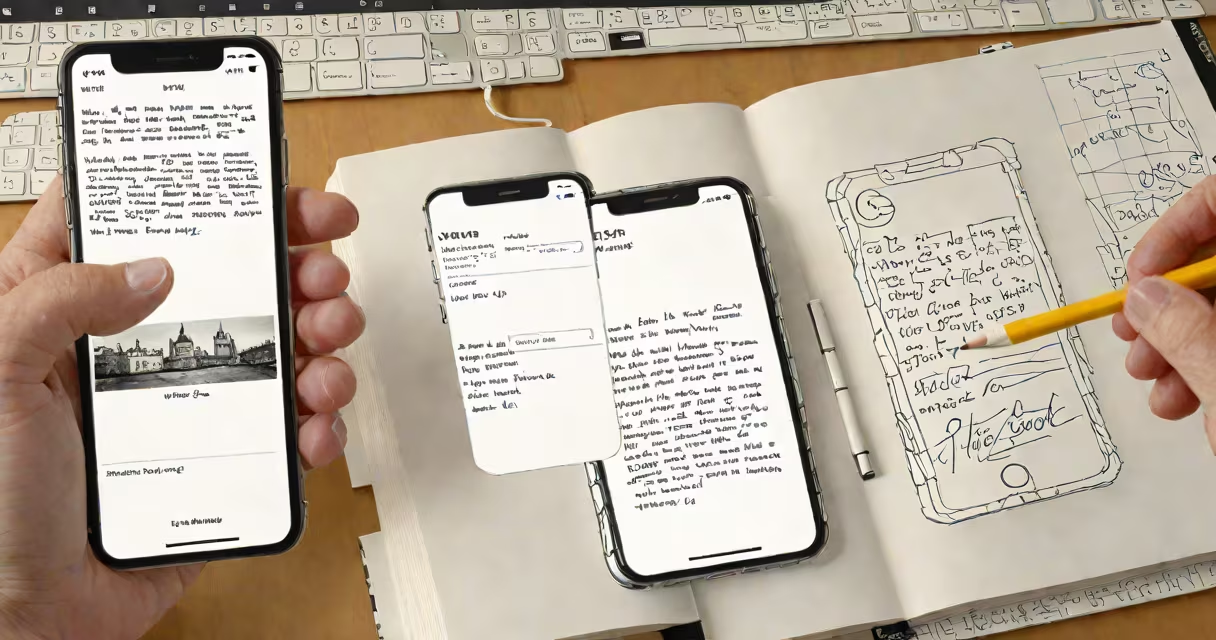
Transferring notes from an iPhone to a PC involves syncing via iCloud, exporting to a file format like .txt or .pdf, or using third-party software to copy data directly. This process works across Apple and Windows systems using cloud services or manual file handling.
Iphone transfer notes to pc relies on Apple's iCloud service for smooth synchronization. When enabled, notes created on an iPhone appear automatically on any device signed into the same Apple ID, including Windows PCs through the iCloud website. This method requires an internet connection and proper account setup. For offline transfers, users can export individual notes as plain text files or PDFs.
Direct file transfer without iCloud is possible using third-party tools such as iMazing or PhoneRescue. These apps allow selective copying of notes, photos, messages, and other data from iOS devices to Windows machines. They support older iPhone models and work even when the device is locked or encrypted. However, they require installation and may charge for advanced features.
The most reliable way to perform iphone transfer notes to pc uses iCloud. Apple's cloud platform stores notes in real time across all devices linked to the same Apple ID. On a Windows PC, users access their iPhone notes by visiting icloud.com and signing in with their Apple ID.
To view notes on a PC:
This method works on any Windows machine with internet access. It doesn't require installing additional software. However, it depends on iCloud being enabled on the iPhone. If Notes aren't syncing, check Settings > [Your Name] > iCloud > Notes on the iPhone.
Different approaches suit different needs. The table below outlines common options based on reliability, ease, and data control.
| Method | Requires Internet? | File Format Output | Best For |
|---|---|---|---|
| iCloud web access | Yes | .txt, .pdf | Quick viewing, basic backup |
| Export via iPhone Settings | No | .txt, .pdf | Single-note transfer, no cloud needed |
| Third-party tools (e.g., iMazing) | Optional | .txt, .pdf, .sqlite | Full data migration, bulk export |
Exporting via iPhone settings lets users save notes locally without relying on cloud storage. Open the Notes app, tap a note, then select "Share" > "Save to Files." Choose a location like Desktop or Documents. The file saves as a.txt or.pdf depending on the format selected.
For larger collections, third-party tools offer better control. iMazing allows browsing all notes, filtering by date or folder, and exporting entire notebooks. It supports encrypted backups and works with iPhones running iOS 12 or later. A free version exists, but full features require a paid license.
A frequent error during iphone transfer notes to pc is assuming iCloud sync happens instantly. Delays occur due to network issues, low battery, or background refresh being disabled. To fix this, ensure the iPhone has Wi-Fi or cellular data, and that Background App Refresh is on under Settings > General > Background App Refresh.
Another issue arises when trying to access iCloud from a corporate or restricted network. Some firewalls block iCloud's servers. Test connectivity by accessing icloud.com from a personal device. If blocked, use a mobile hotspot or contact IT support.
Some users mistakenly believe that transferring notes to a PC deletes them from the iPhone. This is false. iCloud keeps copies unless manually deleted. Even after exporting, notes remain in the iCloud vault unless removed from both the device and the web interface.
Consider a student who wrote 47 research notes on their iPhone while studying abroad. They need to submit a paper with citations and references. Using iphone transfer notes to pc, they follow these steps:
This method ensured no data was lost and avoided reliance on iCloud during travel. It also preserved privacy since files were never uploaded to the cloud.
One non-obvious fact: iCloud Notes syncs across devices but doesn't preserve original formatting like bullet points or bold text in all browsers. Chrome and Edge render rich text correctly, but older versions of Internet Explorer do not. Always test rendering in the browser you plan to use.
For users managing multiple devices, color notes for pc offers a visual alternative. This tool imports iCloud Notes into a Windows-based interface with color-coded folders, search filters, and offline access. It's ideal for students or professionals organizing large volumes of notes.
When setting up a new PC, consider using the iCloud for Windows app. It adds a Notes icon to the taskbar and syncs changes automatically. This reduces friction compared to logging into icloud.com every time.
After testing several methods, I found that iCloud web access works fastest for occasional checks. But for regular academic or work use, exporting to .txt files and storing them in a local folder provides more control and avoids dependency on Apple's infrastructure.
Understanding how to perform iphone transfer notes to pc ensures data stays accessible, secure, and usable across platforms. Whether using cloud sync, manual export, or third-party tools, the goal remains consistent: preserving information without loss or duplication.