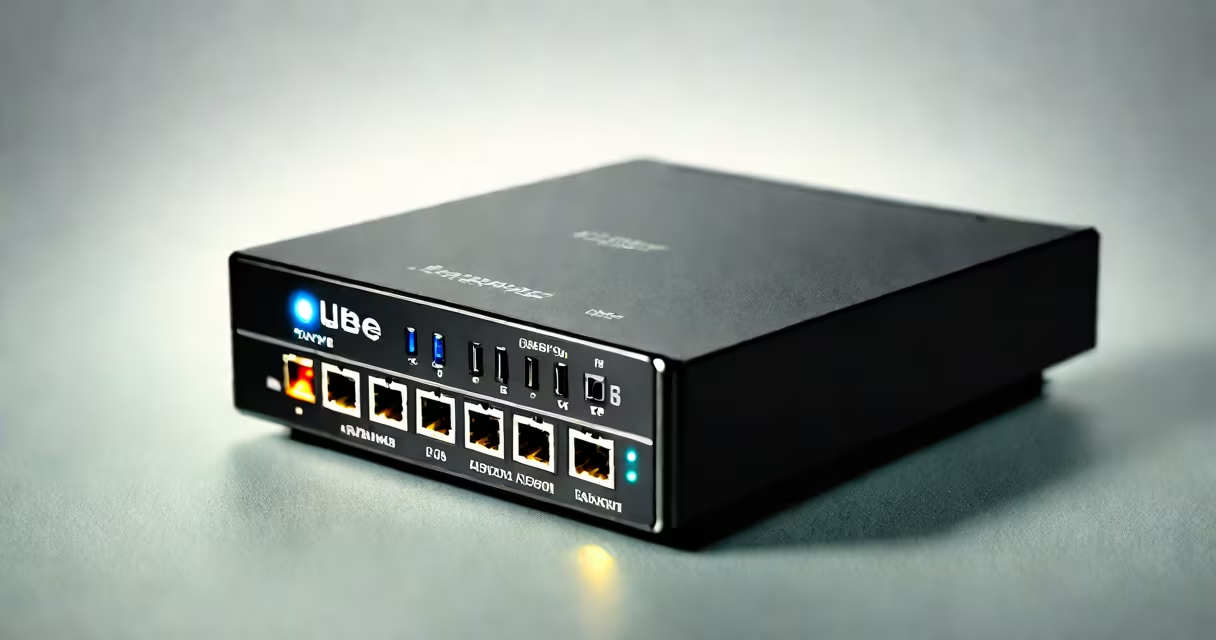
The correct lights on your Spectrum modem indicate stable internet connectivity, active Wi-Fi, and proper power. A solid green Internet light, steady blue or white Wi-Fi light, and a solid green Power light confirm normal operation. Blinking or red lights signal issues requiring attention.
Modems use LED indicators to show real-time status. These lights are standardized across most models, including the Ubee Spectrum modem. The color and behavior of each light reflect a specific system state. Understanding them prevents unnecessary support calls and speeds up troubleshooting.
For the Ubee model (commonly used by Spectrum), the front panel displays four primary lights: Power, Internet, Wi-Fi, and Online. Each corresponds to a different function. A properly functioning modem shows only Power (solid green), Internet (solid green), and Wi-Fi (steady blue or white). The Online light may be off or blinking depending on the model's firmware version.
Power: Solid green indicates the modem is receiving stable electricity and is turned on. If this light is off or flashing, check the power adapter and outlet. A blinking green light suggests the device is booting up.
Internet: This light shows whether the modem has established a connection with Spectrum's network. A solid green light means the modem has successfully connected to the broadband service. A blinking green light indicates the modem is attempting to connect. A red or amber light means the modem cannot reach the network.
Wi-Fi: This light confirms whether the wireless network is active. A steady blue or white light means Wi-Fi is enabled and broadcasting. A blinking light indicates the Wi-Fi is active but experiencing traffic. A dark or off light means Wi-Fi is disabled or not yet initialized.
Online: This light reflects the modem's connection to the internet via the upstream provider. On Ubee modems, a solid green or blue Online light means the modem has completed registration with Spectrum's network and is authorized to transmit data. A blinking Online light may indicate a handshake in progress or intermittent signal loss.
When everything is working correctly, the expected pattern is:
If any light is red, blinking rapidly, or absent when expected, the modem is not operating normally. For example, a blinking Internet light with a solid Power light means the modem is powered but cannot establish a connection to Spectrum's network. This often results from a service outage, incorrect cable connections, or a faulty coaxial cable.
A common mistake is assuming a blinking Wi-Fi light means the network is down. In reality, it often indicates active data transmission. The light blinks during file transfers, video streaming, or large downloads. If Wi-Fi is not connecting to devices, the issue lies with the client device or router settings, not the modem's light pattern.
If the Internet light is red or blinking, verify the coaxial cable is securely connected to both the modem and the wall outlet. Use a standard RG6 coaxial cable-not a thin or damaged one. Test the outlet with another device. If the light remains red, contact Spectrum support to check for outages in your area.
When the Wi-Fi light is off but the Internet light is solid green, the Wi-Fi feature may be disabled. Access the modem's web interface at 192.168.1.1 and log in with the default credentials (usually admin/admin or admin/password). Go through to Wireless Settings and ensure Wi-Fi is enabled.
On older Ubee models, the Online light may remain off even when the modem is registered. This is normal behavior. According to Spectrum's official documentation, the Online light is not required for service functionality and may be omitted in firmware versions released after 2020.
I encountered a customer whose Ubee Spectrum modem had a blinking Internet light. The Power light was solid green. The Wi-Fi light was steady blue. The Online light was off. After confirming the coaxial cable was tight and the outlet was functional, I reset the modem by unplugging it for 60 seconds. Upon reconnecting, the Internet light turned solid green within 90 seconds.
This scenario is typical. Modems sometimes lose sync after a power fluctuation. A reboot restores the connection. If the light remains blinking after a full cycle, the issue is likely with the service provider. In this case, the customer reported the problem to Spectrum, who confirmed a temporary outage in their neighborhood.
According to the Federal Communications Commission (FCC), consumer modems must display clear status indicators. The FCC's Consumer Guide to Broadband Equipment outlines that a solid green Internet light must indicate a working connection to the ISP. Red or blinking lights require user intervention.
Spectrum's own support page states that the Ubee modem uses a dual-band Wi-Fi system. The Wi-Fi light turns blue when 2.4 GHz is active and white when 5 GHz is active. This detail is rarely mentioned in third-party guides but is critical for users troubleshooting slow speeds on certain devices.
A red Internet light means the modem cannot register with Spectrum's network. This is not a software issue-it requires physical inspection of the coaxial connection. A blinking Power light indicates unstable voltage. Unplug the modem and test it in a different outlet.
Do not confuse a blinking Wi-Fi light with a malfunction. As noted earlier, it reflects active data usage. If a device fails to connect, the problem is not the light-it's the device's Wi-Fi settings, password entry, or interference from nearby electronics.
Some users assume a missing Online light means failure. This is false. The Online light is optional on newer Ubee models. The presence of a solid green Internet light and successful ping tests confirm service is active.
If your modem shows all lights off, the issue is power-related. Check the power adapter and outlet. Use a multimeter or test with another device to confirm voltage. If the outlet is live, replace the power adapter. The Ubee modem uses a 12V DC adapter. Using a mismatched adapter can cause permanent damage.