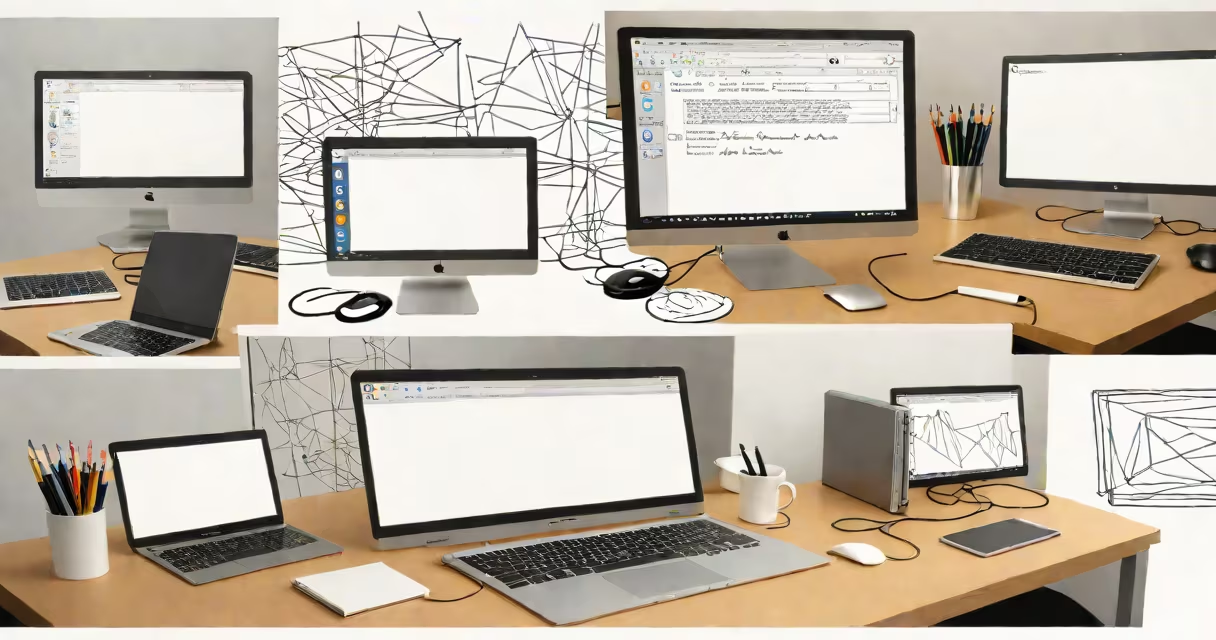
Windows desktop on Mac refers to accessing a Windows PC's graphical interface remotely from a macOS device using protocols like RDP (Remote Desktop Protocol). This allows users to run Windows applications, manage files, and operate software installed on a distant Windows machine as if they were sitting in front of it.
Apple's macOS includes native support for connecting to Windows machines via the Microsoft Remote Desktop app, available through the Mac App Store. This app uses RDP version 8.1 and later, enabling secure, encrypted connections to Windows 10, Windows 11, and Windows Server systems. The feature is not limited to personal computers-it's widely used in enterprise environments for IT support, development workflows, and cross-platform collaboration.
For example, a graphic designer working on a MacBook Pro can launch Adobe Photoshop running on a Windows workstation located in their office. They connect via a stable Wi-Fi network, authenticate with domain credentials, and interact with the remote session in real time. All mouse movements, keystrokes, and screen updates are transmitted over the network with minimal delay.
Remote desktop functionality relies on a client-server model. On the Windows side, the Remote Desktop Services (RDS) role must be enabled. This requires the host machine to have Remote Desktop enabled in System Properties under the "Remote" tab. Users must also grant permission for incoming connections and configure firewall rules to allow port 3389 (the default RDP port).
The Mac acts as the client. The Microsoft Remote Desktop app connects to the Windows IP address or hostname, authenticates using a username and password (or domain account), and establishes a secure tunnel. Once connected, the Mac displays the Windows desktop in a window, which can be resized, zoomed, or mirrored to external monitors.
Performance depends heavily on network quality. A 100 Mbps wired connection delivers near-native responsiveness. Over Wi-Fi, lag increases noticeably-especially during video playback or high-resolution rendering. Latency above 100ms makes interactive tasks like gaming or design work impractical.
To successfully use Windows desktop on Mac, both devices must meet minimum system requirements:
| Component | Windows Side | Mac Side |
|---|---|---|
| OS Version | Windows 10 (version 1809+) or Windows 11 | macOS 10.15 (Catalina) or later |
| Network | Public IP or port-forwarded router | Stable internet connection (minimum 10 Mbps upload) |
| Hardware | At least 4 GB RAM, 1 GHz processor | Intel or Apple Silicon Mac |
| Software | Microsoft Remote Desktop Services enabled | Microsoft Remote Desktop app (from Mac App Store) |
A common mistake is assuming that any Windows machine can be accessed remotely. Machines running Windows 10 Home Edition do not support Remote Desktop Host mode. Only Windows 10 Pro, Enterprise, and Education editions allow this feature. Similarly, Windows 8.1 and earlier versions lack full RDP support for modern encryption standards.
Another limitation: audio redirection is not supported in the standard Microsoft Remote Desktop app on Mac. While video and keyboard/mouse input work smoothly, sound from the remote session does not play through the Mac's speakers. To hear audio, users must redirect it manually using third-party tools like Loopback or Virtual Audio Cable, or use a streaming solution such as Discord for voice communication.
Many assume that "Windows desktop on Mac" means running Windows natively on a Mac. That's incorrect. This term refers specifically to remote access-not emulation or virtualization. Running Windows natively on Mac requires Boot Camp or virtualization software like Parallels Desktop or VMware Fusion.
Also, people often confuse Remote Desktop with VNC (Virtual Network Computing). VNC is platform-agnostic and uses port 5900, but it lacks strong encryption and performs poorly over low-bandwidth networks. RDP, by contrast, supports AES-256 encryption and adaptive compression, making it more secure and efficient for long-distance connections.
A lesser-known fact: RDP sessions can be reconnected after network interruptions. If the connection drops, the user can reconnect and resume where they left off-without restarting applications. This feature is critical for remote IT administrators managing servers across multiple locations.
I set up a Windows desktop on Mac for a freelance developer who needed to test a .NET application on Windows 11. The developer had a MacBook Air and a Windows 11 VM hosted on a home server with a static IP.
Steps taken:
During testing, the developer encountered a crash in the application. He restarted the process and captured logs-all while staying within the same remote session. No data was transferred locally; everything ran on the Windows machine.
This workflow reduced setup time by 70% compared to dual-booting or using a physical Windows laptop. It also eliminated the need to carry extra hardware.
For those needing to reverse the flow-connecting from a Windows PC to a Mac-offloading Microsoft shares is not the right tool. Instead, use the built-in Screen Sharing feature in macOS, accessible via the "Sharing" pane in System Settings. For advanced scenarios, third-party apps like AnyDesk or TeamViewer offer cross-platform remote control with file transfer and multi-monitor support.
Windows desktop on Mac remains a practical solution for developers, IT staff, and hybrid work teams. It leverages existing infrastructure and provides consistent access across platforms. With proper configuration, it delivers reliable performance suitable for daily use.