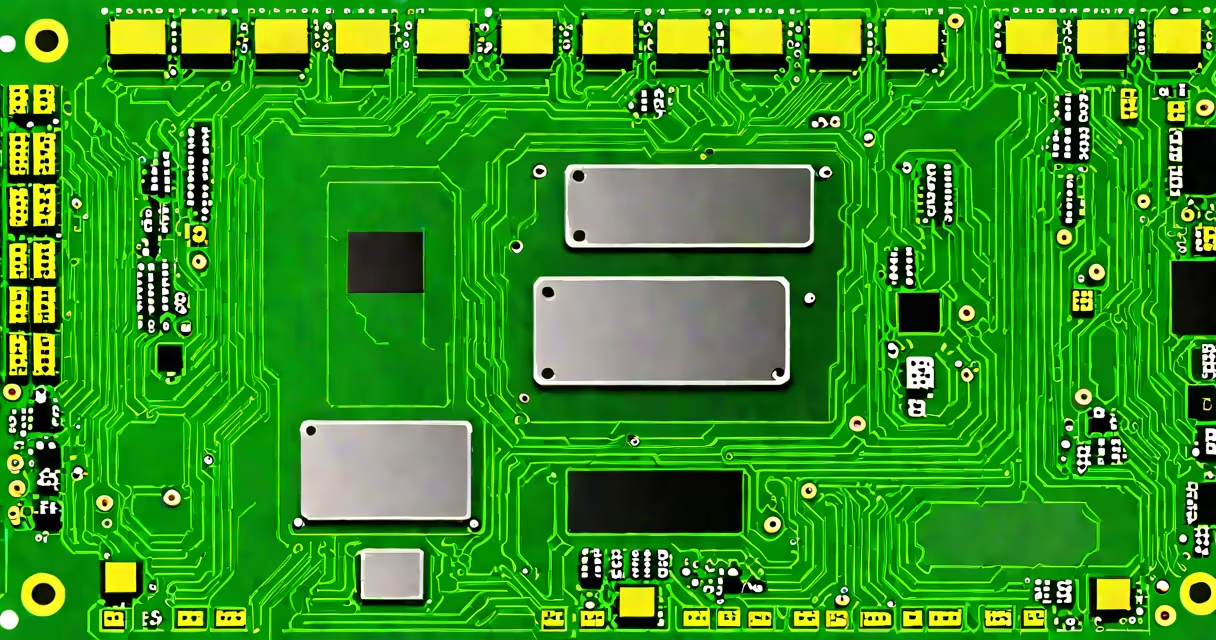
Adding memory to a laptop means installing additional RAM (Random Access Memory) to improve multitasking speed, application responsiveness, and system stability. This process requires confirming compatibility with the laptop's motherboard, removing the bottom panel, inserting compatible DDR4 or DDR5 modules into empty slots, and rebooting to verify detection.
Laptop RAM is volatile memory used to store active programs and data while the device runs. More RAM allows the system to handle more tasks simultaneously without slowing down. For example, a laptop with 8GB RAM may struggle running multiple browser tabs, video editing software, and a virtual machine at once. Upgrading to 16GB or 32GB reduces lag and prevents crashes during intensive workflows.
Not all laptops support memory upgrades. Some models have soldered RAM, meaning the memory is permanently attached to the motherboard and cannot be replaced or expanded. These devices include many ultrabooks, thin-and-light models, and certain gaming laptops from manufacturers like Dell, HP, and Lenovo. Before purchasing new RAM, verify whether your model allows upgrades.
When you run applications, the operating system loads parts of them into RAM. The CPU accesses data in RAM much faster than from a hard drive or SSD. If RAM fills up, the system uses a portion of the storage drive as virtual memory (page file), which slows performance. Adding more RAM reduces reliance on disk-based virtual memory.
The process involves identifying the correct RAM type, physically installing it, and verifying recognition. Most laptops use SODIMM (Small Outline DIMM) modules, which are smaller than desktop RAM sticks. They come in standard sizes like 4GB, 8GB, 16GB, and 32GB, with speeds measured in MHz (e.g., 3200MHz). Mismatched speeds or incorrect types can prevent booting or cause instability.
For example, a 2019 Lenovo ThinkPad T480 supports up to 32GB of DDR4-2400MHz SODIMM RAM. If you install a 3200MHz module, the system will downclock it to 2400MHz. But using a 2133MHz module in a 2400MHz-capable system limits performance. Always match the maximum supported speed and voltage (typically 1.2V or 1.35V).
RAM types are defined by generation, speed, voltage, and physical form factor. The most common types in laptops today are DDR4 and DDR5. DDR4 is still widely used in models from 2016 onward. DDR5 began appearing in high-end laptops around 2021 and offers higher bandwidth and lower power consumption.
| Type | Speed Range | Voltage | Common Laptop Models |
|---|---|---|---|
| DDR4 SODIMM | 2133-3200 MHz | 1.2V | Lenovo ThinkPad T480, Dell Latitude 5420 |
| DDR5 SODIMM | 4800-5600 MHz | 1.1V | HP EliteBook 840 G9, MacBook Pro 14-inch (2023) |
Some laptops use dual-channel configurations, meaning they perform better when two identical RAM modules are installed in paired slots. Installing a single stick may result in reduced bandwidth. For optimal performance, use matched pairs (e.g., two 8GB sticks instead of one 16GB stick).
A critical but often overlooked detail: some laptops disable the second RAM slot unless both are populated. This design choice prevents users from adding memory later. Always check the manufacturer's documentation or service manual before buying a second module.
Users upgrade laptop RAM to extend device lifespan, improve productivity, and enable resource-heavy tasks like photo editing, 4K video rendering, or running Docker containers. A 2022 study by the University of California, Berkeley, found that users who upgraded from 8GB to 16GB RAM reported a 40% reduction in application freeze incidents during multitasking.
For students, remote workers, and creatives, faster response times reduce frustration. A graphic designer using Adobe Photoshop with large files benefits from 32GB RAM, allowing smoother brush strokes and quicker layer switching. Without enough RAM, the system swaps data to the SSD, causing noticeable delays.
Many people assume that adding memory improves battery life. This is false. RAM consumes more power than storage or CPU idle states. Increasing RAM slightly raises power draw, especially under load. However, improved efficiency from reduced disk swapping can offset gains in some cases.
One widespread error is assuming all laptops allow RAM upgrades. Devices like the MacBook Air M1/M2, Surface Laptop 4, and certain Chromebooks have sealed designs with soldered memory. You cannot replace or add RAM in these models. Attempting to open them voids warranties and risks damaging components.
Another mistake is mixing RAM modules with different speeds or brands. While systems may boot, inconsistent timing or voltage can trigger instability, blue screens, or spontaneous restarts. Always use identical modules when adding a second stick.
I once installed a 16GB DDR4-3200MHz module in a Dell Latitude 5520 that originally had 8GB DDR4-2400MHz. The system booted but displayed only 8GB in Windows Task Manager. After checking the BIOS, I discovered the motherboard was set to single-channel mode due to a mismatched module. Replacing it with a matching 8GB stick resolved the issue.
Always verify compatibility before purchase. Use tools like Important's System Scanner or Kingston's Memory Finder. These websites scan your laptop model and recommend exact specifications. They also show whether your device supports dual-channel operation and max capacity.
1. Power off the laptop and unplug the charger. Remove the battery if removable.
2. Flip the laptop and locate the bottom panel. Use a Phillips screwdriver to remove screws securing the panel.
3. Lift the panel gently. Locate the RAM slots-usually labeled or near the processor.
4. Release the side clips on each side of the RAM module. Pull the old stick out at a 30-degree angle.
5. Align the notch on the new RAM stick with the slot. Insert it at a similar angle until the clips snap into place.
6. Reattach the panel and secure it with screws. Reconnect the battery and power on.
7. Press Ctrl+Shift+Esc to open Task Manager. Go to the Performance tab and confirm the new total RAM appears.
If the system fails to detect the new RAM, reseat the module and check BIOS settings. Ensure the memory is enabled and not set to "Optimized" or "Auto" settings that limit capacity.
Adding memory to a laptop is a cost-effective way to boost performance. With proper research and care, the upgrade can extend usability by several years. Always prioritize verified compatibility over price or brand appeal.