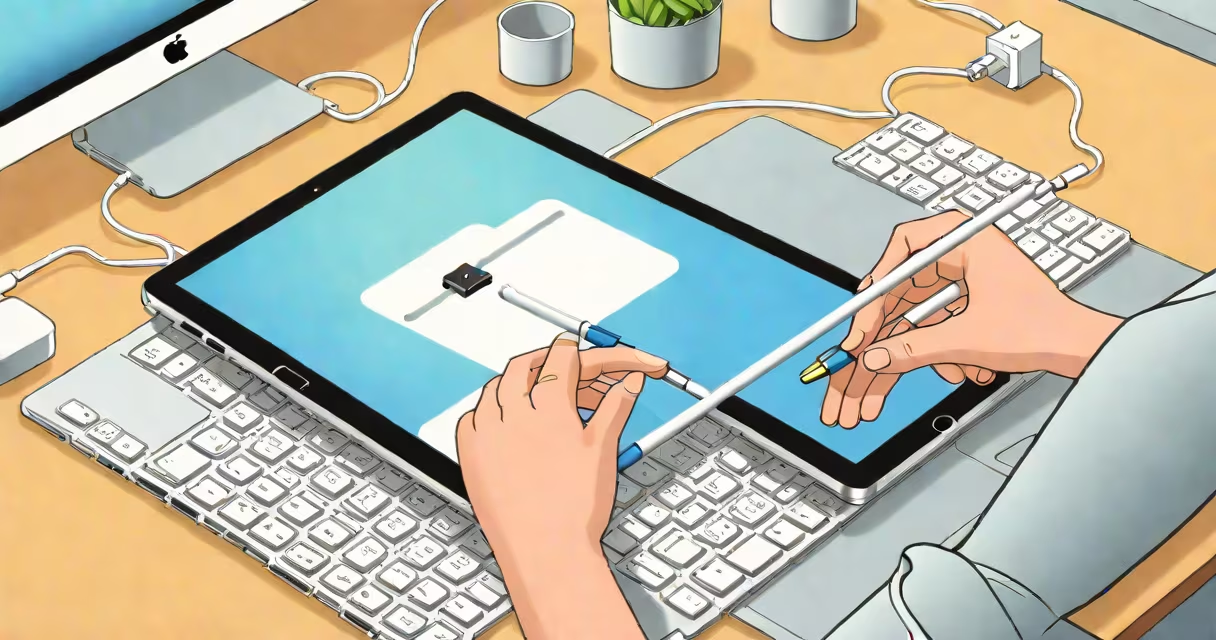
Apple restore iPad is the process of resetting your iPad to its original factory state using iTunes or Finder, typically when the device won't start, is locked, or needs a clean setup. This action erases all data, apps, and settings, returning the device to its out-of-box condition.
Restoring an iPad through Apple's official tools is required when the device is unresponsive, stuck on the Apple logo, or shows a "disabled" message. It's also used when preparing an iPad for resale, transferring ownership, or recovering from software corruption. The process requires a computer running macOS Catalina or later, or Windows 10 with the latest version of iTunes.
Restoring via Apple's tools differs from a simple restart or soft reset. It bypasses the iOS operating system entirely and forces the iPad into recovery mode-a low-level state where the device communicates directly with a computer to reinstall the iOS firmware. This is essential when the OS is damaged or corrupted beyond normal repair.
The restore process begins when the iPad enters recovery mode. This mode activates when the device detects a connection to a computer while in a specific button sequence. Once in recovery mode, the iPad displays a screen with a cable icon and the message "Connect to iTunes." On a Mac with macOS Catalina or later, the system uses Finder instead of iTunes.
When the computer recognizes the iPad in recovery mode, it downloads the latest compatible version of iOS from Apple's servers. The device then installs this firmware, wiping all user data and restoring default settings. The entire process takes between 10 and 30 minutes, depending on internet speed and device model.
After installation, the iPad restarts and guides users through the initial setup-similar to setting up a new iPad. You can choose to set it up as new or restore from a backup stored in iCloud or a local computer. If no backup exists, all personal data is permanently lost.
To perform an Apple restore iPad, you need:
For iPads with Face ID, the button sequence to enter recovery mode is: press and quickly release the Volume Up button, then press and quickly release the Volume Down button, then press and hold the Side button until the recovery mode screen appears. For older models with a Home button, press and hold both the Home and Sleep/Wake buttons simultaneously until the recovery screen appears.
Some users attempt to restore via iCloud, but this method only works if Find My iPad is enabled and the device is online. If the iPad is offline or disabled, remote restore fails. Apple's official tools remain the only reliable method when hardware or software issues prevent normal startup.
Many assume that restoring an iPad removes the Activation Lock. This is false. If the device was linked to an Apple ID, the lock remains active until the correct credentials are entered. Attempting to use a restored iPad without the original Apple ID results in a permanent lockout.
Another misconception is that restoring deletes everything instantly. In reality, the erase happens during firmware installation-not at the start of the process. If the computer loses connection during the restore, the device may become bricked and require professional repair.
Users often confuse "restore" with "reset." A reset clears settings and apps but keeps the OS intact. A restore wipes the OS and reinstalls it. The latter is necessary when the device won't boot past the Apple logo or shows a "This iPhone is disabled" error.
Consider a 12.9-inch iPad Pro (2021) that froze during a software update. After multiple attempts to restart, the screen remained black. The user followed these steps:
The entire process took 25 minutes. All apps and data were recovered except for the most recent changes made during the failed update.
Restoring an iPad permanently deletes:
Only data stored in iCloud or a local backup is recoverable. Apple does not store user data on its servers unless explicitly backed up. The company states: "Your data is yours. We don't keep copies unless you choose to back up." (Apple Privacy Policy).
If you're replacing an old iPad, consider backing up first. Use iCloud or connect to a computer with Finder to create a local backup. Without one, restoration means losing everything since the last backup.
Use this process when:
Do not use it to fix minor glitches. A simple restart or updating iOS via Settings usually resolves those. Only proceed with a restore when the device is unresponsive or locked.
Apple restore iPad is a useful tool for fixing deeply rooted issues. It's not a quick fix-it requires preparation, patience, and awareness of data loss. But when done correctly, it returns the device to full functionality.