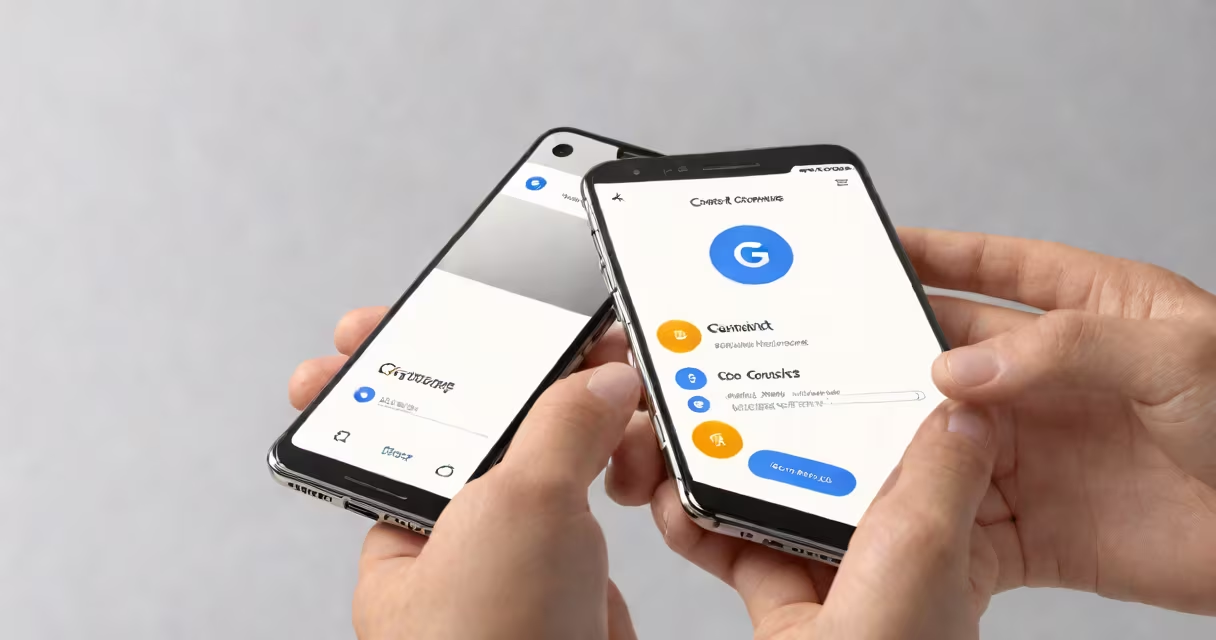
You can edit Google Contacts to update names, phone numbers, email addresses, and other details through the web app or mobile app. Changes sync across devices linked to your Google account.
Google Contacts is a free service that stores your personal and professional contact information. It's part of the Google Workspace set and integrates with Gmail, Calendar, and Android devices. Editing a contact updates the data in real time across all your synced devices.
To edit a contact, open Google Contacts via browser or the app. Select the contact from your list, then click the pencil icon or tap Edit. Make changes to fields like phone number, address, or notes. Save the update. The change appears instantly on all devices using the same Google account.
When you edit a contact in Google Contacts, the update pushes to all devices signed into the same Google account. This includes Android phones, iPhones with the Google Contacts app, Chromebooks, and desktop browsers.
For example, updating a work phone number on your laptop automatically reflects on your Android phone within seconds. No manual sync is needed. This happens because Google Contacts uses cloud-based storage and real-time synchronization.
Changes are visible immediately in Gmail when composing messages. Typing a contact's name triggers auto-complete from updated entries. This reduces errors in communication and keeps your address book current.
On desktop, go to contacts.google.com. Click the contact card, then select "Edit." You can modify multiple fields at once: name, email, phone, birthday, address, and custom notes. Click "Save" to apply changes.
On iOS or Android, open the Google Contacts app. Tap the contact, then tap the pencil icon. You can add new phone numbers, remove duplicates, or assign labels like "Home," "Work," or "Family." Tap Done to save.
Using the mobile app, you can also edit contacts directly from the Gmail app. Open a message from a contact, tap their name, and choose "Edit Contact." This shortcut bypasses the full contact list.
One frequent error is editing the wrong contact. Google Contacts doesn't show full names by default in the list view. Always verify the email or phone number before making edits.
Another issue: duplicate contacts. These appear when you import contacts from multiple sources. To fix, merge duplicates by selecting both, tapping "Merge," and choosing which data to keep. Google warns you before merging.
A lesser-known feature: contact groups. After editing a contact, you can assign them to a group like "Friends" or "Team." This helps filter lists in Gmail or Calendar. Groups don't affect the contact's core data but improve organization.
Not all edits trigger the same behavior. Updating a phone number affects call logs and SMS routing. Changing an email address may cause delivery failures if you send messages from a different account.
Here's a real-world example: Sarah edits her colleague's email from "[email protected]" to "[email protected]" after a company-wide email migration. She checks the old address in her sent folder. The message failed to deliver. She corrected the contact and resent the email. The update prevented future delivery issues.
| Edit Type | Where It Appears | Impact on Other Services |
|---|---|---|
| Change phone number | Gmail, Messages, Hangouts | Call and SMS routing updates immediately |
| Update email address | Gmail, Calendar invites | Invites sent from Calendar now go to the new address |
| Add birthday | Google Calendar, Gmail reminders | Calendar events auto-create on the date |
| Assign to group | Contacts list, Gmail filters | Group filters work in Gmail and search |
Some users assume that editing a contact in Gmail automatically updates Google Contacts. That's incorrect. Gmail shows contact data pulled from Google Contacts, but editing in Gmail only updates the local cache unless you're in the full contact editor.
I once spent 15 minutes trying to fix a typo in a client's name while composing an email. The change didn't stick. I opened Google Contacts directly and found the error had been saved correctly-but only after I accessed the full contact manager. This confirmed that Gmail's quick-edit mode doesn't always reflect live changes.
If you can't save changes, check your internet connection. A weak signal may prevent sync. Also, ensure you're logged into the correct Google account. Switching accounts can lock you out of editing.
Another reason: permissions. If you're using a managed device (like a school or work Chromebook), your admin may restrict editing. Check with your IT team if you're in a corporate environment.
For advanced users, bulk editing is available via CSV import. Export your contacts, edit the file in Excel or Google Sheets, then re-import. This method allows mass updates but requires caution-mistakes in the CSV can overwrite valid data.
After editing a contact, you can share it via a link. Right-click the contact, select "Share," and generate a link. This works for collaboration in teams or family groups.
Access Google Contacts directly from Gmail. Click the profile icon in the top-right corner, then "Contacts." This opens the full list. From here, you can edit, search, or export.
Need to find a contact quickly? Use the search bar. Type a name, email, or phone number. Results appear in real time. Try searching "John Smith" and filtering by "Last 30 days" to find recently added contacts.
For privacy, review who can see your contacts. Go to Settings → Privacy → Sharing. Choose between "Only me," "My contacts," or "Everyone." Setting it to "Only me" hides your list from others.
Finally, remember that edits are irreversible unless you restore from backup. Google doesn't keep version history for individual contacts. Always double-check before saving.
Editing Google Contacts ensures your network stays accurate. correcting a business partner's email, the process is consistent across platforms. Keep your data clean and your connections reliable.