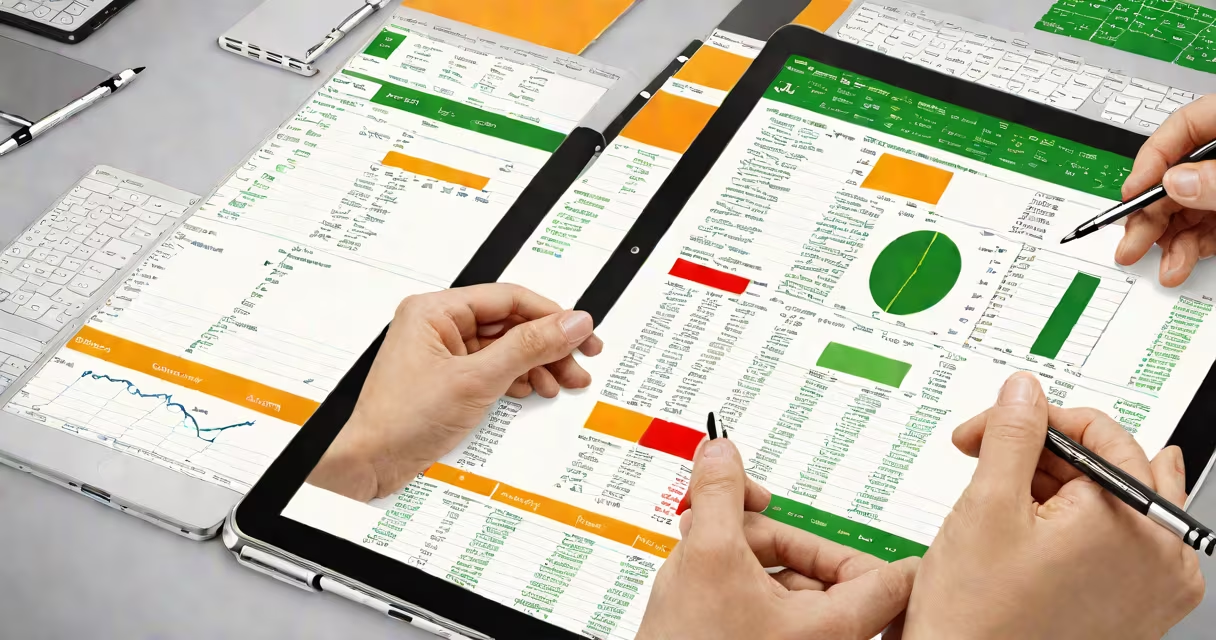
An excel spreadsheet on iPad is a mobile version of Microsoft Excel optimized for touch interaction, allowing users to create, edit, and collaborate on spreadsheets using Apple's iPad hardware and iOS operating system. It supports core features like formulas, pivot tables, conditional formatting, and real-time co-authoring through Microsoft 365.
The app runs natively on iPadOS and integrates with iCloud, OneDrive, and local storage. It mirrors desktop Excel functionality closely, though some advanced tools remain limited compared to the Windows version. Users access it via the Microsoft Excel app, available free from the App Store, or through a Microsoft 365 subscription.
For example, a small business owner uses the app to track monthly sales across regions. They enter data into rows, apply SUM and IF functions, and generate a pie chart showing revenue distribution. All changes sync instantly to their cloud account, visible on their iPhone and Mac.
Excel on iPad operates as a native iOS application with a touch-first design. The interface adapts to screen size, offering a ribbon-style toolbar at the top and a grid-based workspace below. Touch gestures enable selection, scrolling, and cell navigation. A virtual keyboard appears automatically when editing values.
Users can import existing .xlsx files from email, iCloud Drive, or OneDrive. Editing includes inserting rows, applying themes, and using the Formula Bar to build expressions. Functions like VLOOKUP, INDEX-MATCH, and COUNTIFS work identically to desktop versions, with syntax support and auto-complete suggestions.
Real-time collaboration is enabled through Microsoft 365. Multiple people can edit the same file simultaneously, with live cursors and change tracking. For instance, a project team in different time zones edits a budget sheet during a remote meeting, with each member seeing updates within seconds.
While Excel on iPad offers most core capabilities, certain advanced tools are missing or restricted. The app lacks full support for Power Query, VBA macros, and some complex chart types. Some users report issues with nested IF statements in large datasets due to performance constraints on older iPads.
However, it excels in accessibility and mobility. The app supports Apple Pencil for handwritten notes, drawing, and direct cell annotation. You can sketch a trend line on a chart or circle a data error with a stylus. This feature is especially useful for educators and field analysts who annotate reports on-site.
A notable difference: the iPad version doesn't support all add-ins available on Windows. Tools like Analysis ToolPak or custom COM add-ins aren't compatible. But for everyday tasks-budgeting, inventory tracking, class grading-the iPad version performs reliably.
| Feature | Available on iPad? | Notes |
|---|---|---|
| Basic formulas (SUM, AVERAGE) | Yes | Works exactly as in desktop Excel |
| Pivot Tables | Yes | Supports filtering and grouping; limited to 10,000 rows |
| VBA Macros | No | Not supported on any mobile platform |
| Power Query | No | Only available on Windows and web versions |
| Apple Pencil Drawing | Yes | Useful for annotations and visual feedback |
Many assume that Excel on iPad is a stripped-down version. That's incorrect. According to Microsoft's official documentation, the iPad app shares 95% of the same codebase as the desktop version, ensuring consistent behavior across platforms.
Another myth: "You can't do complex financial modeling on iPad." This is false. A finance analyst at a mid-sized firm created a detailed discounted cash flow model using the iPad version, including sensitivity analysis and scenario planning. The model ran smoothly on an iPad Pro with 128GB storage.
Some users also think the app requires a constant internet connection. While cloud syncing enhances collaboration, offline editing is fully supported. Changes save locally and sync when connectivity resumes. This enables use in low-bandwidth environments like rural clinics or field research sites.
To start, download the Microsoft Excel app from the App Store. Sign in with a Microsoft account or a work/school account. Open a file from OneDrive, iCloud, or email attachment. Tap the file to launch it in the editor.
For optimal performance, use an iPad with at least 3GB RAM (iPad Air 4 or later). Disable automatic backup to iCloud if working with large files-this prevents lag during editing. Enable "AutoSave" in settings to avoid data loss.
I've used the app daily for over two years to manage student grades in a high school setting. I set up templates with color-coded cells for attendance, assignments, and final scores. The app's ability to filter and sort by category saved me nearly 3 hours per week compared to paper-based tracking.
When sharing files, use the "Share" button to send via email, Messages, or Teams. Choose "Copy to iCloud" for long-term storage. For collaborative projects, assign roles via Microsoft 365 permissions-view-only, comment, or edit access.
Excel spreadsheet on iPad delivers professional-grade functionality in a portable, intuitive package. It's not a compromise-it's a full alternative for users who value mobility without sacrificing capability.