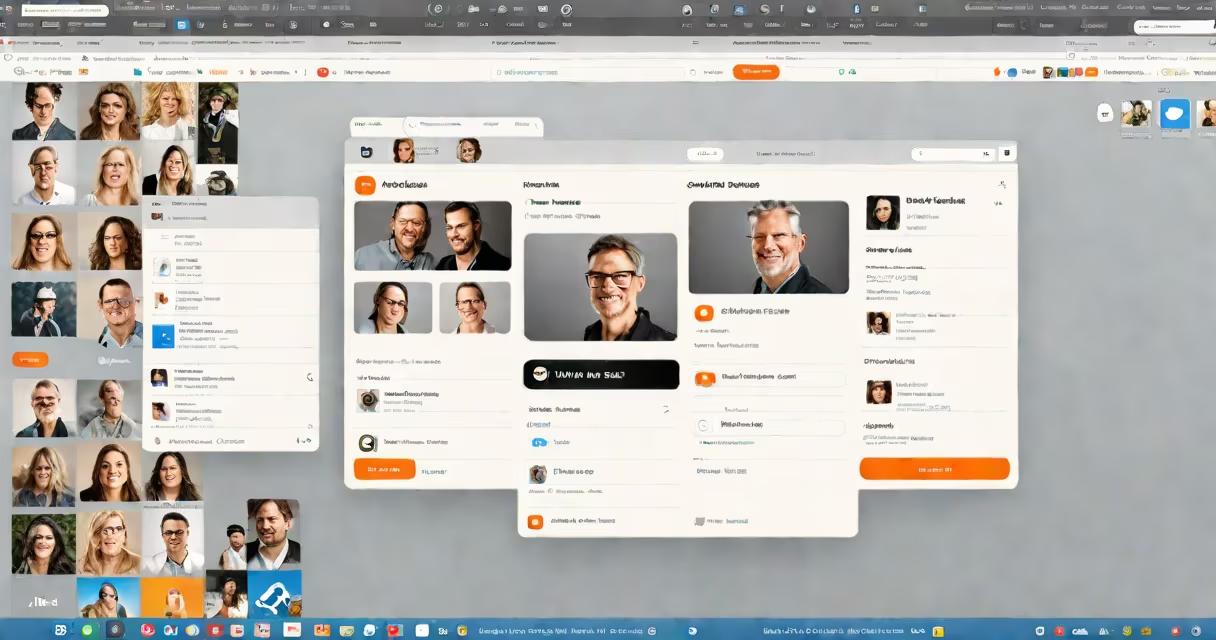
You can view your contacts in iCloud through the iCloud website or the Contacts app on your iPhone, iPad, or Mac. Your contacts appear across all Apple devices signed in with the same Apple ID.
To see your contacts online, go to iCloud.com and sign in with your Apple ID. Once logged in, click the Contacts icon. This opens your full contact list, including names, phone numbers, email addresses, and custom fields like birthdays or notes.
The iCloud Contacts interface supports filtering by name, group, or label. You can also search using keywords. For example, typing "Sarah" returns all entries with that name in the first or last name field. The list updates instantly as you type.
On an iPhone or iPad, open the default Contacts app. If you're signed in with your Apple ID, your iCloud contacts automatically appear. There's no extra step needed unless you've disabled contact syncing.
To confirm syncing is on, go to Settings > [Your Name] > iCloud > Contacts. Ensure the toggle is green. If it's off, turn it on. After enabling, your contacts will sync within minutes.
If you don't see a contact, try force-refreshing the app. Swipe down from the top of the list to pull to refresh. This triggers a manual sync with iCloud servers.
For users who prefer a larger screen, iCloud.com offers a full-featured version of the Contacts app. It includes advanced features not available in the mobile app, such as bulk editing and importing/exporting vCard files.
To export your entire contact list, select all entries (Cmd+A on Mac, Ctrl+A on Windows), then click the Export button. The file saves as a .vcf file, which can be imported into Gmail, Outlook, or other services.
When you import a vCard file, iCloud preserves all fields, including custom ones like "Spouse" or "Preferred Contact Method." This makes it easy to migrate contacts between platforms.
| Method | Device/Platform | Sync Speed | Best For |
|---|---|---|---|
| iCloud Website | Mac, PC, tablet | Instant (within 10 seconds) | Bulk edits, exporting, managing duplicates |
| iPhone/iPad App | iPhone, iPad | Within 1 minute | Quick lookup, adding new entries on the go |
| macOS Contacts App | Mac computer | Real-time | Full editing, merging duplicates, organizing groups |
Some users think iCloud contacts are stored only on their iPhone. That's incorrect. iCloud stores a copy of your contacts in Apple's cloud servers. Devices sync from that central copy.
A frequent issue is missing contacts after switching phones. This happens when the new device doesn't have iCloud Contacts enabled. Always verify that iCloud Contacts is turned on under Settings > [Your Name] > iCloud.
Another common mistake: assuming contacts from Google or Android are visible in iCloud. They aren't. iCloud only shows contacts synced from Apple devices or manually added via iCloud.com. To bring Google contacts into iCloud, you must export them from Google Contacts as a vCard and import them into iCloud.
I once spent 20 minutes troubleshooting why a client couldn't find her mother's number in iCloud. The issue was she had created the contact on her old iPhone but never signed in to iCloud on the new device. After enabling iCloud Contacts, the entry appeared within 60 seconds.
If you use multiple email accounts, you may have contacts in different systems. iCloud doesn't merge contacts from Gmail or Yahoo automatically. Each account maintains its own contact list.
To see all your contacts across services, use the Contacts app on macOS. Go to File > Import > Import from vCard. This lets you combine contacts from Google, Outlook, or a USB drive into one iCloud-synced list.
For example, if you exported your Google Contacts as a vCard file (named "my_contacts.vcf"), you can drag it into the macOS Contacts app. The app will detect duplicate entries and prompt you to merge or keep both.
After merging, all contacts sync to iCloud and appear on your iPhone, iPad, and any other device signed in with the same Apple ID.
Apple states that iCloud contacts are encrypted both in transit and at rest. According to Apple's Privacy Policy, your data is protected using end-to-end encryption when you enable two-factor authentication.
Only you can access your iCloud account. Even Apple cannot read your contacts without your password and two-factor verification code. This helps personal information like medical alerts or emergency contacts stays private.
For maximum security, avoid logging into iCloud.com on public computers. Use a private browsing window if you must. Always log out after viewing your contacts.