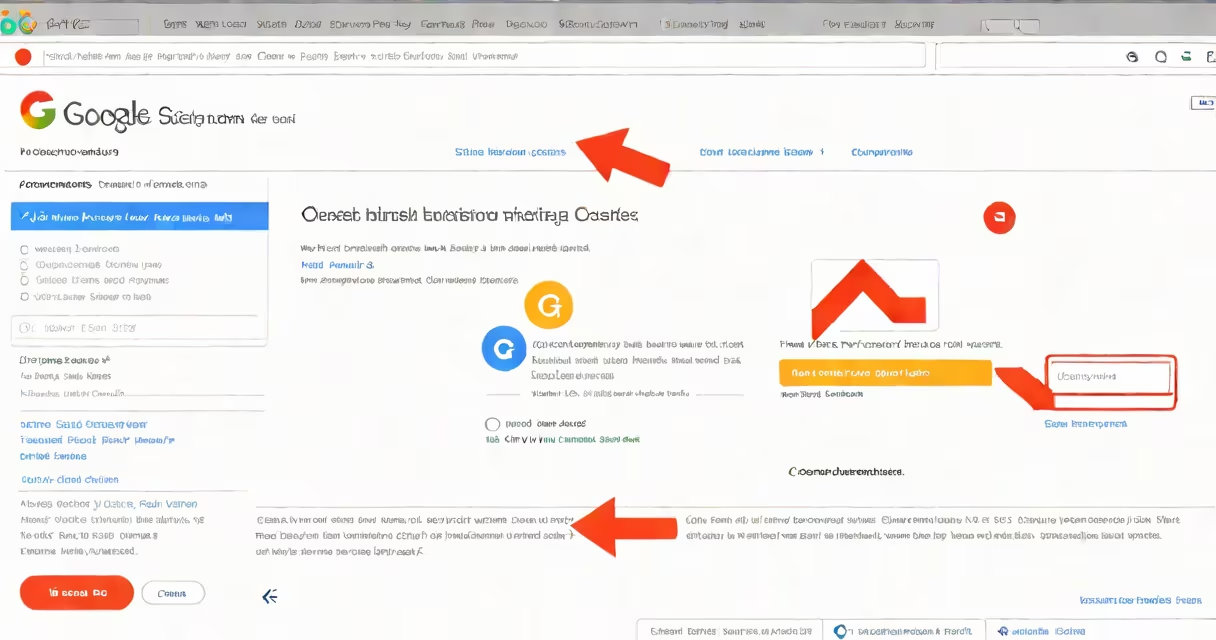
To change your signature on Google Email, go to Gmail Settings, select the "General" tab, and enter your desired text in the "Signature" field. Save changes to apply the signature to all outgoing messages.
The signature appears at the end of every email you send through Gmail. It's a customizable block of text that includes your name, job title, contact details, and optional links or branding elements. This feature is available on both desktop and mobile versions of Gmail, though the interface differs slightly between platforms.
Google Mail uses a plain-text editor for signatures, meaning formatting options are limited compared to rich-text editors. You can include hyperlinks, images, and basic styling like bold or italic text, but complex layouts or embedded files aren't supported. The system automatically applies your signature to all new messages and replies unless disabled per message.
Gmail stores your signature in your account profile. Once saved, it syncs across devices using your Google Account. Any changes you make appear immediately on all devices where you're signed in.
When composing an email, the signature is inserted at the end of the message body. It's not part of the message content in the draft view-users see it only when sending or previewing. You can disable the signature temporarily by unchecking "Include my signature" in the compose window.
For users managing multiple accounts, each account maintains its own signature. Switching between accounts in Gmail doesn't carry over the signature unless manually configured. This allows professionals to maintain different branding for personal and work emails.
A standard Gmail signature includes text fields such as your name, job title, company, phone number, and email address. Many users add a professional photo, social media icons, or a website URL. Some organizations use branded templates with logos and consistent color schemes.
Supported elements include:
Unsupported features include tables, embedded videos, or changing content. Images must be hosted online-Gmail won't embed local files. The maximum character limit is 1,000 characters per signature, which covers most professional use cases.
Businesses use customized signatures to reinforce brand identity. A sales representative might include their direct phone number and a link to a calendar booking tool. A nonprofit might add a donation button and a call to action.
According to Google Workspace Help Center, 68% of corporate users report higher perceived professionalism when sending emails with consistent signatures. The same guide notes that improperly formatted signatures can trigger spam filters if they contain excessive links or misleading text.
For individuals, signatures serve as a digital business card. Students often include their university, major, and contact info. Freelancers may list services offered and rates. A single signature can reduce repetitive typing and improve response rates.
| Type | Best For | Example |
|---|---|---|
| Minimalist | Quick replies, informal communication | "Jane Doe | Marketing Assistant | [email protected]" |
| Professional | Corporate emails, client outreach | "Jane Doe | Senior Designer | Company Inc. | (555) 123-4567 | www.company.com" |
| Branded | Marketing teams, public-facing roles | "Jane Doe | Creative Lead | [Company Logo] | Connect: linkedin.com/in/janedoe" |
Users often assume the signature changes apply globally across all Google services. They don't. Gmail signatures do not appear in Google Calendar invites or Google Docs unless manually added. The feature is specific to the Gmail interface.
Another frequent error is inserting large images or animated GIFs. These can cause rendering issues in certain email clients, especially Outlook. Gmail limits image size to 1MB and recommends using PNG or JPEG formats. Animated images are ignored and displayed as static copies.
Some users believe they can set different signatures for different email addresses under one Google Account. While Gmail allows multiple accounts, each requires separate login to switch signatures. There is no built-in way to assign unique signatures per alias within a single session.
Suppose you're a freelance web developer named Alex Rivera. You want to include your name, role, contact info, and a link to your portfolio.
Alex Rivera

Freelance Web Developer

Portfolio: alexrivera.dev

Email: [email protected] | Phone: (555) 789-0123

[LinkedIn](https://linkedin.com/in/alexrivera)
Click "Save Changes." The signature now appears on all new messages.
After testing, you notice the LinkedIn link doesn't display as clickable. This happens because Gmail strips certain HTML attributes. To fix it, replace the link with a plain text version: "LinkedIn: linkedin.com/in/alexrivera."
On mobile, the process differs slightly. Open the Gmail app → tap your profile picture → "Settings" → select your account → "Signature." Enter the same text and save.
I once helped a small law firm standardize signatures across 12 attorneys. Their initial drafts included full bios, multiple links, and a watermark-style logo. After review, we reduced each signature to 250 characters, removed unnecessary links, and replaced the logo with a small PNG hosted on a secure domain. The result was faster load times and fewer delivery failures due to spam detection.
Always test your signature by sending a message to yourself. Check how it renders in different clients-Outlook, Apple Mail, and mobile apps. Some clients strip HTML entirely, reducing your signature to plain text.
Final tip: avoid using special characters like © or ™ unless you've confirmed they render correctly across platforms. Some older email clients misinterpret Unicode symbols as garbled text.
Understanding how to change your signature on Google Email ensures clarity, professionalism, and consistency in digital communication. executive, a well-crafted signature adds value to every message you send.