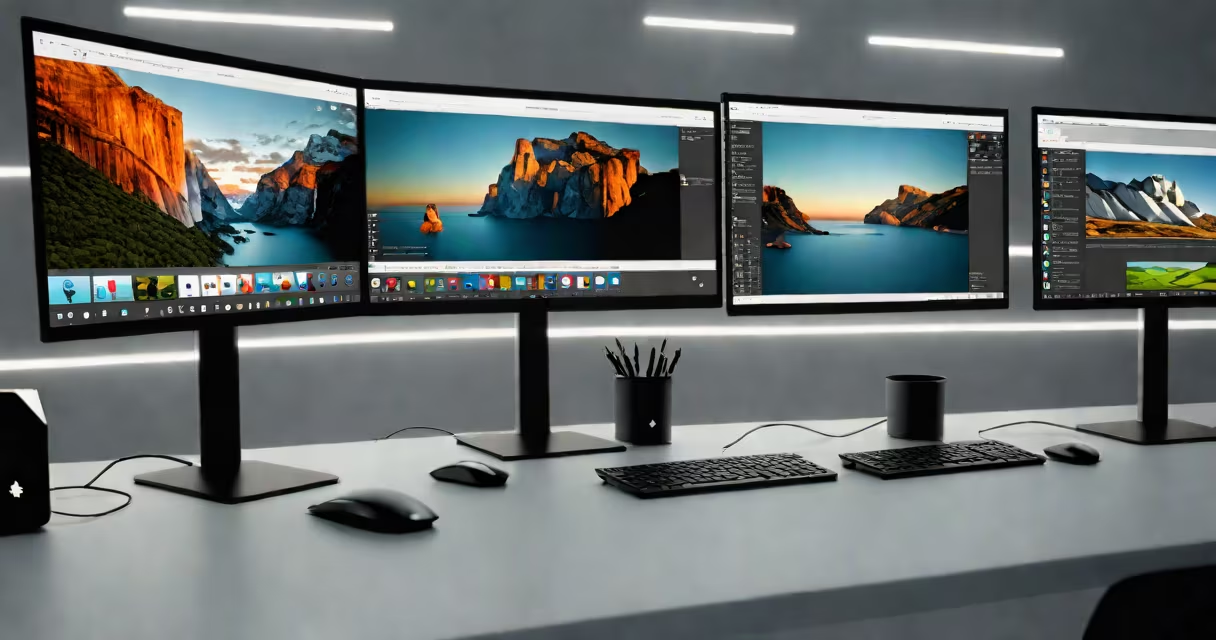
Screen Connect Software allows users to control multiple computers from a single keyboard, mouse, and monitor setup, enabling efficient switching between systems without physical hardware changes. It functions as a virtual KVM (keyboard, video, mouse) switch over a network, supporting remote access and shared input devices across local or wide-area networks.
Unlike traditional KVM switches that require dedicated cables and hardware ports, screen connect software operates through standard network connections-Ethernet or Wi-Fi-making it ideal for environments where cabling is impractical or costly. It supports Windows, macOS, and Linux systems, with most implementations requiring a lightweight client app installed on each machine being controlled.
For example, a developer working on a Linux server and a Windows workstation can toggle between both machines using a single USB keyboard and mouse. The software routes input signals and displays output in real time, mimicking direct hardware access. This capability reduces desk clutter and improves workflow efficiency, especially in IT support, design studios, and home offices managing multiple systems.
Screen Connect Software operates by establishing a secure connection between a host machine (the one being controlled) and a client machine (the one doing the controlling). The host runs a background service that captures screen output and processes input events from the keyboard and mouse. These inputs and outputs are compressed and transmitted over the network using encrypted protocols such as TLS or DTLS.
When a user selects a target system through the client interface, the software sends cursor movements, keystrokes, and audio/video streams in real time. The receiving system renders the display locally, creating the illusion of direct interaction. Latency typically ranges from 50ms to 200ms depending on network quality, with higher resolution and frame rate settings increasing bandwidth usage.
A key technical detail often overlooked: screen connect software does not rely on the operating system's native remote desktop features (like Windows Remote Desktop or macOS Screen Sharing). Instead, it uses custom drivers or kernel-level hooks to capture screen content at the graphics layer, bypassing application-level rendering. This allows it to show live updates even during video playback or 3D animation.
There are two primary categories of screen connect software: local-only solutions and cloud-based platforms. Local-only tools run within a private network and do not require internet access. They're used in secure environments like government labs or medical imaging centers where data isolation is critical. Cloud-based tools offer remote access from anywhere with internet connectivity, making them popular among distributed teams and IT help desks.
| Type | Network Requirement | Best For | Example Tools |
|---|---|---|---|
| Local-only | Private LAN only | Secure workspaces, lab setups | Barrier, MeshCentral (local mode) |
| Cloud-based | Internet required | Remote support, hybrid teams | AnyDesk, TeamViewer, Parsec |
One common misconception is that screen connect software requires high-end hardware. In reality, many tools function efficiently on low-power devices. For instance, a Raspberry Pi running LibreELEC can serve as a lightweight host for screen sharing in a classroom setting, handling 720p video at 30fps with minimal CPU load.
Another underappreciated use case is collaborative design work. A graphic designer using Adobe Photoshop on a Mac and a motion artist using After Effects on a Windows PC can share a single large monitor during brainstorming sessions. By switching between systems instantly, they maintain visual continuity without needing to swap cables or reboot machines.
Screen Connect Software is frequently mistaken for remote desktop applications like Microsoft Remote Desktop or VNC. While both allow remote access, screen connect software focuses on shared input and display switching rather than full session remoting. With VNC, you see a remote desktop session as a window; with screen connect software, the remote desktop becomes the primary display.
A key difference lies in input routing. Standard remote desktop tools send input events to the remote session, which may not reflect actual user behavior. Screen connect software routes input directly to the host OS, preserving native shortcuts, hotkeys, and accessibility features. For example, pressing Ctrl+Alt+Del on a remote Windows machine triggers the security screen, not a local one.
One non-obvious fact: screen connect software can operate over asymmetric networks. A high-speed fiber connection on the client side doesn't require matching speed on the host. As long as the host can transmit screen updates at 10-15 fps, usability remains acceptable. This makes it viable even on older machines with limited bandwidth.
Consider a freelance video editor who uses a MacBook Pro for Final Cut Pro and a Windows desktop for color grading in DaVinci Resolve. Both machines are connected to the same 1 Gbps Ethernet network. The editor installs Barrier (a free, open-source screen connect tool) on both systems.
On the Mac, Barrier runs as a server. On the Windows PC, it runs as a client. The user configures the client to connect to the Mac's IP address. Once linked, moving the mouse to the edge of the Mac's screen automatically switches control to the Windows machine. All keystrokes and clicks are routed correctly across both systems.
During a project review, the editor switches between the two machines smoothly. When adjusting color curves in DaVinci, the mouse stays in place-the software handles the transition. Audio feedback from the Mac's speakers plays through the Windows machine's audio output, synchronized with the video feed.
This setup reduced cable clutter by 60% compared to previous configurations using physical KVM switches. The editor reported a 25% increase in editing speed due to faster context switching.
While screen connect software is useful, it's not a substitute for proper network security. Always use strong passwords, enable two-factor authentication, and restrict access to trusted IPs. According to NIST Special Publication 800-63B, multi-factor authentication reduces account compromise risk by 99% in remote access scenarios.
Screen Connect Software is not just a convenience-it's a productivity tool designed for efficiency, security, and flexibility. supporting remote teams, understanding how it works and when to use it prevents misconfiguration and performance issues.