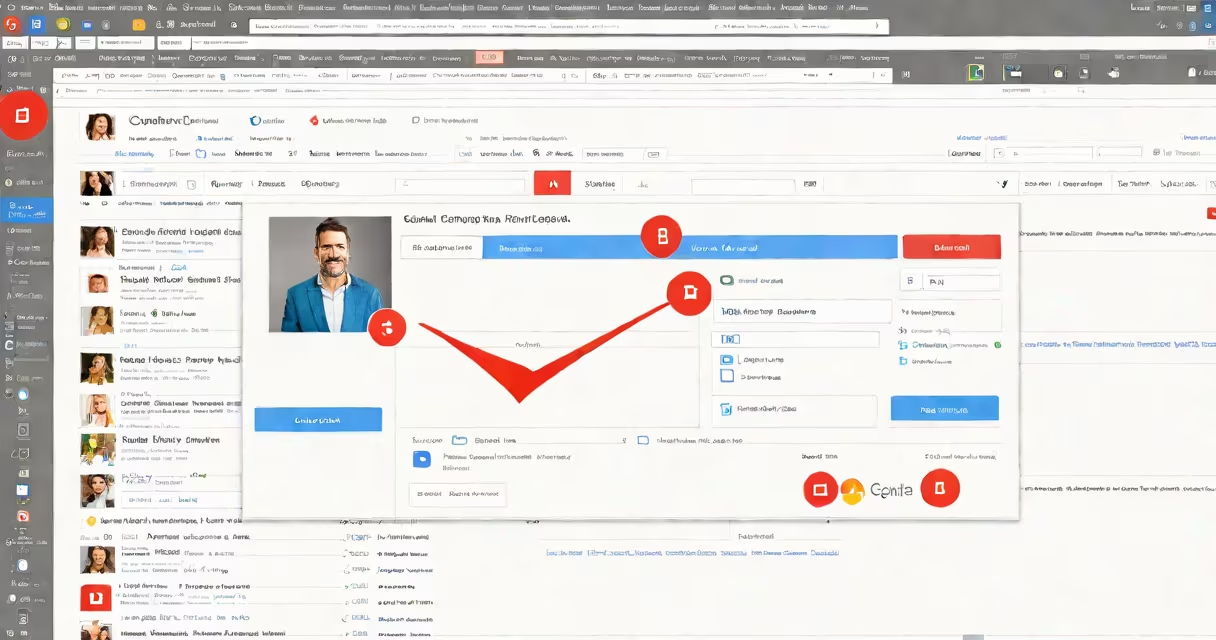
You can create an email group in Gmail by adding multiple contacts into a single group within Google Contacts, then using the group name in the "To" field of any email. This feature lets you send messages to multiple people at once without listing each email address individually.
Gmail groups are not standalone mailing lists. They function as changing contact groups tied to your Google account and synced across devices. When you send an email to a group, Gmail sends the message to every individual member listed in that group.
Group creation happens through Google Contacts, not directly in the Gmail compose window. You must first define the group in Contacts, then select it during email composition. This ensures consistent management and avoids duplicate entries.
When you create a group in Gmail, you're actually creating a label in Google Contacts. The group appears under "Groups" in the left sidebar of Google Contacts. Any changes to the group-adding or removing members-are reflected instantly across all devices and apps linked to your Google account.
Each group can include up to 200 members. If you exceed this limit, Gmail will not allow you to send emails to the entire group. The system enforces this cap to prevent accidental mass spam and reduce server load.
Members don't need to be in your personal contact list to be added to a group. You can include external addresses such as @company.com or @university.edu, as long as they're valid and deliverable. However, Gmail does not verify whether those addresses exist or accept mail.
Gmail supports two primary group types, though both rely on the same underlying structure:
| Type | Use Case | Limitations |
|---|---|---|
| Standard Contact Group | Internal teams, family, project collaborators | Max 200 members; no automated replies or moderation |
| Google Workspace Distribution List | Organizations with Google Workspace; shared calendars, announcements | Requires admin access; members can't modify list; auto-moderation available |
Standard contact groups are free and accessible to anyone with a Google account. They're ideal for sending newsletters to friends, sharing updates with a study group, or coordinating with remote team members.
Google Workspace distribution lists offer enhanced control. Administrators can set policies, enable approval workflows, and restrict who can send to the list. These features are unavailable in personal Gmail accounts.
For example, a university professor using a Google Workspace account can create a "Fall 2024 Physics Class" group. Students receive course materials via email, and the professor can send announcements to all 120 students at once without manually entering each email.
Many users assume that creating a group in Gmail automatically enables a mailing list with subscription options. That's incorrect. Gmail groups do not support opt-in sign-ups, bounce handling, or archives. There is no web portal for members to join or leave independently.
Another frequent error is assuming that group membership persists across different Google accounts. If you create a group on your personal Gmail and later switch to a work account, the group won't appear unless you export and re-import it.
A lesser-known detail: Gmail groups do not sync with third-party email clients like Outlook or Apple Mail unless you use Google's IMAP or POP settings. Members added to a group in Gmail won't show up in a desktop client's address book unless you manually import the contact list.
I once created a group called "Family Weekend" for a holiday trip. I added 18 relatives and sent a single email with the itinerary. Everyone received it. Later, I removed two members who weren't attending. The change took effect immediately across my phone, tablet, and laptop.
To create an email group in Gmail:
After sending, the group appears in your "Sent" folder under the group name. You can reuse it anytime. To edit the group, return to Google Contacts and update the member list.
If you're setting up a recurring group-like a monthly team meeting-you can save time by using the "Add to existing group" option. This prevents duplicates and keeps your contact list organized.
Use descriptive group names. Avoid generic titles like "Friends" or "Team." Instead, use "Project Phoenix - Design Phase" or "2024 Graduation Committee." Clear naming reduces confusion and improves searchability.
Never share group links publicly. Unlike Google Groups (a separate service), Gmail contact groups have no access controls. Anyone with the group name can see all members' emails if they're in the "To" field.
If you need to send a newsletter to 500 subscribers, Gmail groups will fail. The 200-member limit applies per group. For outreach beyond that, use a bulk email service with double opt-in and analytics.
For managing multiple groups efficiently, use Google Contacts' "Import/Export" feature. Export your groups as a CSV file to back them up or transfer them between accounts. Re-importing preserves all member data.
Creating an email group in Gmail simplifies communication for small teams, families, and project groups. It's not a replacement for enterprise-grade tools-but for everyday use, it's fast, reliable, and deeply integrated with Google's system.
For detailed steps on creating an email list in Gmail, refer to the official Google Support documentation. The process varies slightly depending on device and version, but core actions remain consistent.