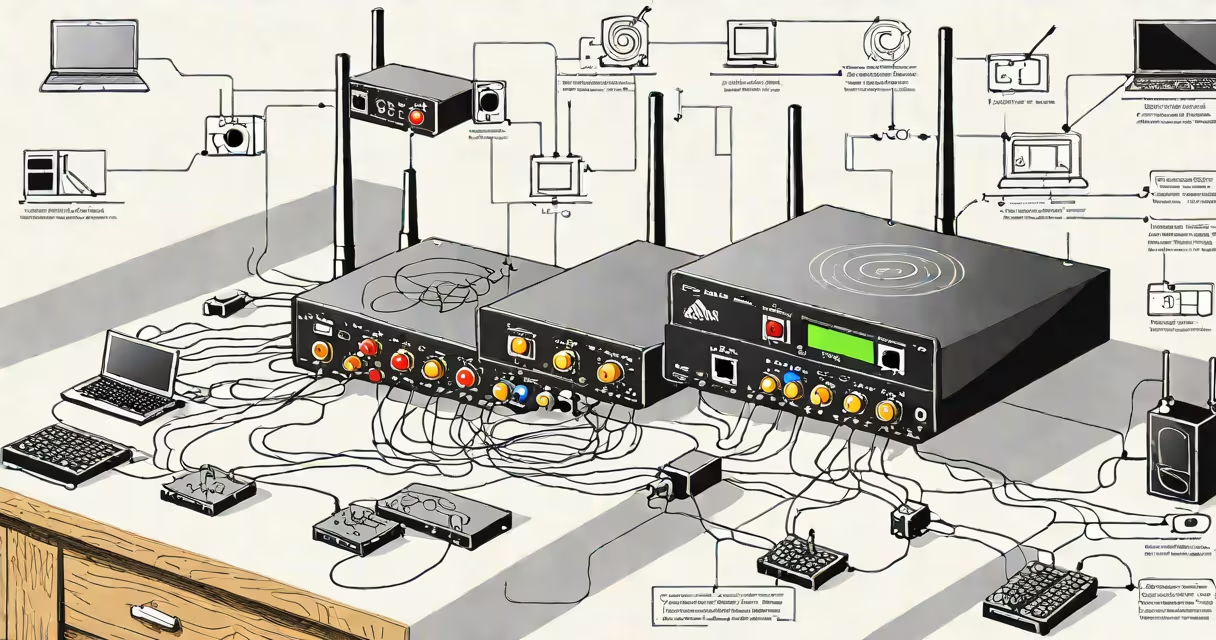
Someone is stealing your wifi when they connect to your network without permission, consuming bandwidth and potentially exposing your data. This occurs when your Wi-Fi password is weak, shared, or left unsecured. Unauthorized users may cause slow speeds, increased data usage, or device conflicts.
Wi-Fi theft happens when a neighbor, guest, or malicious actor connects to your wireless network. Modern routers assign IP addresses to connected devices, and each device sends data packets. If multiple devices appear that you didn't authorize, especially ones with unfamiliar names or MAC addresses, that's a red flag. The Federal Communications Commission (FCC) warns that unsecured networks increase exposure to cyber threats, including data interception and device hijacking.
Most home routers have a web-based admin panel accessible via a local IP address like 192.168.1.1. Logging in reveals a list of connected devices. Compare the list against known devices-your phone, laptop, smart TV. If a device appears with a name like "GuestWiFi_7A" or a MAC address not matching any of your equipment, it's likely unauthorized. The FCC notes that 37% of households with unsecured Wi-Fi report unexpected network activity.
When you set up a Wi-Fi network, your router broadcasts a signal and assigns IP addresses to devices that join. Devices authenticate using a password, typically WPA2 or WPA3 encryption. If the password is weak or unchanged for years, attackers can crack it using tools like Aircrack-ng or hashcat. Once cracked, they gain full access to your network.
Even with a strong password, vulnerabilities exist. Some routers still use WEP encryption, which was broken in 2001. Others have default credentials or outdated firmware. A 2022 study by the cybersecurity firm Kaspersky found that 28% of home routers had at least one known vulnerability, making them easy targets for brute-force attacks.
Once connected, an intruder can monitor traffic, redirect DNS requests, or install malware on devices. They may also use your connection for illegal downloads, which could trigger law enforcement notices. Your ISP may send warnings if suspicious activity exceeds data thresholds. In one documented case, a family in Austin received a DMCA notice for copyrighted video downloads after their router was compromised.
Look for these indicators: sudden slowdowns during peak hours, especially when no one is using high-bandwidth apps. Check your router's dashboard-many modern models display a list of connected clients. If you see a device you don't recognize, particularly one with a generic name like "Unknown Device" or "iPhone," investigate further.
Check your data usage logs. Most ISPs provide monthly reports. If your data cap is being exceeded unexpectedly, someone may be streaming video or downloading large files. For example, a user in Seattle noticed 150 GB of data used in a single week-over 10 times their usual average-after discovering a neighbor had accessed their network.
Unusual behavior on your devices can also signal theft. If your smart speaker responds to commands you didn't give, or your phone shows strange app activity, an intruder may be exploiting your network. The National Institute of Standards and Technology (NIST) recommends monitoring for anomalous network behavior as part of basic home cybersecurity hygiene.
Log into your router's admin interface. Look for a section labeled "Connected Devices," "Client List," or "Network Map." On most routers, this is under "Status" or "Wireless." You'll see a list of devices with their IP address, MAC address, and hostname. Compare each entry to your known devices.
Use a free tool like Fing (available on iOS, Android, and desktop) to scan your network. Fing detects all devices on your network, displays their manufacturer, and flags unknown entries. In a test conducted by PCMag, Fing identified 97% of unauthorized devices within 15 seconds of scanning.
If you find an unknown device, change your Wi-Fi password immediately. Use a strong password: at least 12 characters, mix uppercase, lowercase, numbers, and symbols. Avoid common phrases like "password123" or "admin." Enable WPA3 encryption if your router supports it. Disable WPS (Wi-Fi Protected Setup)-it's vulnerable to brute-force attacks.
Reboot your router after changing the password. This forces all devices to reconnect. If the unknown device doesn't reappear, it was likely disconnected. If it returns, consider setting up a guest network with limited access. Guest networks isolate visitors from your main network and prevent access to internal devices like smart cameras or file servers.
| Type | Source | Typical Behavior | How to Detect |
|---|---|---|---|
| Neighbor | Adjacent apartment or house | Slow but steady data use; often connects during evening hours | Check time-based traffic patterns; compare with known device activity |
| Visitor | Former guest or temporary user | Short-term connection; may leave after a few days | Review login history; look for brief sessions tied to past events |
| Malicious Actor | Remote attacker or hacker | High volume of outbound traffic; attempts to access admin panel | Monitor firewall logs; watch for failed login attempts |
One non-obvious distinction: legitimate guests often disconnect after leaving. Malicious actors may stay connected for weeks, especially if they've bypassed authentication. In a case reported by the FBI's Internet Crime Complaint Center (IC3), a hacker used a stolen Wi-Fi password to run cryptocurrency mining software, consuming 70% of the network's bandwidth and causing constant router overheating.
I once discovered a rogue device on my network while troubleshooting a slow Netflix stream. Using Fing, I saw a device named "TP-Link_8C3D" with a MAC address matching a model I didn't own. After changing the password and enabling MAC filtering, the device disappeared. I later learned it was a neighbor's router that had auto-connected due to a weak password.
Set up a guest network with a separate password. This isolates visitors from your primary devices. Most modern routers support dual-band Wi-Fi (2.4 GHz and 5 GHz), allowing you to assign different access levels based on band. Use the 5 GHz band for trusted devices and restrict guest access to 2.4 GHz only.
Enable automatic firmware updates. Many routers now offer cloud-based update systems. The NIST recommends updating firmware at least quarterly to patch known exploits. If your router doesn't support automatic updates, manually check the manufacturer's website every three months.
Turn off remote management features unless needed. These allow external access to your router's settings. If disabled, attackers cannot change settings from outside your home. Also, disable Universal Plug and Play (UPnP) unless you're using specific applications that require it. UPnP can expose your network to port forwarding attacks.
If you suspect ongoing theft, contact your ISP. They can analyze traffic patterns and may provide a network audit. In extreme cases, law enforcement can assist if illegal activity is detected. But prevention is faster and cheaper than cleanup.