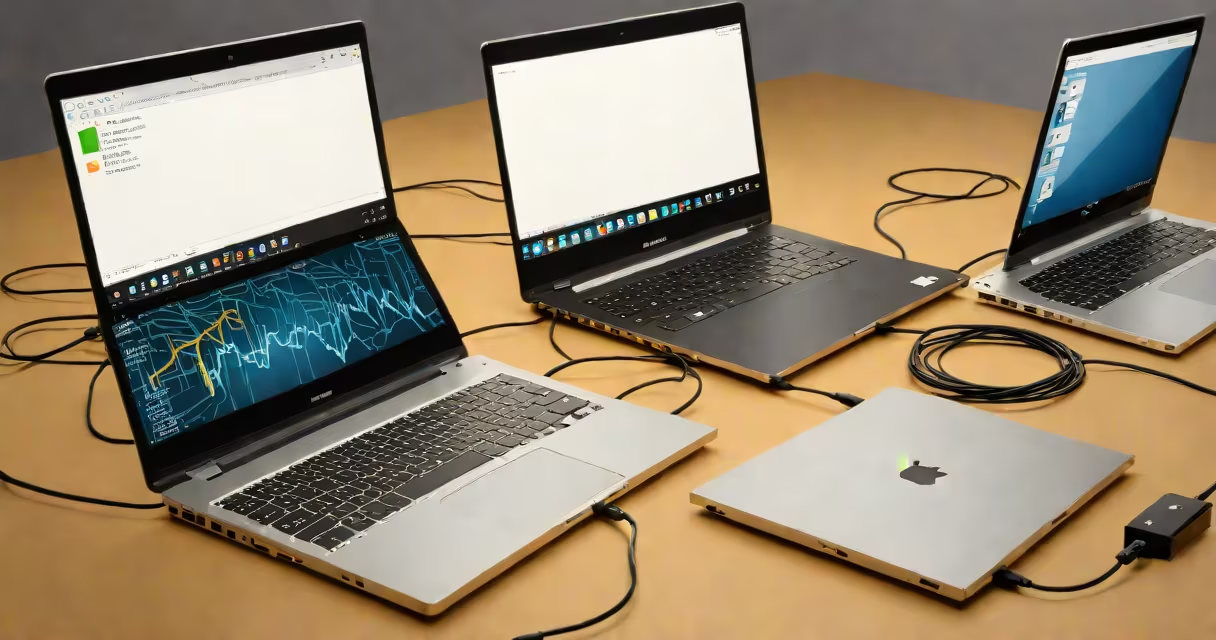
Moving data, settings, and applications from one laptop to another involves copying files, syncing accounts, or using built-in migration tools. This process preserves personal work, preferences, and software configurations across devices.
Direct transfer between laptops requires either a physical connection (USB cable, Ethernet, or Thunderbolt), a network setup, or cloud-based services. The method chosen affects speed, security, and completeness of the transfer. Some approaches preserve system settings and installed programs; others only copy user files.
Windows includes a built-in tool called "Ease of Access" migration feature, but it's limited. For full system transfers, third-party software like Laplink PCmover or Macrium Reflect offers better results. On macOS, Migration Assistant handles most data types automatically during setup.
Transferring one laptop to another begins with identifying what needs to be moved. Most users want documents, photos, browser bookmarks, email accounts, and application settings. Some also require full system images, including operating systems and installed software.
For file-only transfers, drag-and-drop between folders or use sync tools like Dropbox, Google Drive, or iCloud. These services update files across devices in real time. They're ideal for ongoing access but may take longer for large libraries.
For complete system migration, tools create a snapshot of the source laptop's drive. This image can be restored onto the new device. This method copies everything-including OS, drivers, and user profiles-but requires matching hardware or virtualization support.
Different operating systems handle data transfer differently. Windows and macOS each have native tools designed for smooth migration during initial setup or system refreshes.
| Method | Best For | Speed | Requires Setup |
|---|---|---|---|
| Direct cable (USB/Thunderbolt) | Large file sets, no internet | Fast (up to 10 Gbps) | Yes (driver install) |
| Wi-Fi network transfer | Quick file sharing between nearby devices | Medium (100 Mbps-1 Gbps) | Yes (network config) |
| Cloud sync (Dropbox, Google Drive) | Files, documents, small media | Slow (depends on upload speed) | No (account needed) |
| Migration Assistant (macOS) | Full system transfer to new Mac | Fast (if both devices on same network) | Yes (initial setup only) |
| PCmover (Windows) | Full system migration with app compatibility | Fast (uses optimized compression) | Yes (license required) |
On Windows, the built-in "Transfer Files" option in Settings allows wireless transfer between two PCs over a local network. It supports documents, pictures, music, and videos. However, it doesn't move installed applications or system preferences.
macOS users can run Migration Assistant during the setup of a new Mac. The tool detects nearby Macs and prompts for a secure connection via Wi-Fi or Thunderbolt. It transfers user accounts, desktops, applications, and system settings. Apple recommends using this method when upgrading to a newer model.
A common mistake is assuming that copying files from the old laptop's Documents folder transfers all user data. In reality, many apps store settings in hidden folders under Users/<username>/AppData (Windows) or ~/Library (macOS). These locations aren't visible in standard file browsers and must be accessed manually or through dedicated tools.
A college student moves from a 2018 Dell Latitude to a 2023 MacBook Air. Their data includes research papers, lecture recordings, coding projects, and a custom Python environment.
First, they connect both laptops via a Thunderbolt-to-USB-C cable. Using the built-in "Move to Mac" utility on the Dell, they select all user folders and initiate transfer. The process takes 47 minutes due to 68 GB of data.
Next, they use iCloud Drive to sync documents and photos. This ensures access from any device. They also reinstall Visual Studio Code and set up their development environment using saved configuration files.
Finally, they verify that all project files are accessible and that Git repositories retain commit history. They confirm this by running git log on each repository.
This workflow avoided manual copying of hidden configuration files and ensured full continuity of their workflow.
Many assume that transferring one laptop to another means copying the entire hard drive. That's not necessary unless rebuilding a system from scratch. Most users only need personal files and settings.
Another myth is that cloud storage automatically migrates all data. Services like Google Drive sync only files added to the designated folder. System settings, browser extensions, and app-specific preferences remain on the original device unless explicitly exported.
Some believe that using a USB flash drive is faster than a network. While flash drives offer high bandwidth, their actual speed depends on the drive's class (e.g., UHS-I vs. UHS-II). A Class 10 SD card can transfer data at ~100 MB/s, but older USB 2.0 drives cap at ~30 MB/s.
Not all software licenses transfer. Adobe Creative Cloud, Microsoft Office, and Autodesk products require reactivation on the new machine. Some licenses are tied to a single device and won't activate without deactivating the old one first.
I once transferred a client's design portfolio from a Windows laptop to a Linux machine using rsync over SSH. The process took 3 hours due to fragmented files and slow network. After fixing file permissions and symbolic links, the project was fully functional. This taught me that file integrity matters more than speed.
For users who want to preserve their entire working environment-including installed programs, desktop layout, and browser settings-third-party tools are essential. PCmover, for example, identifies and relocates over 1,000 common applications, including Adobe Photoshop and Microsoft Teams.
These tools analyze registry entries (Windows) or plist files (macOS) to ensure correct installation paths and dependencies. Without them, users risk broken shortcuts, missing fonts, or failed launches.
Free alternatives exist but often lack advanced features. Robocopy (Windows command-line tool) can copy files recursively with error handling, but it doesn't manage user profiles or registry keys. It's useful for bulk file transfers but not full system migration.
Always test the transfer on a small sample first. Copy a few folders, then verify that files open correctly and metadata (like creation dates) is preserved. This prevents surprises later.
Understanding how to transfer one laptop to another ensures minimal downtime and maximum continuity. Choose the method based on data volume, device compatibility, and required functionality.