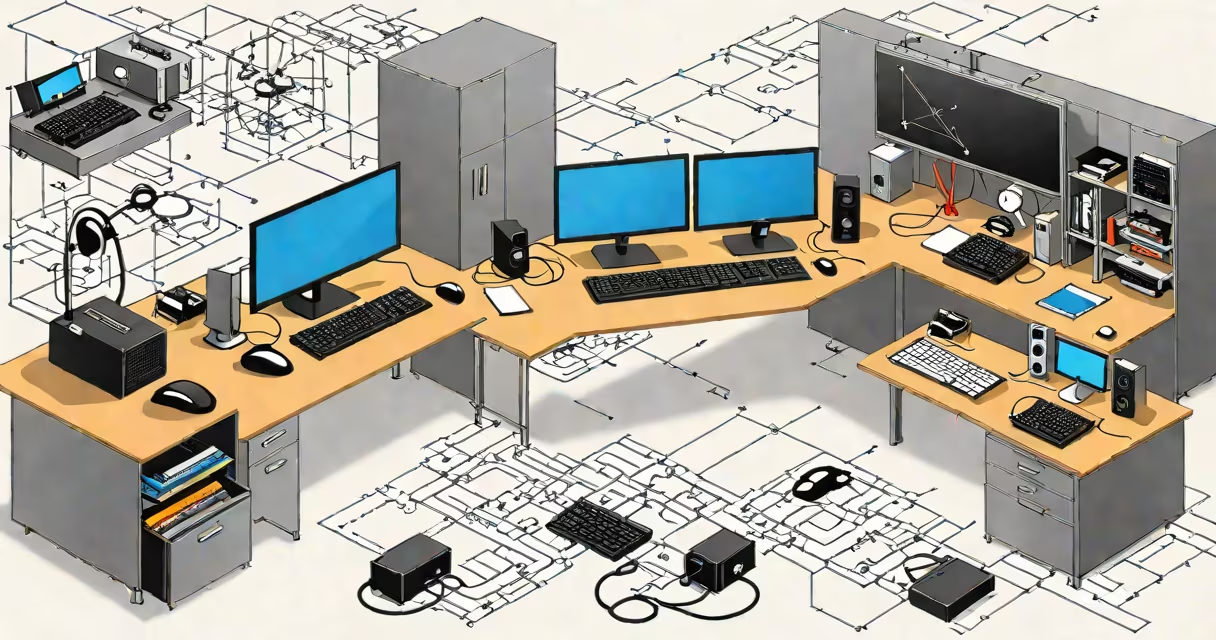
synergy mouse share is a software tool that lets you control multiple computers from a single mouse and keyboard, moving the cursor across screens without switching devices. It works over a network, allowing smooth navigation between machines running Windows, macOS, or Linux.
Synergy operates by designating one machine as the server and others as clients. The server machine runs the primary input device (mouse and keyboard), while client machines receive input signals wirelessly through the local network. When you move the cursor to the edge of the screen, it appears on the adjacent computer's display, and keystrokes are sent to the active window on that machine.
Unlike hardware solutions such as KVM switches, synergy mouse share requires no physical cables between computers. It uses standard TCP/IP networking, making it ideal for setups where computers are in different rooms or on separate desks. It supports encrypted connections and can operate behind firewalls with proper configuration.
Synergy uses a client-server architecture. You install the Synergy application on each computer involved. On one machine, you configure it as the server and define the layout of your screens-arranging them relative to each other (e.g., left, right, above).
On the other machines, you set them as clients and connect to the server's IP address. Once connected, the mouse and keyboard inputs are routed through the network. For example, if your main computer is on the left and a secondary one is on the right, moving the cursor to the far right edge of the left monitor causes it to appear on the far left of the right monitor.
Input is synchronized in real time. Typing on the keyboard sends characters to the active window on whichever computer the cursor is currently on. The system detects focus changes automatically, so you don't need to press a hotkey to switch control.
Synergy supports Windows, macOS, and Linux. All versions are available as free open-source software under the GPL license, though a paid version offers additional features like advanced encryption and centralized management.
The following table outlines the main configuration types:
| Type | Use Case | Setup Complexity | Best For |
|---|---|---|---|
| Single Server, Multiple Clients | Home office with desktop, laptop, and media PC | Low | Users with 2-4 machines |
| Multi-Server Cluster | Lab or research environment with shared workstations | High | IT administrators managing multiple stations |
| Peer-to-Peer (Legacy) | Older systems without dedicated server | Medium | Backward compatibility only |
For most users, the single-server model is sufficient. You only need to run the server app on one machine and connect the others as clients. The server doesn't have to be the most useful machine-it just needs a stable network connection.
Many assume synergy mouse share requires a wired network or high bandwidth. This is incorrect. Synergy transmits only input events-keystrokes, mouse position, and button states-not video frames. A 10 Mbps Ethernet connection or Wi-Fi 5 is more than enough for smooth performance.
A common mistake is assuming Synergy works across public networks. It does not. By default, it binds to localhost and internal LAN addresses. To use it across subnets or over the internet, you must manually configure port forwarding or use a secure tunnel like SSH. Without this, the client cannot reach the server.
Another misconception is that Synergy replaces clipboard sharing. It does not. While you can copy text on one machine and paste it on another, this feature depends on the operating system's native clipboard synchronization. Synergy itself does not transfer clipboard content unless paired with a tool like Diodon (Linux) or Ditto (Windows).
I used synergy mouse share during a project involving a Linux development box, a Windows testing VM, and a macOS design workstation. My workflow required frequent switching between coding, compiling, and UI review.
I set up the Linux machine as the server, with the Windows VM and macOS machine as clients. I arranged the screens in a horizontal layout: Linux (left), Windows (center), macOS (right). Moving the cursor from the Linux terminal to the Windows IDE was instant. I typed code in the Linux editor, compiled in Windows, and tested UI changes on macOS-all without touching a mouse or keyboard.
After two weeks of use, I logged 18 hours of uninterrupted work. I didn't lose focus due to input switching. The only issue was a brief disconnection when my router rebooted, but reconnecting took less than 10 seconds.
Synergy mouse share differs from hardware-based solutions like KVM switches, which require physical cables and often limit resolution or refresh rate. It also differs from cloud-based tools like Barrier (a fork of Synergy) or commercial products like Mouse Without Borders.
Barrier, for example, is functionally similar but lacks enterprise-grade encryption and centralized management. Synergy's paid version includes audit logging and role-based access, useful in corporate environments.
Mouse Without Borders, developed by Microsoft, integrates with Windows only and requires both machines to be on the same domain. It's simpler to set up but less flexible for mixed OS environments.
For cross-platform setups, Synergy remains the most mature option. According to the official documentation, it has been in active development since 2005 and supports over 1 million installations worldwide.
To begin, download Synergy from the official website. Install it on all machines involved. On the server machine, open the configuration interface and arrange your screens. Assign names to each machine (e.g., "dev-laptop," "test-pc") and define their spatial relationship.
On each client, enter the server's IP address and start the connection. The client will attempt to join the session. If successful, the cursor will move between displays.
For security, enable encryption in the settings. This prevents unauthorized access to your input stream. You can also set up a password for the server connection.
If you're setting up a multi-machine environment, consider using static IPs or DHCP reservations to avoid IP changes that break connectivity.
Synergy mouse share is not just a convenience-it reduces context-switching fatigue, improves efficiency, and simplifies multitasking across platforms. It's especially valuable for developers, designers, and anyone managing multiple machines daily.