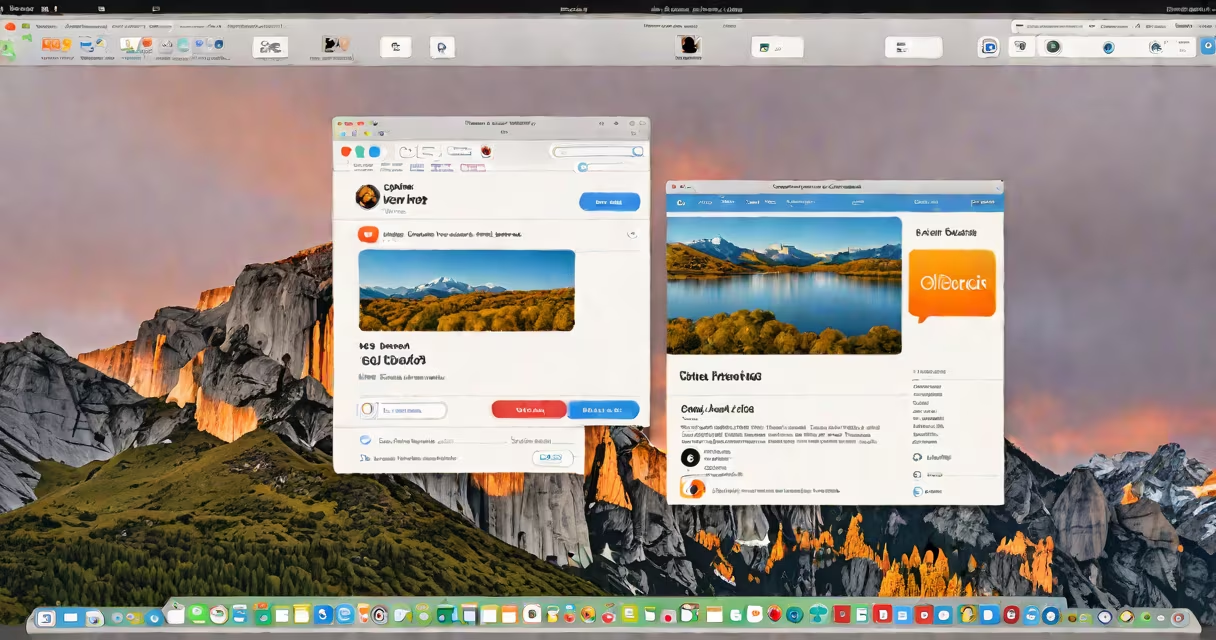
iCloud Drive is a cloud storage service from Apple that stores your documents, photos, and app data across all your Apple devices. You access it through the Files app on iOS and iPadOS, the Finder on macOS, or via iCloud.com on any web browser.
On iPhone or iPad, open the Files app, tap "iCloud Drive" under "Locations" in the sidebar. On Mac, open Finder, click "iCloud Drive" in the sidebar under "Favorites." On a computer using a web browser, go to icloud.com and sign in with your Apple ID.
Each device shows your iCloud Drive in a dedicated spot. The location doesn't change based on which device you're using-it's synced automatically. If you don't see it, verify your Apple ID is signed in and iCloud is enabled in Settings.
On iPhone and iPad, iCloud Drive appears in the Files app under "Locations." Tap it to view all files stored in the cloud. The interface shows folders, recent files, and search options. If you don't see it, go to Settings > [Your Name] > iCloud > toggle on "iCloud Drive."
On Mac, open Finder. In the left sidebar, look under "Favorites" for "iCloud Drive." Click it to browse. If it's missing, go to System Settings > Apple ID > iCloud > ensure "iCloud Drive" is turned on. Some users report it appearing only after signing out and back in.
For Windows or non-Apple devices, visit icloud.com in any browser. Sign in with your Apple ID. Once logged in, click "iCloud Drive" from the menu. You can upload, download, or share files directly from the web interface.
Many users think iCloud Drive is only for photos. It's not. While Photos syncs separately, iCloud Drive holds documents, spreadsheets, presentations, and app-specific files. A single file saved in Pages or Notes appears in iCloud Drive unless disabled.
If iCloud Drive doesn't show up, check your internet connection. A weak signal or blocked port can prevent syncing. Also, verify that iCloud is enabled in Settings on iOS or System Settings on macOS. Go to Settings > [Your Name] > iCloud and confirm the toggle is on.
A known issue: iCloud Drive may appear empty even when files exist. This happens when the system fails to refresh the local cache. Force close the Files app, reopen it, and wait 30 seconds. If still blank, restart the device. Apple Support notes that this occurs most often after a software update.
When you save a file to iCloud Drive, it's stored in a hidden folder structure managed by Apple. You can't manually edit the root path, but you can create subfolders. For example, creating a folder called "Work Projects" lets you organize client documents.
Files in iCloud Drive sync across devices within minutes. A document edited on your iPad appears instantly on your Mac. This works only if both devices are signed in with the same Apple ID and have iCloud Drive enabled.
Use the Search bar in Files or iCloud.com to locate specific files. Type the filename or keyword. Results include files, folders, and even metadata like creation date. Searching "Q3 budget" returns all matching documents-even if they're nested in subfolders.
| Device/Platform | Path to iCloud Drive | Required Setup |
|---|---|---|
| iPhone or iPad | Files app > "iCloud Drive" in sidebar | Sign in to iCloud in Settings > [Your Name] |
| Mac (macOS) | Finder > Sidebar > "iCloud Drive" | System Settings > Apple ID > iCloud > Enable |
| Web (any browser) | icloud.com > iCloud Drive tab | Apple ID sign-in; two-factor authentication required |
| Windows PC | Download iCloud for Windows > Open iCloud Control Panel > Select "iCloud Drive" | Install iCloud app; sign in with Apple ID |
On Windows, iCloud Drive requires installing the iCloud app from Apple's website. After installation, you'll see a "iCloud Drive" option in the control panel. Enabling it creates a folder on your desktop or in Documents, depending on settings.
I once lost a draft of a proposal while traveling. I had saved it to iCloud Drive on my iPhone during a meeting. Back home, I couldn't find it on my Mac. I opened the Files app, tapped "Browse," then selected "iCloud Drive." The file was there-but hidden under a renamed folder.
I checked the web version at icloud.com and found it under "Work Drafts." The file had been moved accidentally during a sync delay. I restored it, renamed the folder, and set up a backup reminder in Calendar.
This happened because iCloud Drive doesn't notify you when a file is moved. Unlike Dropbox, it lacks a "recent moves" log. Always double-check the location after renaming or moving files.
Users often mix up iCloud Drive with iCloud Photos. iCloud Photos stores only images and videos, organized by date and event. iCloud Drive handles all other file types-including PDFs, Word docs, and project files. They're separate services, though both require an Apple ID.
Another confusion: iCloud Drive vs. iCloud Backup. iCloud Backup saves your entire device state-apps, settings, messages. It's not meant for file access. To retrieve a file, you need iCloud Drive, not the backup.
Apple's documentation confirms that iCloud Drive is designed for file sharing and collaboration. According to Apple Support, "iCloud Drive allows you to store and access your files from any device signed in with the same Apple ID." This includes third-party apps like Microsoft Office, which can save directly to iCloud Drive.
When using Google Docs, Microsoft Word, or Adobe Acrobat, choose "Save to iCloud Drive" as the destination. The file appears in your iCloud Drive folder and syncs across devices. This avoids saving duplicates.
For example, if you edit a spreadsheet in Excel on your iPad and save it to iCloud Drive, you can open it on your Mac with full formatting intact. No need to email attachments or use USB drives.
Always check the save location before exporting. Some apps default to "On My iPhone" or "Desktop." Change it to "iCloud Drive" in the export menu.
If you're unsure where your file is, use the Search function in Files or iCloud.com. Type the filename or part of the title. Results show all matching files, even if they're buried in subfolders.
For advanced users, you can access iCloud Drive via the command line on Mac using Terminal. Enter cd ~/iCloudDrive to go through. But this requires enabling "Show All Files" in Finder preferences and is not recommended for casual users.