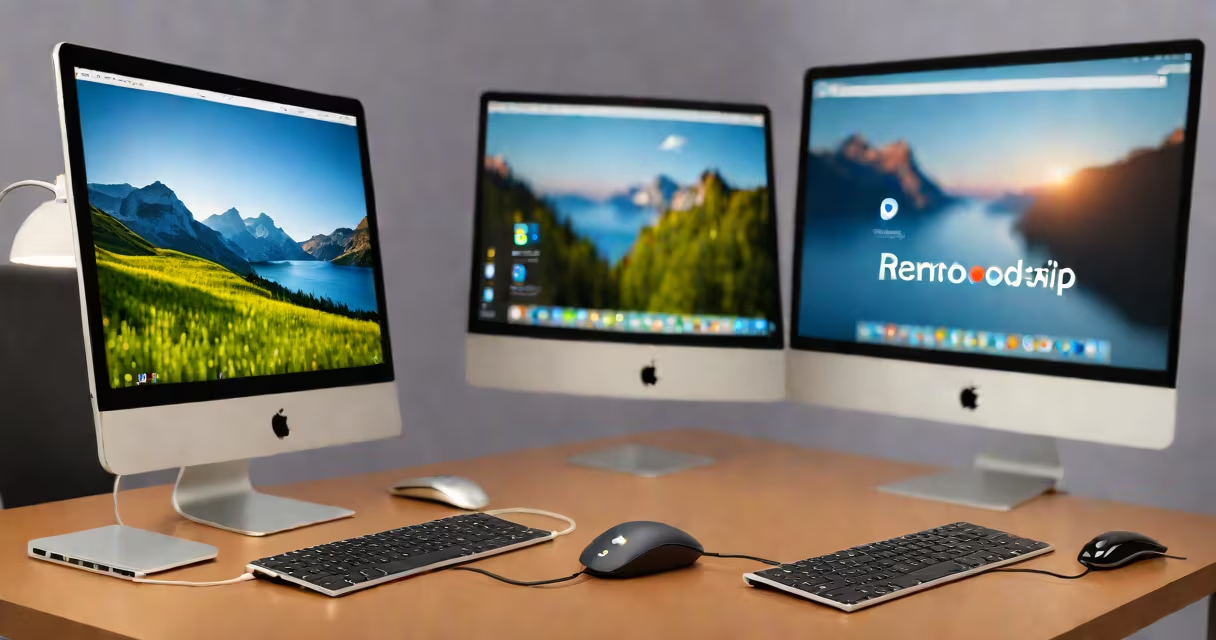
Yes, you can remote desktop from a Mac to a Windows PC using native tools like Microsoft Remote Desktop or third-party software such as AnyDesk, TeamViewer, or Chrome Remote Desktop. The process requires proper configuration on both devices and compatible network settings.
Remote desktop allows you to control a Windows machine from a Mac as if you were sitting in front of it. This works over local networks or the internet, depending on your setup. The core requirement is that the Windows PC must have remote access enabled and a stable network connection.
Apple's macOS includes Screen Sharing, but it doesn't support connecting to Windows machines natively. Instead, you need a dedicated remote desktop client on the Mac side. The most reliable option is Microsoft's official Remote Desktop app for Mac, available through the App Store.
Remote desktop uses a client-server model. The Mac acts as the client, sending input commands (mouse, keyboard) to the Windows PC, which acts as the server. The Windows PC processes those inputs and sends back screen updates in real time.
For this to work, the Windows machine must run a service that listens for incoming connections. By default, Windows enables Remote Desktop Protocol (RDP) in Pro and Enterprise editions. Home editions do not include RDP support unless manually enabled via Group Policy or registry edits.
When you connect via Microsoft Remote Desktop on Mac, the app establishes an encrypted RDP session. Data flows securely over port 3389 unless changed in firewall settings. The connection speed depends on bandwidth, latency, and compression settings within the client.
To connect from Mac to Windows, ensure the following:
On the Windows side, go to Settings → System → Remote Desktop and turn on "Enable Remote Desktop." Then, under Advanced settings, allow connections from computers running any version of Remote Desktop.
On the Mac, open Microsoft Remote Desktop, click "+" to add a new PC, enter the Windows machine's IP address or hostname, and save. You'll be prompted to sign in with a valid Windows username and password. After authentication, the desktop appears on your Mac screen.
While Microsoft Remote Desktop is free and secure, alternatives offer additional features like file transfer, multi-monitor support, or cross-platform compatibility.
| Software | Free Version | File Transfer | Multi-Monitor Support | Best For |
|---|---|---|---|---|
| Microsoft Remote Desktop | Yes | Yes | Yes | Reliable, secure access to Windows machines |
| AnyDesk | Yes (personal use) | Yes | Yes | Quick setup, low latency, cross-platform |
| TeamViewer | Yes (personal use) | Yes | Yes | Enterprise support, remote printing, unattended access |
| Chrome Remote Desktop | Yes | Yes (limited) | No | Simple, browser-based access |
Microsoft Remote Desktop is recommended for users who prioritize security and integration with Microsoft services. It supports clipboard sharing, audio redirection, and multiple sessions. However, it only works with Windows systems that have RDP enabled.
AnyDesk and TeamViewer offer greater flexibility. They don't require port forwarding or complex firewall rules because they use changing tunneling through their own servers. These tools also allow unattended access, useful for IT support or remote troubleshooting.
One frequent error is assuming that Windows 10 Home supports RDP. It does not. Attempting to connect results in a "The remote computer is not responding" error, even if the network is stable.
Another issue arises when the Windows machine is behind a NAT router. Without port forwarding or UPnP enabled, external connections fail. To fix this, configure the router to forward port 3389 to the internal IP of the Windows PC.
Firewall misconfigurations are common too. Even with RDP enabled, Windows Defender Firewall may block incoming connections. Open Windows Defender Firewall with Advanced Security, create an inbound rule for port 3389, and allow the connection.
I once tried to connect to a Windows 10 Home machine from my MacBook during a home office setup. After hours of troubleshooting, I discovered the OS limitation. Switching to AnyDesk resolved the issue instantly. The app auto-configured the connection and allowed me to access the desktop in under a minute.
Remote desktop from Mac to Windows is not the same as Apple's Screen Sharing. Screen Sharing uses VNC protocol and only connects to Macs. It cannot control Windows PCs.
Also, don't confuse this with iCloud's Back to My Mac feature. That tool lets you access files and folders on a Mac from another device, but it doesn't provide full desktop control over a Windows machine.
Finally, remote desktop is not the same as cloud-based remote access. Services like GoToMyPC or LogMeIn use proprietary protocols and require subscription fees. While they offer advanced features, they're not necessary for basic remote control.
Always use strong passwords and enable Network Level Authentication (NLA) on the Windows side. NLA verifies credentials before establishing a session, reducing exposure to brute-force attacks.
According to Microsoft's documentation, disabling NLA increases vulnerability. The company recommends keeping it enabled unless legacy applications require otherwise.
Use only trusted software. Some third-party apps claim to offer "free remote access" but may collect user data or install malware. Stick to well-known providers with transparent privacy policies.
If you're managing multiple machines, consider setting up a domain environment with Group Policy to enforce security settings across all devices.
If you're setting up remote access for work or personal use, start with Microsoft Remote Desktop. It's free, officially supported, and integrates with Azure Active Directory for enterprise environments.
For users who want to run a full Windows desktop on a Mac, explore virtualization tools like Parallels Desktop or VMware Fusion. These platforms let you install Windows as a guest OS and access it directly - a different solution than remote desktop, but often better for performance-critical tasks.