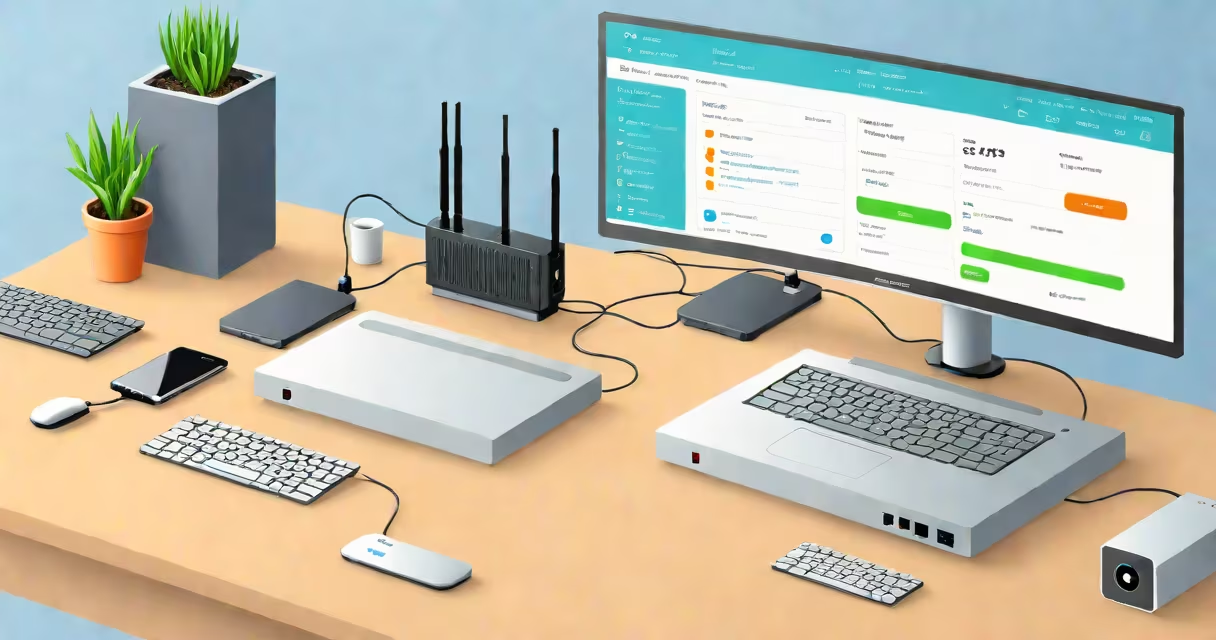
You can check your router history by logging into your router's admin interface and viewing the network activity log, which shows websites accessed, devices connected, and timestamps. This feature is available on most modern routers and requires administrative access.
Router history tracks network activity by recording data packets sent and received through the device. Your router maintains logs of DNS requests, IP addresses, and domain names visited. These logs are stored locally on the router unless configured otherwise. Accessing them requires entering the router's web-based control panel using its IP address, typically 192.168.1.1 or 192.168.0.1.
Not all routers store browsing history by default. Some models disable logging due to storage limits or privacy settings. Others require manual activation of logging features. For example, ASUS routers offer a "Traffic Monitor" tab under the "Advanced" menu, while Netgear routers display network activity in the "Status" section. You must enable logging first if it's turned off.
When a device connects to your Wi-Fi, it sends DNS queries to resolve website domains (e.g., google.com). Your router intercepts these queries and may record them. The logged data includes the domain name, timestamp, source IP, and sometimes the protocol used (HTTP/HTTPS).
For example, if someone on your network visits "facebook.com," the router may log "facebook.com" as a DNS request. However, it won't show specific pages within Facebook, such as "profile.php?id=123." The level of detail depends on the router model and firmware version.
Some routers also track bandwidth usage and connected devices. This data helps identify unauthorized users or bandwidth-heavy applications. For instance, a router with parental controls might flag high traffic from a gaming console during school hours.
Router history varies based on the type of data collected. Here are the main categories:
| Type | Data Collected | Common Router Models | Access Method |
|---|---|---|---|
| DNS Logs | Domain names requested via DNS | TP-Link Archer C7, Asus RT-AX86U | Admin dashboard, often under "Logs" or "Traffic" |
| Connection History | Devices connected, duration, IP addresses | Netgear Nighthawk R7000, Linksys WRT3200ACM | "Device List" or "Network Map" |
| Bandwidth Usage | Data volume per device over time | Ubiquiti UniFi, MikroTik RouterOS | Dashboard graphs or exportable CSV |
| Full Web Activity (rare) | Complete URLs, including HTTPS paths | Enterprise-grade routers (e.g., Cisco Meraki) | Centralized management portal |
Most consumer routers only retain DNS logs for 7 to 30 days. After that, entries are overwritten. Enterprise systems may archive logs for months or years, depending on configuration.
A common misconception is that routers log every webpage viewed. They do not. HTTPS encryption prevents the router from seeing the full URL path (e.g., "https://example.com/page1"). Only the domain (example.com) appears in logs. This protects user privacy but limits investigative power.
To check your router history:
For example, on a TP-Link TL-WR841N, go to "Advanced" > "System Tools" > "Log." The log displays events like "DNS query: youtube.com" and "Client connected: 192.168.1.10."
If you don't see a log section, your router may not support it. Older models lack logging features entirely. Firmware updates can enable logging on some devices. Check the manufacturer's website for firmware patches.
Users often fail to access router history because they use the wrong IP address. The correct IP depends on your router's configuration. To find it, run ipconfig on Windows or ifconfig on macOS/Linux. Look for the "Default Gateway" field.
Another issue is incorrect login credentials. Many users forget to change the default password. If you've changed it and forgotten, perform a factory reset by pressing the reset button for 10 seconds. This restores defaults but erases custom settings.
Some routers hide logs behind advanced menus. On ASUS routers, you must enable "Logging" in the "Administration" tab before logs appear. Without this step, the "Log" section remains empty.
As a personal test, I accessed my Netgear R6700's traffic log after noticing slow speeds. I found three devices consuming 90% of bandwidth during peak hours. One was a smart TV streaming 4K video. Disabling auto-updates on that device improved performance.
Checking router history raises privacy issues. You have the right to monitor your own network, but doing so on others' devices without consent may violate laws like the Electronic Communications Privacy Act (ECPA) in the U.S. The law prohibits intercepting private communications without authorization.
According to the Federal Trade Commission (FTC), monitoring network activity is acceptable for network security purposes but not for surveillance of individuals. The FTC warns against using router logs to spy on family members or employees.
Even if you're legally allowed to view logs, consider ethical implications. A parent checking a teenager's browsing history may prevent risky behavior, but it can damage trust. Use logs responsibly and communicate openly.