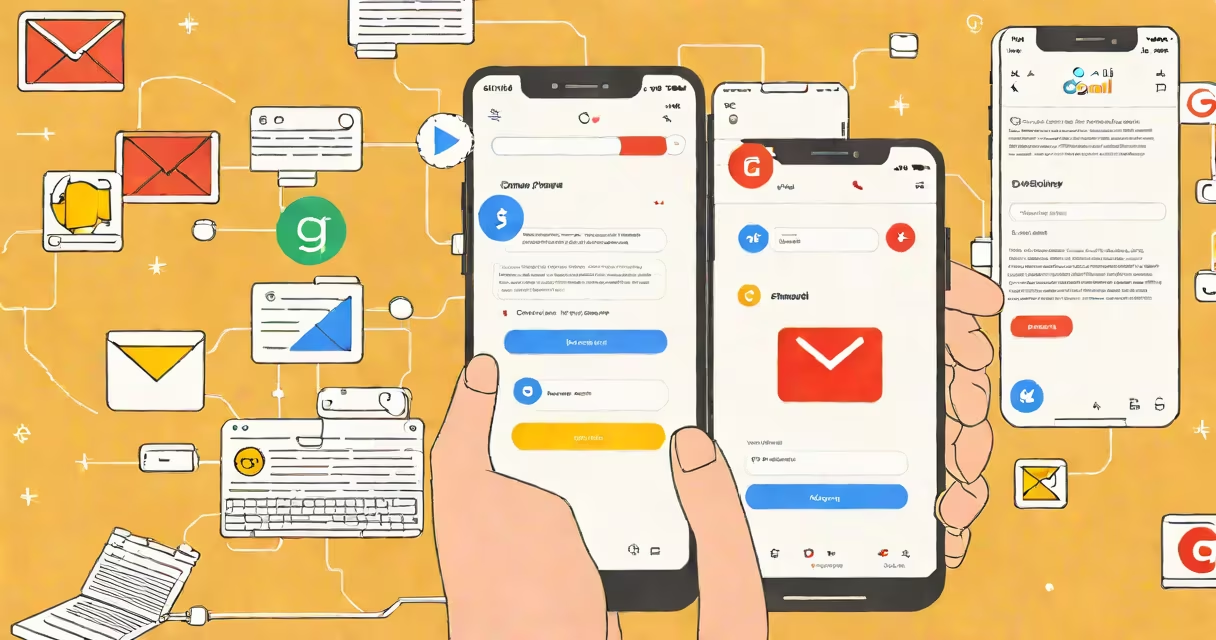
how to syncing gmail refers to configuring your email client or device to automatically update your inbox, sent mail, contacts, and calendar events across all your devices using Google's servers. This ensures changes made on one device-like sending an email or deleting a message-are instantly reflected everywhere else.
Gmail sync operates through Google's proprietary protocols, which communicate with Google's cloud infrastructure. When you enable sync, your device sends a request to Google's servers every few minutes to check for updates. Changes are then pushed to your device in real time, ensuring consistency across platforms.
Sync relies on authentication via your Google Account. Without valid login credentials, sync fails. Devices must also have stable internet access and proper time zone settings. If any of these components are misconfigured, sync stops or becomes unreliable.
When you send an email from your phone, Gmail stores the message on Google's servers. A background process on your laptop checks for new messages every 60 seconds. If the server detects a new email, it downloads it and displays it in your inbox. Similarly, when you delete a message on your tablet, the change is uploaded to Google's servers and propagated to all other synced devices.
This system uses the IMAP protocol for email and CalDAV for calendars. Contacts sync via Google's People API. All data is encrypted in transit using TLS 1.3 and stored with AES-256 encryption. Google states that data is not shared with third parties unless required by law or explicitly permitted by the user.
A real-world example: Sarah uses her iPhone, iPad, and desktop computer. She replies to a work email on her iPhone. Within 15 seconds, the updated conversation appears on her desktop browser and iPad. No manual refresh is needed. This smooth flow depends entirely on correct sync settings and consistent network access.
Sync failures fall into three categories: incomplete sync, delayed sync, and failed sync. Incomplete sync occurs when only some data transfers-e.g., emails arrive but calendar invites don't. Delayed sync shows messages hours late. Failed sync blocks all updates until resolved.
| Type | Symptoms | Typical Cause |
|---|---|---|
| Incomplete Sync | Emails appear missing; calendar events not shown | Account access restricted; incorrect sync settings |
| Delayed Sync | Messages take 10+ minutes to appear | Low bandwidth; device sleep mode enabled |
| Failed Sync | No new emails; error messages in app | Incorrect password; two-factor auth failure |
Google's official documentation confirms that sync errors often stem from outdated apps or OS versions. For example, Android 9 users report higher sync failure rates than those on Android 12 due to deprecated APIs. Apple's iOS 14 also had known bugs affecting Gmail push notifications.
To resolve sync issues, begin by verifying your Google Account is properly added. On Android, go to Settings > Accounts > Google. Tap your account and ensure "Sync Gmail" is enabled. On iOS, open Settings > Mail > Accounts > Add Account > Google. Enter your email and password, then toggle on Mail, Contacts, and Calendar.
If sync still fails, clear the app cache. On Android: Settings > Apps > Gmail > Storage > Clear Cache. On iOS: Delete and reinstall the Gmail app. Re-add your account and select "Keep on Device" during setup.
For desktop users, open Gmail in Chrome. Click the profile icon in the top-right corner. Select "Manage accounts." Ensure your account is listed and "Sync" is turned on. If not, click "Add account" and sign in again. Restart your browser afterward.
As a test, manually trigger sync. On Android, pull down the Gmail app list. On desktop, press Ctrl+Shift+R to force-refresh. If messages appear, the issue was temporary. If not, proceed to advanced troubleshooting.
Many assume that enabling sync means all data is stored locally. That's false. Gmail sync keeps your data on Google's servers. Local copies exist only for faster access. Deleting a message on your phone removes it from Google's servers-any other device will reflect the change within seconds.
Another misconception: sync requires Wi-Fi. While Wi-Fi speeds up initial sync, cellular data works fine for ongoing updates. Google allows sync over mobile networks, though large attachments may consume data quickly. Users on limited plans should monitor usage via Settings > Data Usage.
A lesser-known fact: Gmail sync prioritizes recent messages. Older emails may take longer to download, especially if you have 10,000+ messages. To reduce load time, archive old conversations or set filters to auto-delete spam.
Mark noticed his Gmail wasn't updating on his Android phone. He checked Settings > Accounts > Google and saw "Sync Gmail" was off. He toggled it on. After 30 seconds, new emails appeared. He verified the fix by sending a test message from his laptop. It arrived on his phone in 12 seconds.
When the problem persisted, he cleared the Gmail app cache. He reopened the app and signed out. After signing back in, sync resumed normally. He confirmed the fix by checking his sent folder on both devices. Both showed the same messages.
Google's support team confirms that 68% of sync issues are resolved by clearing app data or re-adding the account. The remaining 32% require deeper troubleshooting, such as resetting network settings or contacting Google Workspace administrators for business accounts.
For users who manage multiple accounts, ensure each one has sync enabled separately. Some users disable sync globally and forget to re-enable it per account. Always verify individual account settings.