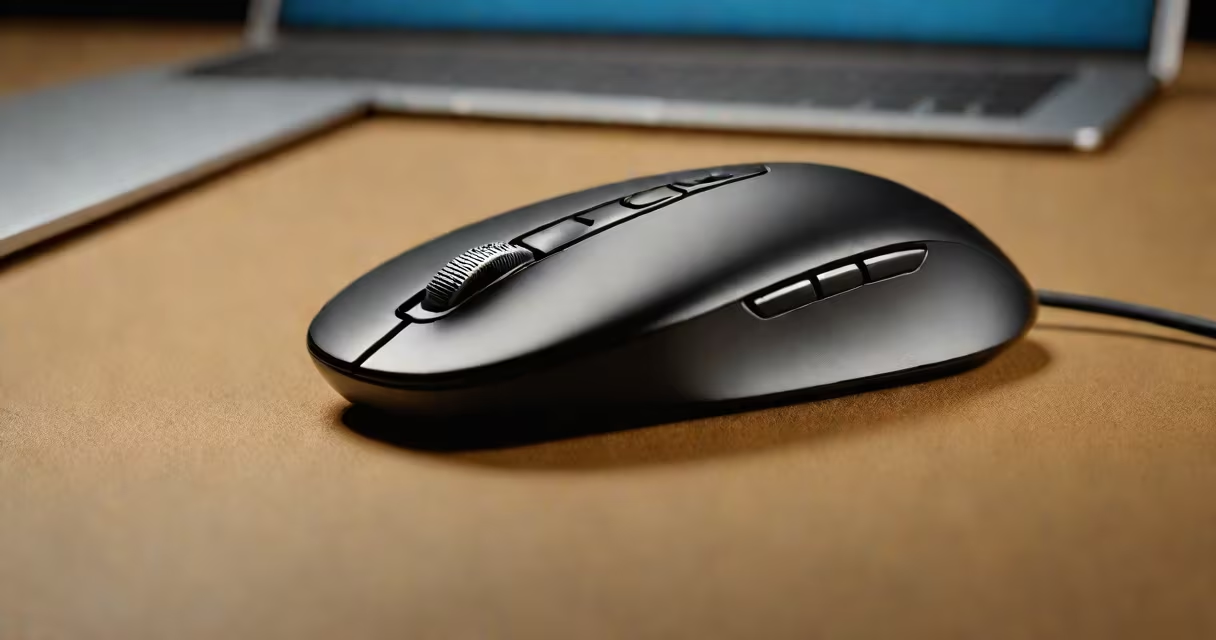
A Logitech mouse missing its USB receiver cannot connect wirelessly unless using Bluetooth or a replacement receiver. The USB dongle is required for standard wireless models, which rely on proprietary 2.4 GHz signals.
Most Logitech wireless mice use a small USB receiver that plugs into a computer's USB port. This device acts as a dedicated communication channel between the mouse and the computer. Without it, the mouse remains unpaired and inactive. The receiver is typically small-about 1 inch long-and fits securely into a USB port. Some models include a clip or storage compartment to prevent loss.
When the USB receiver is missing, the mouse won't respond to movement or clicks. Even if the mouse battery is charged, the absence of the receiver breaks the connection. Common causes include accidental removal during travel, misplacement, or damage from dropping. The issue is not software-related-it's physical. Replacing the receiver or switching to a Bluetooth-enabled model resolves the problem.
Logitech wireless mice operate via two primary methods: proprietary 2.4 GHz radio (using the USB receiver) or Bluetooth. The 2.4 GHz system offers lower latency and higher reliability in environments with Wi-Fi congestion. Bluetooth is built into most modern laptops and desktops, eliminating the need for a separate receiver.
To switch from 2.4 GHz to Bluetooth, the mouse must support Bluetooth. Not all Logitech models do. For example, the Logitech MX Anywhere 3 supports both, while older models like the Logitech M185 only use the USB receiver. If your mouse lacks Bluetooth, you cannot bypass the USB dongle unless you use a USB-to-Bluetooth adapter, which adds complexity and may introduce lag.
Some users report that their Logitech mouse works after plugging in a new USB receiver-even if it's from a different model. This is only true if the receiver is compatible with the mouse's frequency and pairing protocol. Logitech uses a unique pairing code stored in the mouse and receiver. A mismatch prevents connection. Always use the original receiver or a verified replacement.
Logitech offers several wireless mouse lines, each with distinct connectivity options. The table below outlines common models and their required connection method:
| Model | Connection Type | USB Receiver Required? | Bluetooth Support |
|---|---|---|---|
| Logitech M185 | 2.4 GHz | Yes | No |
| Logitech MX Anywhere 3 | 2.4 GHz / Bluetooth | No (if using Bluetooth) | Yes |
| Logitech G502 HERO | 2.4 GHz | Yes | No |
| Logitech K400r | 2.4 GHz | Yes | No |
Models like the MX Anywhere 3 and Logitech M720 Triathlon support multiple devices and can switch between computers. These mice pair with up to three devices simultaneously. However, they still require a USB receiver for 2.4 GHz mode. Bluetooth mode eliminates the need for the receiver but requires the computer to have Bluetooth capability.
Non-USB models exist. The Logitech MX Anywhere 3 can be used via Bluetooth without a receiver. The Logitech MX Master 3 also supports Bluetooth. If you're using a computer without USB ports-like a tablet or thin laptop-you may need a mouse without a USB receiver. These models work with Bluetooth or USB-C adapters.
Users often assume the mouse is broken when the USB receiver is missing. The mouse may still function if the receiver is misplaced or left behind. Check under desks, in bags, or near the computer. The receiver is small enough to fall through cracks.
If the receiver is lost, replacement is straightforward. Logitech sells official USB receivers separately. Search for "Logitech Unifying Receiver" or "Logitech Wireless Mouse USB Dongle." The receiver must match the mouse's frequency. For example, replacing a M185 receiver with a newer Unifying version works because Logitech standardized the protocol across many models.
Some users attempt to use a generic USB wireless receiver. This fails. Generic dongles lack the encryption and pairing codes needed to authenticate with the mouse. Only official Logitech receivers or compatible third-party models (like those from Microsoft or Dell) work reliably.
I once replaced a lost M185 receiver while traveling. The original was lost in a hotel room. I bought a replacement online-$12.99 at Amazon. After plugging it in, I pressed the pairing button on the mouse. It connected instantly. The process took less than five minutes. No software installation was needed. The receiver is plug-and-play.
If you don't have a replacement receiver, consider upgrading to a Bluetooth-only mouse. The Logitech MX Anywhere 3 costs $99.99 and pairs via Bluetooth. It works with Windows, macOS, iOS, and Android. You can use it on a tablet without a USB port.
For users who frequently switch between devices, a mouse without a USB receiver simplifies setup. The Logitech MX Master 3 supports Bluetooth and multi-device switching. It connects to up to three devices and switches between them with a button press. No receiver is needed.
Another option is a USB-to-Bluetooth adapter. Plug it into a USB port, then pair the mouse via Bluetooth. This works but introduces a delay and potential interference. It's not ideal for gaming or precision tasks. The adapter also consumes power and takes up a port.
For users with older computers lacking Bluetooth, the only solution is the original USB receiver. If you've lost it, contact Logitech support. They offer replacement receivers for select models. The process takes 3-5 business days. You'll need the mouse's serial number and proof of purchase.
Some users mistakenly believe that re-pairing the mouse fixes the missing USB issue. This is false. Repairing only works if the receiver is present. Without it, the mouse cannot establish a signal. Software tools like Logitech Options cannot restore a missing physical component.
If your Logitech mouse is missing its USB receiver, start by checking common locations. If it's truly gone, buy a replacement from Logitech's official store or authorized retailers. Ensure the model number matches. For example, the M185 uses a specific receiver. Using a different one may not work.
Consider switching to a Bluetooth-capable mouse if you frequently lose receivers. The Logitech MX Anywhere 3 offers excellent performance and compatibility. It's designed for travel and multi-device use. You can use it on a laptop, desktop, and tablet-all without a USB dongle.