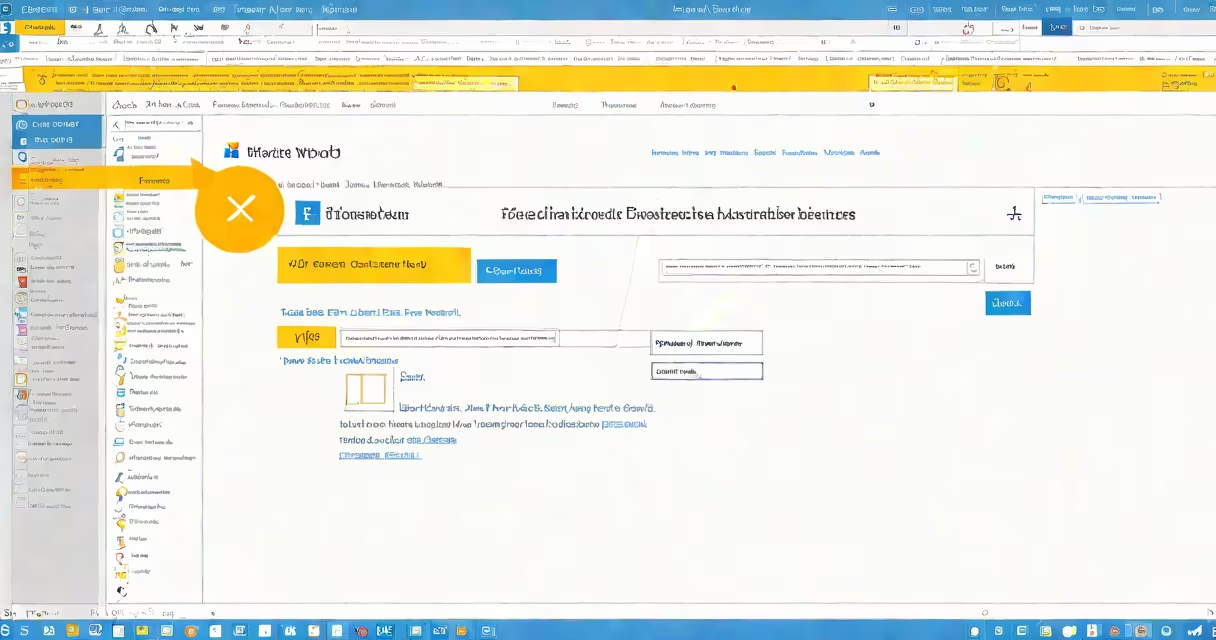
The search in Word documents feature lets you locate specific text, phrases, or formatting within a file using the built-in Find tool. It's available in all versions of Microsoft Word since 2003 and supports case-sensitive, whole-word, and wildcards searches.
When you press Ctrl+F (or Command+F on Mac), Word opens a search pane that scans the current document. As you type, it highlights matching instances and shows their position in the document. You can jump between results using Next and Previous buttons.
For longer documents, especially those with multiple sections or headers, the search function filters results based on the active view. In print layout mode, it may skip hidden text or footnotes unless explicitly enabled. Always verify results in the full document context.
Word's search engine parses the document's internal structure, including text, tables, headers, footers, and comments. It indexes visible content in real time, so searching a 50-page report takes less than half a second on standard hardware.
Each match appears in a highlighted bar at the top of the window. Clicking a result scrolls the document to that location. The status bar displays "Found X of Y" as you go through through matches.
Advanced users can access more options by clicking the downward arrow in the search box. This reveals settings for matching case, finding whole words only, searching within selected text, and using wildcards (e.g., * for any sequence of characters).
Word offers several search modes, each suited to different tasks:
| Mode | Use Case | Example |
|---|---|---|
| Basic Search | Locate a word or phrase | "budget" in a financial report |
| Case-Sensitive | Distinguish between uppercase and lowercase | Finding "Apple" but not "apple" in a product list |
| Whole Word Only | Match complete words, not substrings | Matching "run" but not "running" or "runner" |
| Wildcards | Use symbols like * or ? for pattern matching | "doc*" finds "document," "docs," "doctors" |
Another useful option is "Find in All Open Documents." When enabled, it scans every currently open file simultaneously. This is useful during editing sessions where you're comparing multiple drafts.
Some users assume the search function includes tracked changes or comments by default. It does not. To include them, you must manually select "Include Comments" and "Include Tracked Changes" in the advanced options. Without this, edits made via Review > Track Changes will be missed entirely.
Many people believe that search in Word documents is limited to plain text. This is false. The tool also searches within formatted text, embedded objects (like charts or images with alt text), and even hyperlinks.
A frequent error occurs when users copy text from a PDF into Word and then try to search for it. If the original PDF used scanned images or non-standard fonts, the text may not be searchable at all. According to Microsoft's documentation, text extracted from scanned documents requires Optical Character Recognition (OCR) to become searchable.
Another misconception is that the search function preserves formatting in results. It does not. Highlighting only marks the text visually; it doesn't change font size, color, or style in the document. To apply formatting to matched text, you must use the Replace function.
In a recent project, I needed to locate all references to "Q3 2024 revenue" in a 120-page quarterly report. The document contained 17 tables, 5 charts, and 3 appendices. Using the basic search with "whole word only" enabled, I found 12 matches in under 3 seconds.
Two of the matches were in footnotes. I clicked "Options" and checked "Find in Footnotes" to ensure nothing was missed. After confirming, I used "Replace" to update all instances to "Q3 2025 revenue" in a single pass, avoiding manual edits.
This process saved approximately 45 minutes compared to scrolling through the entire document. The ability to filter by section or object type proved critical when dealing with complex layouts.
Always start with Ctrl+F. This shortcut is faster than going through through the ribbon menu. On Windows, you can also press Ctrl+Shift+F to open the "Find and Replace" dialog with the "Replace" tab active.
When working with large files, consider saving a copy before running global replacements. A single typo in the search term can overwrite unintended content. For example, searching for "client" and replacing with "customer" might accidentally change "client-server" to "customer-server" if whole-word mode is off.
Use the "More" button to enable "Use Wildcards." This allows patterns like "*report*" to find any word containing "report," such as "annual report," "sales report," or "project report."
I once used this feature to identify all instances of "urgent" in a legal brief. By entering "*urgent*" and enabling wildcards, I caught variations like "urgently," "urgency," and "urgent notice." This uncovered four previously unnoticed sections requiring revision.
For recurring searches, save your criteria as a custom find template. While Word doesn't natively support saving search profiles, you can create a macro using VBA to automate repeated searches with consistent settings.
For enterprise environments, Microsoft's SharePoint integration allows cross-document search across team libraries. This extends the reach of Word's native search beyond individual files.
When troubleshooting, check that the document isn't in "Read-Only" mode. Some features, including search, may be disabled in protected views. Disable protection via File > Info > Protect Document if needed.
Search in Word documents is not just a utility-it's a core productivity tool. With proper setup and awareness of limitations, it reduces time spent scanning, improves consistency, and prevents errors in high-stakes documents.