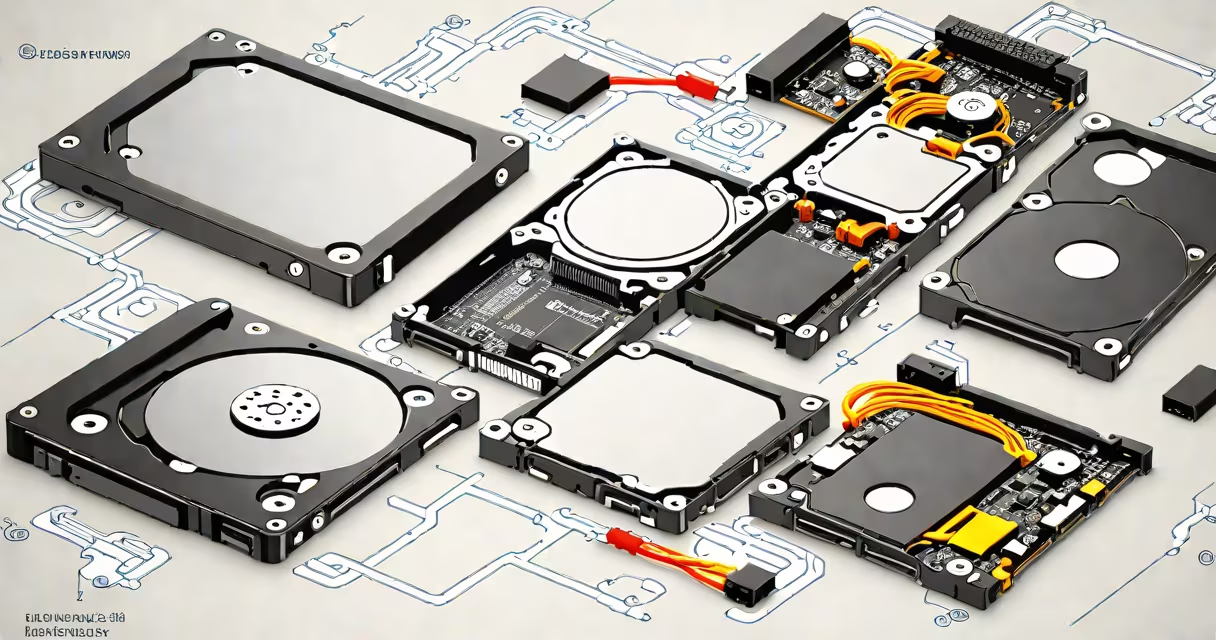
An SSD drive uses flash memory to store data without moving parts, while a hard drive stores data on spinning magnetic platters. SSDs offer faster access, lower power use, and greater resistance to physical shock compared to hard drives.
SSDs operate by storing data in interconnected NAND-based flash memory chips. They have no mechanical components, so they read and write data almost instantly. Hard drives rely on a rotating platter and a moving read/write head. Data access depends on the head's position relative to the correct sector on the spinning disk, which introduces delays.
For example, a typical SATA SSD can achieve sequential read speeds of 500-550 MB/s. A standard 7200 RPM hard drive maxes out around 160 MB/s. This gap means boot times, app launches, and file transfers are noticeably faster on SSDs. According to a 2023 study by Tom's Hardware, systems with SSDs boot 40% faster on average than those with HDDs.
SSD drives use electronic circuits to manage data flow. When you save a file, the controller maps the data to available blocks in the NAND range. This process happens in microseconds. There is no seek time because the data is accessed directly via address lines.
Hard drives depend on precise mechanical alignment. The platter spins at 5400 or 7200 RPM, and the actuator arm moves the head across the surface. The head must wait for the correct sector to rotate under it before reading or writing. This creates latency, especially during random access operations.
When you open a large video editing project, an SSD can load the timeline in under 3 seconds. A hard drive may take 15-20 seconds due to fragmentation and slower seek times. This difference becomes critical in professional workflows where every second counts.
SSDs come in several form factors: M.2 NVMe, M.2 SATA, and 2.5-inch SATA. NVMe drives connect directly to the PCIe bus, offering speeds up to 7,000 MB/s. SATA SSDs are limited to ~600 MB/s but are widely compatible and affordable.
Hard drives are mostly 3.5-inch desktop models or 2.5-inch laptop versions. They're available in capacities from 500 GB to 18 TB. Their primary use is long-term storage, such as archiving photos, backing up servers, or storing media libraries.
| Feature | SSD Drive | Hard Drive |
|---|---|---|
| Read Speed (Sequential) | Up to 7,000 MB/s (NVMe) | Up to 160 MB/s |
| Latency | Less than 0.1 ms | 2-10 ms |
| Power Draw | 2-5 watts | 6-10 watts |
| Weight | 10-50 grams | 300-1,000 grams |
| Shock Resistance | Excellent (no moving parts) | Poor (mechanical components) |
SSDs dominate in laptops, gaming PCs, and high-performance workstations. Hard drives remain ideal for bulk storage, external backups, and budget builds.
Many assume SSDs are always more expensive per gigabyte. While this was true in 2010, prices have dropped dramatically. As of 2024, a 1 TB NVMe SSD costs about $80. A 1 TB 3.5-inch hard drive sells for $40-$50. However, SSDs still cost more per terabyte in raw capacity.
Another misconception is that SSDs wear out quickly. NAND cells degrade over time, but modern SSDs include wear leveling and error correction. Most consumer SSDs are rated for 600 TBW (terabytes written) - enough for years of heavy use. A 2022 report from Backblaze analyzed 100,000 drives and found SSD failure rates were 25% lower than HDDs over five years.
Some users think hard drives are obsolete. That's false. For data retention beyond 10 years, hard drives are more stable. Flash memory degrades slowly over time, even when unused. Magnetic media on hard drives can last decades if stored properly. The Library of Congress recommends using hard drives for long-term archival, not SSDs.
I built a workstation for video editing using a 1 TB NVMe SSD as the system drive and a 4 TB 3.5-inch hard drive for media storage. The OS and applications load in under 8 seconds. After launching Adobe Premiere Pro, the timeline loaded in 2.3 seconds - faster than my previous setup with a SATA SSD.
The hard drive handles 4K footage, audio stems, and rendered exports. I copy files between drives daily. The SSD doesn't slow down even with 500GB of active projects. The hard drive remains quiet and cool, drawing minimal power.
This setup balances speed and capacity. The SSD ensures responsiveness; the hard drive provides space. It's a proven model used by studios and freelance editors alike.
When choosing between ssd drive versus hard drive, match the technology to the task. Use SSDs for operating systems, applications, and frequently accessed files. Use hard drives for archives, backups, and large media libraries. Both serve distinct roles in modern computing.
Understanding the trade-offs in speed, durability, and cost helps avoid missteps. A well-planned storage strategy maximizes performance and longevity.