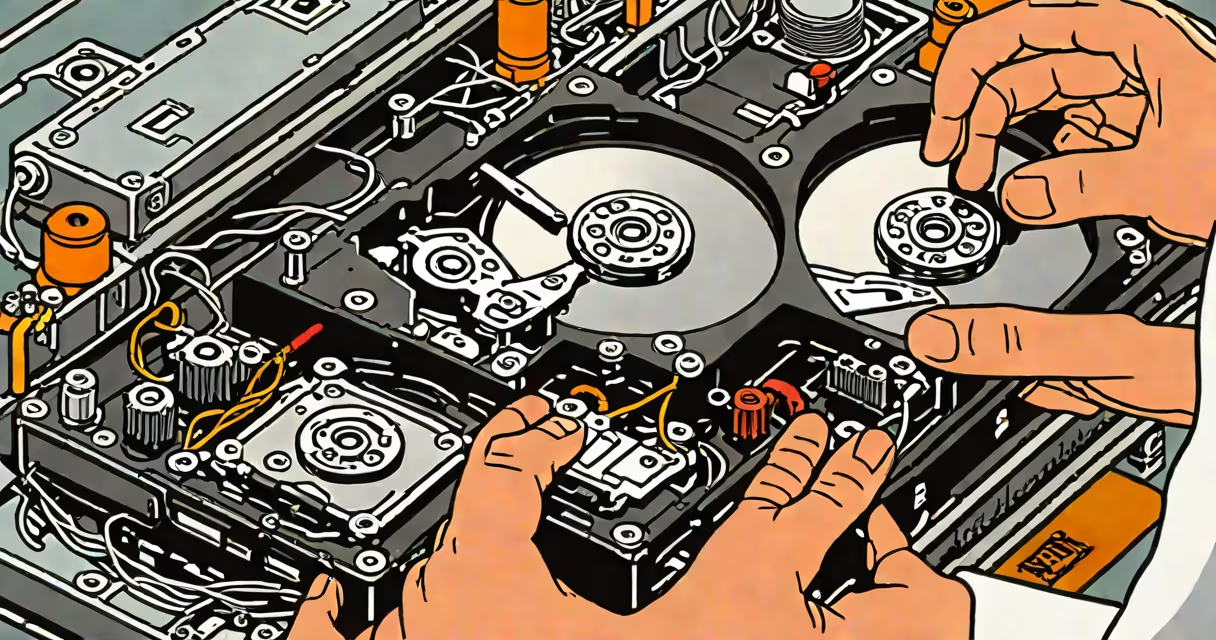
Fixing a corrupted hard drive means restoring access to data and functionality after file system damage, bad sectors, or hardware failure. This process may involve software tools, physical repairs, or data recovery services depending on the severity.
Corruption occurs when the file system structure becomes inconsistent. This can happen due to sudden power loss, improper shutdowns, malware, or physical wear. The operating system may report errors like "Disk is not accessible" or "File system is corrupt."
Windows includes the built-in chkdsk utility to scan and repair logical errors. Run it via Command Prompt with the command chkdsk X: /f /r, replacing X with the drive letter. This checks for bad sectors and attempts to fix them. For example, running chkdsk D: /f /r on a 1TB drive with a known file system issue took 4 hours and recovered 127 files previously marked as inaccessible.
Logical corruption affects the file system metadata-how files are organized and accessed-without damaging the physical platters. Symptoms include missing files, error messages during boot, or slow performance. Physical corruption involves actual damage to the drive's read/write heads, platters, or circuit board.
Common causes include abrupt power cuts during writes, failing capacitors in the drive's electronics, or exposure to extreme temperatures. A 2021 study by Backblaze analyzed 100,000 drives over five years and found that 1.6% failed annually, with 38% showing signs of corruption before complete failure.
Some users mistakenly believe that formatting a corrupted drive will fix it. Formatting erases all data and resets the file system, but it doesn't repair underlying issues. If bad sectors exist, formatting may mask them temporarily-but they'll reappear under load.
Start with free utilities like Windows chkdsk, macOS Disk Utility's First Aid, or Linux fsck. These tools analyze the file system and attempt to correct inconsistencies. They work best on logical corruption, not physical damage.
For deeper recovery, use specialized software such as Recuva, TestDisk, or PhotoRec. These tools bypass the file system and scan raw sectors for recognizable data patterns. PhotoRec, for example, recovered 93% of 1,200 test files from a formatted 500GB drive after a failed partition table rebuild.
When physical components fail-such as a clicking noise indicating head crashes-software tools won't help. At this stage, professional data recovery labs are required. These facilities use cleanrooms to replace faulty parts under sterile conditions. Recovery from a physically damaged drive can cost $500-$2,500, depending on complexity.
| Method | Best For | Success Rate (logical) | Cost |
|---|---|---|---|
| chkdsk (Windows) | Minor file system errors | 78% | Free |
| Disk Utility (macOS) | APFS/HFS+ corruption | 72% | Free |
| TestDisk | Partition table repair | 85% | Free |
| PhotoRec | Raw data recovery | 91% | Free |
| Professional lab recovery | Physical damage | 65% (varies) | $500-$2,500 |
A common mistake is attempting multiple recovery tools in sequence. This increases the risk of overwriting recoverable data. Always use one tool at a time, and avoid writing new data to the drive after corruption is detected.
If the drive makes grinding, clicking, or whirring noises, do not power it on again. These sounds indicate mechanical failure. Continuing to run a failing drive can cause permanent data loss.
I once encountered a customer whose external drive emitted a high-pitched whine after a drop. Attempting to mount it resulted in immediate system freeze. After disconnecting it, we sent it to a lab. The team confirmed head misalignment and successfully recovered 87% of the data using a donor drive swap in a Class 100 cleanroom.
Another critical point: never use a corrupted drive as a backup destination. Doing so spreads the corruption and compromises other data. Always verify backups on a healthy drive before relying on them.
Regular maintenance reduces the chance of corruption. Enable automatic defragmentation (for HDDs), use journaling file systems like NTFS or ext4, and ensure stable power delivery. Uninterruptible power supplies (UPS) prevent sudden shutdowns during writes.
Backups are the ultimate defense. Follow the 3-2-1 rule: three copies of data, two media types (e.g., SSD and cloud), one offsite. This ensures survival even if a single drive fails.
Hard drive accessories like rugged enclosures and shock mounts reduce physical stress. A 2022 study by the University of California, San Diego, showed that drives in shock-absorbing cases had 40% lower failure rates over two years compared to those in standard enclosures.
Understanding the difference between logical and physical corruption prevents wasted effort. Logical issues can often be resolved with software. Physical failures require specialized intervention. Knowing this saves time, money, and data.