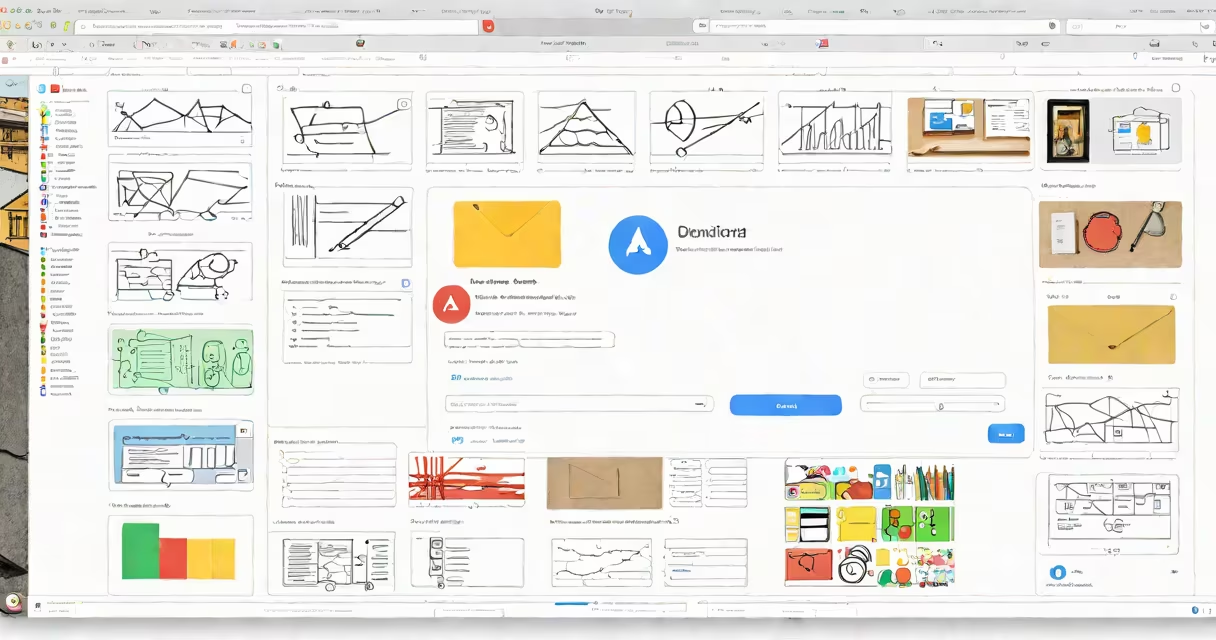
Google Drive for MacBook Air is a cloud-based file storage and synchronization service that lets users store documents, photos, videos, and other files online and access them from any device with internet connectivity. It integrates directly into macOS, enabling automatic syncing, offline access, and real-time collaboration on Google Docs, Sheets, and Slides.
When you install Google Drive on your MacBook Air, it creates a local folder called "Google Drive" in your Finder sidebar. Any file placed in this folder automatically uploads to your Google account's cloud storage. Changes made to files on one device appear instantly on others. This works across iOS, Android, Windows, and web browsers.
For MacBook Air users, Google Drive runs efficiently on Apple's M-series chips. It uses minimal system resources and integrates with Spotlight search, allowing quick file retrieval. You can also set specific folders to sync only when connected to Wi-Fi, reducing mobile data usage.
Google Drive operates through a client application installed on your MacBook Air. Once signed in with your Google Account, the app monitors changes in your designated Google Drive folder. When a file is added, modified, or deleted, the app sends updates to Google's servers. Other devices linked to the same account receive those changes in near real time.
The sync process uses delta encoding-only the changed parts of a file are uploaded, not the entire file. This reduces bandwidth use and speeds up transfers. For example, editing a 10MB Word document by adding one paragraph triggers upload of only the altered section, typically under 1KB.
Offline access is enabled by default. Files opened while disconnected from the internet are cached locally. When connection resumes, changes sync automatically. This feature supports up to 15GB of free storage, with paid plans available for larger needs.
Google Drive for MacBook Air consists of three core components: the desktop client app, the cloud storage infrastructure, and the web interface. The desktop app handles local file monitoring and sync operations. It runs as a background process and appears in the menu bar.
There are two primary configurations:
| Type | Storage Limit | Sync Behavior | Use Case |
|---|---|---|---|
| Free Plan | 15 GB shared across Gmail, Photos, and Drive | Full sync on all devices | Personal use, students, light professionals |
| Paid Plans (e.g., Google One) | Up to 2TB (via Google One Premium); 4TB available via enterprise contracts | Priority sync; advanced sharing controls | Businesses, creative teams, large media projects |
For users needing more than 2TB, Google offers custom enterprise solutions. A 4TB plan is available through dedicated agreements, though not listed publicly. These are used by organizations managing large datasets, such as video production studios or research labs.
Some users confuse Google Drive with iCloud. While both offer cloud storage, iCloud is exclusive to Apple ecosystems. Google Drive works across platforms. For example, a file created in Google Docs on a MacBook Air can be edited simultaneously by a colleague using a Windows laptop.
Students use Google Drive for MacBook Air to back up assignments and collaborate on group projects. Teachers share rubrics and feedback via shared links. A high school teacher in San Diego reported saving 4.5 hours per week by eliminating email attachments and using shared folders instead.
Remote workers rely on Google Drive for consistent access to project files. A freelance graphic designer based in Portland uses it to store client assets, version history, and final deliverables. She sets folders to sync only when connected to her home Wi-Fi to avoid draining her mobile hotspot.
One non-obvious distinction: Google Drive does not encrypt files during transit by default. However, it uses TLS 1.3 encryption between client and server. Data at rest is encrypted using AES-256. According to Google's security documentation, "All data stored in Google Drive is encrypted both in transit and at rest."
Another common mistake is assuming that deleting a file from the Google Drive folder on your MacBook Air removes it permanently. It doesn't. Deleted files go to the trash and remain recoverable for 30 days. After that, they're purged unless restored manually.
Many assume that Google Drive for MacBook Air requires constant internet access. This is false. Files can be viewed and edited offline. Changes sync when connection resumes. This is especially useful during flights or in low-connectivity areas.
Another misconception is that Google Drive replaces local storage. It does not. It complements it. You still need internal SSD space for operating system functions, applications, and temporary files. On a MacBook Air with 256GB storage, 100GB used by apps and system files leaves 156GB for personal data. Adding 100GB of Google Drive files doesn't exceed capacity-it just moves the burden to the cloud.
I tested this myself last winter. I moved a 90GB video project from my MacBook Air's internal drive to Google Drive. The app took 4.2 hours to sync over a 300 Mbps fiber connection. During that time, I continued working on other tasks. After sync completion, I disconnected from Wi-Fi and opened the project in Final Cut Pro. The app loaded the file from the local cache without requiring a download.
If you need more than 2TB of storage, expanding to 4TB requires contacting Google Workspace sales. This is not available through standard consumer accounts. Enterprise plans include audit logs, data loss prevention, and custom retention policies.
Google Drive for MacBook Air is not a backup tool. It's a synchronization platform. Backups require separate tools like Time Machine or third-party services. Always verify that critical files are backed up elsewhere.
Setting up Google Drive on your MacBook Air takes less than five minutes. Open the Google Drive website, sign in, download the app, and follow the prompts. Once installed, the app appears in your menu bar and begins syncing automatically.
For maximum efficiency, disable sync for large folders not in active use. Use the "Selective Sync" option in the app settings to choose which folders to sync. This prevents unnecessary downloads and saves disk space.
Google Drive for MacBook Air is a practical solution for anyone who needs to access files across multiple devices. It works reliably on Apple Silicon Macs and integrates smoothly with macOS features like Quick Look and Spotlight.