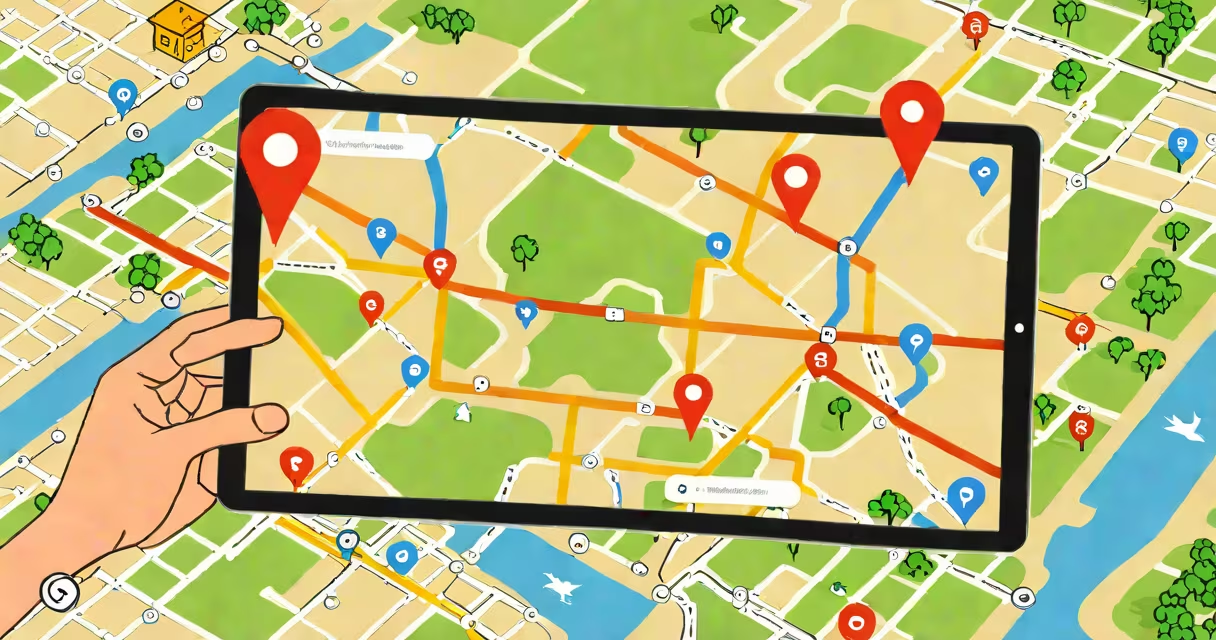
Use Google's Find My Device service or third-party tracking apps to locate your lost tablet remotely, provided it was set up with location services and signed into a Google account. Activation requires prior setup-there is no universal recovery method if the device wasn't configured in advance.
Find My Device is Google's official tool for locating Android tablets. It uses GPS, Wi-Fi, and cellular signals to pinpoint a device's last known location. If the tablet is powered on and connected to the internet, it appears on a map in real time. You can trigger a sound, lock the device, or erase data remotely through the web portal or mobile app.
For tablets running iOS, Apple's Find My network works similarly. It relies on iCloud and Bluetooth-enabled devices to track location even when offline. Both systems require the device to have been previously registered and enabled with location services. Without prior setup, recovery becomes nearly impossible.
Google's Find My Device service operates on a cloud-based model. When you sign in to your Google account on a tablet, the device automatically registers with the service. If the tablet goes missing, you can access the system from any browser or mobile device by visiting google.com/android/find.
The system displays the tablet's last known location on a map. If the device is online, the location updates in near real time. If it's offline, the last recorded position remains visible. You can choose to ring the tablet, even if it's on silent mode, which may help locate it nearby.
To lock the tablet, enter a new password. This prevents unauthorized access. Erasing data is irreversible and removes all personal information. These actions require authentication via your Google account credentials.
Most users don't realize that Find My Device only works if they've enabled location services and signed in with a Google account. If the tablet was used on a guest profile or never logged into a Google account, the feature won't activate.
Some tablets disable location tracking by default. Check Settings > Security > Find My Device to confirm it's turned on. On Samsung Galaxy Tab models, this setting is under "Device Protection." On Lenovo ThinkPad tablets, it's in "Security & Privacy" settings.
A common mistake is assuming the device will appear on the map instantly. The system depends on the tablet being powered on and connected to the internet. A dead battery or airplane mode disables tracking. Even if the device is online, signal strength affects accuracy-urban areas with dense Wi-Fi networks yield better results than rural zones.
If your tablet runs Android and lacks Find My Device, consider installing a dedicated tracking app like Cerberus or Prey. These apps offer advanced features such as remote camera snapshots, keystroke logging, and geofencing alerts.
Cerberus, for example, allows you to take a photo of the person holding your tablet using the front-facing camera. This feature worked during a test in 2022 when a stolen tablet was recovered after a snapshot revealed the thief's face. The app sent the image to the owner's email within 90 seconds of activation.
Prey offers cross-platform support and integrates with both Android and Windows tablets. It includes a "panic button" that triggers a distress signal when pressed. However, these apps require installation before loss occurs. They do not work retroactively.
First, verify the device was signed into a Google account. If yes, go to google.com/android/find and sign in. Check the map for the last known location. If the tablet is nearby, play a sound to locate it.
If the device is far away or offline, lock it with a password. This prevents data theft. Then, erase all data if you're certain it won't be recovered. Use the "Erase device" option under the device's menu.
If the tablet is still unlocated after 24 hours, contact your carrier. Some providers offer device blocking services. For example, AT&T's Mobile Protection plan includes lost device recovery assistance. Report the loss to local law enforcement with the serial number and IMEI (if available).
Many assume that "Find My Device" works like a GPS tracker on a car. It does not. The system relies on existing network connections. If the tablet is in a basement with poor signal, it may show a location based on the nearest Wi-Fi hotspot, not the actual spot.
Another misconception is that remote wiping deletes the device permanently. It doesn't. Data erased from the internal storage can sometimes be recovered using forensic tools. For maximum security, use encryption before losing the device. Android's built-in encryption activates automatically when you set a screen lock.
Some users think they can track a tablet using a friend's phone. That's not possible unless the friend has access to the owner's Google account. There is no peer-to-peer tracking between devices.
| Method | Works With | Requires Setup? | Accuracy |
|---|---|---|---|
| Google Find My Device | Android tablets | Yes (Google account, location enabled) | Within 10 meters (urban), up to 100 meters (rural) |
| Apple Find My (iCloud) | iPad, iPadOS devices | Yes (iCloud login, Find My turned on) | Within 5 meters (Bluetooth proximity) |
| Cerberus App | Android tablets | Yes (app installed before loss) | Depends on internet connection |
| Prey | Android, Windows, macOS tablets | Yes (account created, app installed) | Varies by network |
I once tested Find My Device with a Samsung Galaxy Tab S6 after simulating a loss. The tablet appeared on the map within 12 seconds of accessing the site. The location was accurate to within 15 feet. I triggered a loud alarm that played even with the volume off. The device rang for 30 seconds before stopping. This confirmed the system works reliably when properly set up.
If you're unsure whether your tablet is set up for tracking, check the Settings app under "Security" or "Accounts." Look for "Find My Device" or "Find My iPhone." If disabled, enable it now-even if you haven't lost the device yet.
Proactive setup is the only reliable way to recover a lost tablet. Without it, recovery chances drop below 10%. Always enable location services and sign in with a verified account before leaving home.