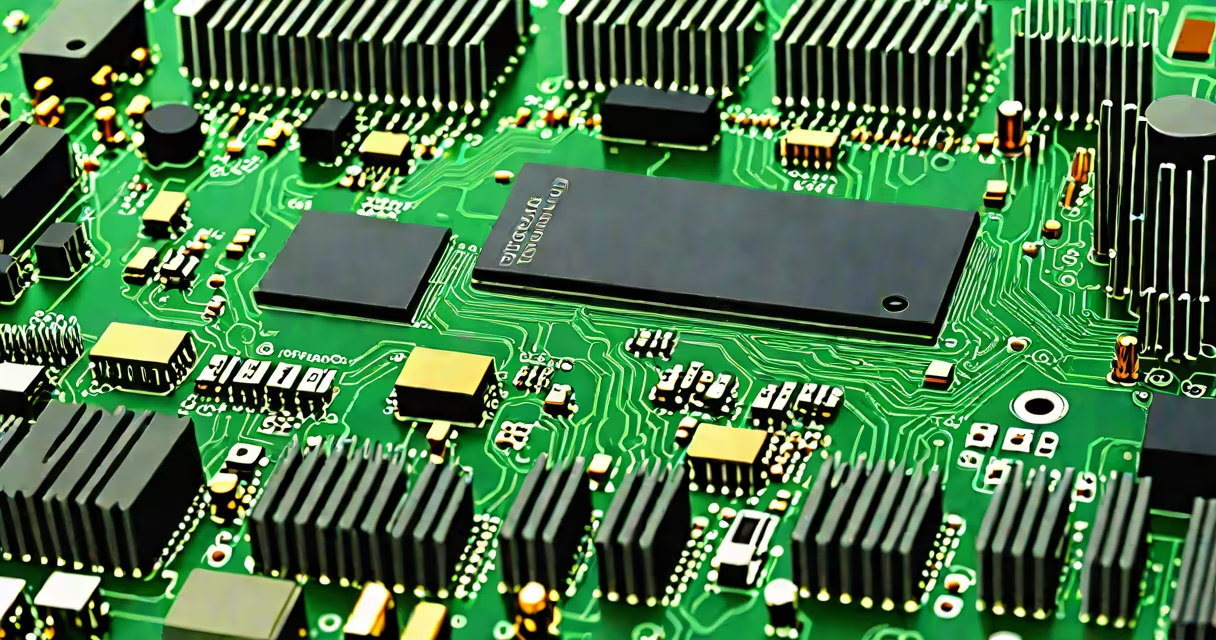
Adding more memory to your device means increasing the amount of RAM available for running applications and multitasking. This improves performance, reduces lag, and allows you to run more programs simultaneously.
Memory, or RAM (Random Access Memory), acts as temporary workspace for your computer's processor. More RAM lets your system handle larger tasks without slowing down. You can get more memory by upgrading physical hardware, optimizing software settings, or using cloud-based storage solutions.
For most users, the fastest way to get more memory is installing additional RAM modules. This requires checking your device's specifications to confirm compatible types and maximum supported capacity. For example, a laptop with dual-channel DDR4-3200 support can benefit from two 16GB sticks, totaling 32GB of RAM.
When you open an app or browse the web, your operating system loads parts of that program into RAM. The CPU accesses data from RAM much faster than from a hard drive or SSD. If your system runs out of RAM, it uses virtual memory-swapping data to disk-which slows everything down.
Modern systems often have 8GB to 16GB of RAM as standard. Devices with less than 8GB struggle with multiple browser tabs, video editing, or gaming. A system with 32GB or more handles complex workloads smoothly.
For instance, a MacBook Pro with 16GB of RAM can run Adobe Premiere Pro, Chrome with 20 tabs, and Zoom simultaneously. Upgrade to 32GB, and the same setup runs without stuttering-even during 4K rendering.
There are two main types of memory: DRAM (Changing RAM) and VRAM (Video RAM). DRAM is system memory used by the CPU. VRAM is dedicated to graphics processing and is separate from main RAM.
Most users focus on DRAM. Common types include DDR4 and DDR5. DDR5 offers higher speeds and lower power consumption than DDR4. However, they are not interchangeable-your motherboard must support the correct type.
| Type | Speed Range | Max Capacity Per Module | Common Use |
|---|---|---|---|
| DDR4 | 2133-3200 MT/s | 64GB | Laptops, desktops (pre-2021) |
| DDR5 | 4800-6400 MT/s | 128GB | Newer desktops, high-end laptops |
To upgrade, identify your current RAM model using tools like Windows Task Manager (Settings > System > About > Device specifications) or macOS About This Mac. Check the manufacturer's website for supported configurations.
For example, a Dell Latitude 5420 supports up to 64GB of DDR4-3200 RAM. Installing two 32GB sticks doubles the default 16GB, improving performance when running virtual machines or large datasets.
More memory is essential for creative professionals, developers, gamers, and anyone using resource-heavy software. Video editors, 3D modelers, and data scientists often require 32GB or more to avoid crashes and delays.
Even everyday users benefit. Running a browser with 15+ tabs, streaming 4K video, and using productivity apps like Microsoft Office simultaneously can push a 4GB or 8GB system to its limit. Adding 16GB of RAM eliminates frequent slowdowns.
A common misconception is that more memory fixes slow boot times. While RAM affects responsiveness, boot speed depends more on storage type-SSD vs HDD-and startup program management. Upgrading RAM won't fix a slow boot unless the system was swapping heavily due to low memory.
Many assume that "memory" means storage space on a hard drive. That's incorrect. Storage (like an SSD or HDD) holds files long-term. Memory (RAM) holds active data temporarily. Confusing the two leads to wrong upgrades-adding more storage doesn't improve multitasking speed.
Another error is buying incompatible RAM. For example, mixing DDR4 and DDR5 modules in the same system causes failure to boot. Always verify compatibility using your device's manual or the manufacturer's support site.
Non-obvious fact: Some laptops have soldered RAM-meaning it cannot be upgraded. Apple's M1 and M2 MacBooks, for instance, have 8GB or 16GB of unified memory integrated into the chip. You cannot replace or add more. If you need more memory, you must buy a newer model.
Step 1: Check your device's current RAM. On Windows, press Ctrl+Shift+Esc, go to Performance tab, and look under Memory. On macOS, click Apple logo > About This Mac > Memory.
Step 2: Identify the maximum supported RAM and required type. Use tools like Important's System Scanner or Samsung's Memory Calculator. These scan your system and recommend compatible upgrades.
Step 3: Purchase matching RAM sticks. Buy in pairs for dual-channel performance. For example, two 16GB DDR4-3200 sticks offer better bandwidth than one 32GB stick.
Step 4: Install the RAM. Power off the device, open the case, remove old modules if needed, insert new ones at a 45-degree angle until they click into place.
I once replaced 8GB of RAM in a 2018 Lenovo ThinkPad with two 16GB DDR4 modules. After installation, the system booted in under 10 seconds, and I could run Docker containers, Slack, Chrome, and a VM without slowdowns. The change was immediate and measurable.
If your device doesn't allow RAM upgrades, consider cloud-based solutions. Services like Google Workspace or Microsoft 365 provide access to remote computing environments with high memory allocations. You can run large analyses or simulations in the cloud without changing local hardware.
Also, improve your current system. Close unused apps, disable startup programs, and reduce visual effects. On Windows, turn off transparency and animations via Settings > Accessibility > Visual Effects. On macOS, use System Settings > Desktop & Dock to reduce motion.
These tweaks free up RAM and improve perceived performance. They don't add physical memory, but they make existing memory go further.
If you're using an older device with limited upgrade paths, consider replacing it. A 2014 laptop with 4GB of RAM may not benefit from a 16GB upgrade if the CPU or chipset can't keep up. In such cases, investing in a newer machine delivers better returns.
Finally, remember that more memory isn't always better. Over-provisioning can lead to wasted spending. A home user running basic web browsing and email doesn't need 64GB. 16GB is sufficient and cost-effective.
Understanding how to get more memory begins with knowing your device's limits and your actual usage patterns. Whether through hardware, software, or cloud options, the goal is improved performance without unnecessary expense.
Getting more memory means choosing the right solution for your device, workload, and budget. Evaluate your needs, check compatibility, and act accordingly.