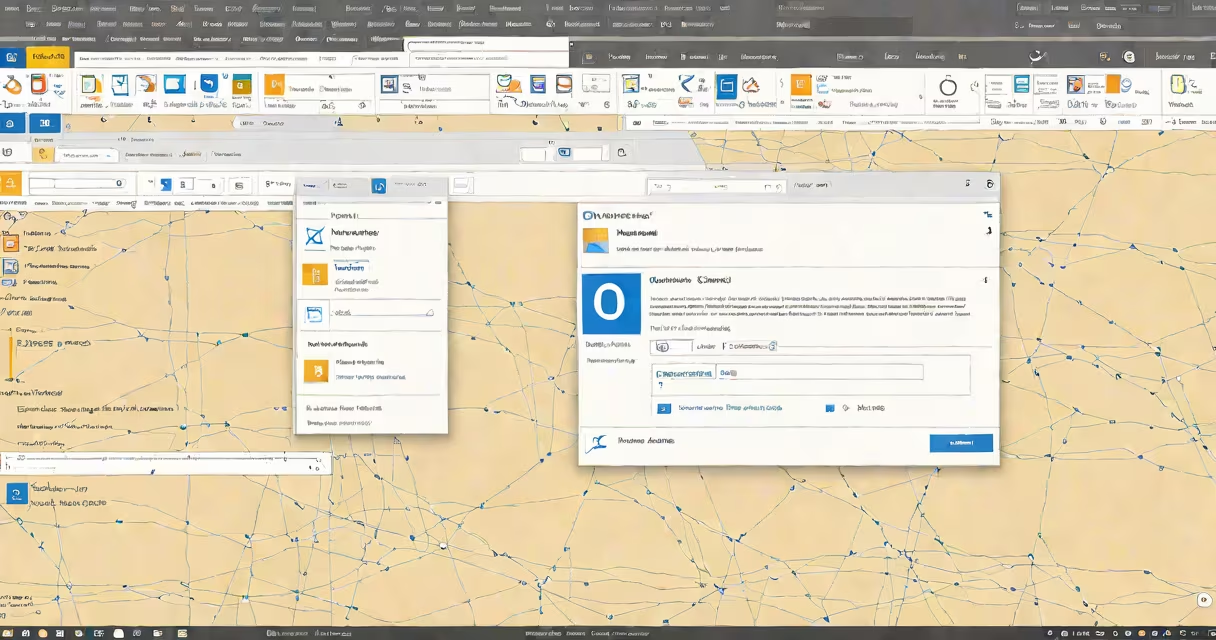
Adding a signature line in Outlook inserts a personalized block of text-name, title, contact details-automatically at the end of every outgoing email. This feature works across desktop, web, and mobile versions, though setup steps differ slightly.
Outlook uses a signature line to standardize professional communication. It appears below the message body unless overridden. The line can include plain text, hyperlinks, and embedded images. Most users set one default signature for personal emails and another for work.
For example, a marketing manager might have a signature line that says:
Janet Liu
Marketing Director | TechNova Inc.
Email: [email protected] | Phone: (555) 123-4567
LinkedIn: linkedin.com/in/janetliu
www.technova.com
Each element-text, spacing, font size-is customizable. The process begins in the Outlook client settings, not in the email itself.
When you send an email in Outlook, the software checks your default signature setting. If enabled, it appends the selected signature block to the end of the message. This happens automatically during composition and doesn't require manual insertion.
Signatures are stored separately from messages. They're saved in a file located at C:\Users\[Username]\AppData\Roaming\Microsoft\Signatures\ on Windows. Files are named default.htm or signature.txt depending on format. You can edit these directly, but doing so risks breaking formatting.
Outlook applies signatures based on account and message type. For example, you can assign different signatures to internal versus external emails. This behavior is controlled through the "Message" tab in the Signature Settings dialog.
A signature line typically contains four core elements: name, job title, contact information, and optional branding. Some users add social media links or a disclaimer.
There are two main types of signature lines:
| Type | Format | Use Case | Example |
|---|---|---|---|
| Plain Text | Simple, no formatting | Internal emails, quick replies | John Doe IT Support [email protected] |
| Formatted HTML | Rich text, fonts, colors, images | External communications, sales outreach | Full name in bold, company logo, clickable phone/email |
HTML signatures support embedded images, such as a company logo or QR code. These appear in the signature only if the recipient's email client allows images. Some corporate policies disable image loading by default.
Outlook allows multiple signature blocks per profile. You can create one for "Personal," another for "Work," and a third for "Sales." Each can be assigned to specific accounts or message types.
Businesses use signature lines to maintain brand consistency. A 2023 survey by HubSpot found that 68% of professionals expect a consistent signature across all company emails. Inconsistent signatures reduce perceived credibility.
Legal departments often require disclaimers in every email. A standard clause like "This message is confidential and intended solely for the addressee" is added via the signature line. These disclaimers are legally binding in many jurisdictions.
For example, a law firm might enforce a signature line that includes:
Without a standardized signature, clients may misidentify the sender or overlook critical legal notices.
Many users assume the signature line appears in sent mail only. That's incorrect. It appears in both draft and sent messages. If you see a missing line, check the "Signature" settings, not the message body.
Another misconception: editing the signature in the message window changes the global setting. It does not. Changes made in the compose window are temporary. To update the default, go to File > Options > Mail > Signatures.
Some users report that their signature disappears after upgrading Outlook. This happens when the default signature file is overwritten during installation. Rebuilding the signature from scratch restores it. Always back up your signature files before major updates.
A non-obvious fix: if your signature shows as garbled text, it's likely due to encoding mismatch. Outlook saves signatures in UTF-8 by default. If the file was opened in a legacy editor (like Notepad), it may have been saved in ANSI, causing symbols to render incorrectly.
To add a signature line in Outlook desktop (Windows):
After saving, test by composing a new email. The signature should appear at the bottom.
I once set up a signature for a client using a 12-point serif font and a horizontal rule. The rule appeared as a solid line in Outlook but rendered as a dotted line in Gmail. The issue was caused by using a Unicode character (U+2500) instead of a proper HTML `
Outlook Web App (OWA) handles signatures differently. You cannot access the full signature editor through the browser. Instead, go to how to add signature in outlook webmail to configure settings via the web interface.
Mobile apps (iOS and Android) sync signatures from the server. If you change the signature on desktop, it appears on mobile after syncing. But mobile clients don't support rich formatting. Images and colored text may not display correctly.
For advanced features like changing fields (e.g., auto-updating date or location), use Outlook's built-in tools. These fields are inserted via the "Insert" menu in the signature editor and update automatically when the email is sent.
Keep signature lines under 150 characters for mobile readability. Long lines cause truncation in preview windows.
Use a single line break between elements. Avoid multiple blank lines. Too much whitespace makes the signature look unprofessional.
Test your signature across devices. Open the sent email on a smartphone and verify layout. Some clients collapse long lines into a single row.
For teams, use a centralized template. Export the signature as a .htm file and distribute it to all employees. This ensures compliance and uniformity.
Finally, review your signature quarterly. Update contact details, remove outdated roles, and refresh branding. A stale signature harms trust.
Understanding how to add a signature line in Outlook improves professionalism and efficiency. It's not just a formality-it's a tool for clear, consistent communication.